How to Create Email Templates in Gmail (2026)
How to create email templates in Gmail: enable it, build your library, automate with filters, and copy 20 templates for support, sales, recruiting, and more.

If you've written the same sales follow-up, support reply, or scheduling email three times this week, Gmail already has a solution for you. It's just hidden.
Gmail's Templates feature (you might know it by its old name, Canned Responses) lets you save any email as a reusable draft and insert it with two clicks. Most people don't know it exists because Google buried it inside an Advanced settings menu that's easy to miss. Once you enable it, you can create templates, auto-send them with filters, and build a system that handles the repetitive stuff so you can focus on the emails that actually need your attention. If you're interested in going further than static snippets, Inbox Zero handles the more complex layer: context-aware drafting, inbox triage, and automated replies.
This guide covers everything: how to enable templates, create and manage them, automate them with filters, write ones that don't sound robotic, and know when to reach for something smarter. We've included 20 ready-to-use templates you can copy today.
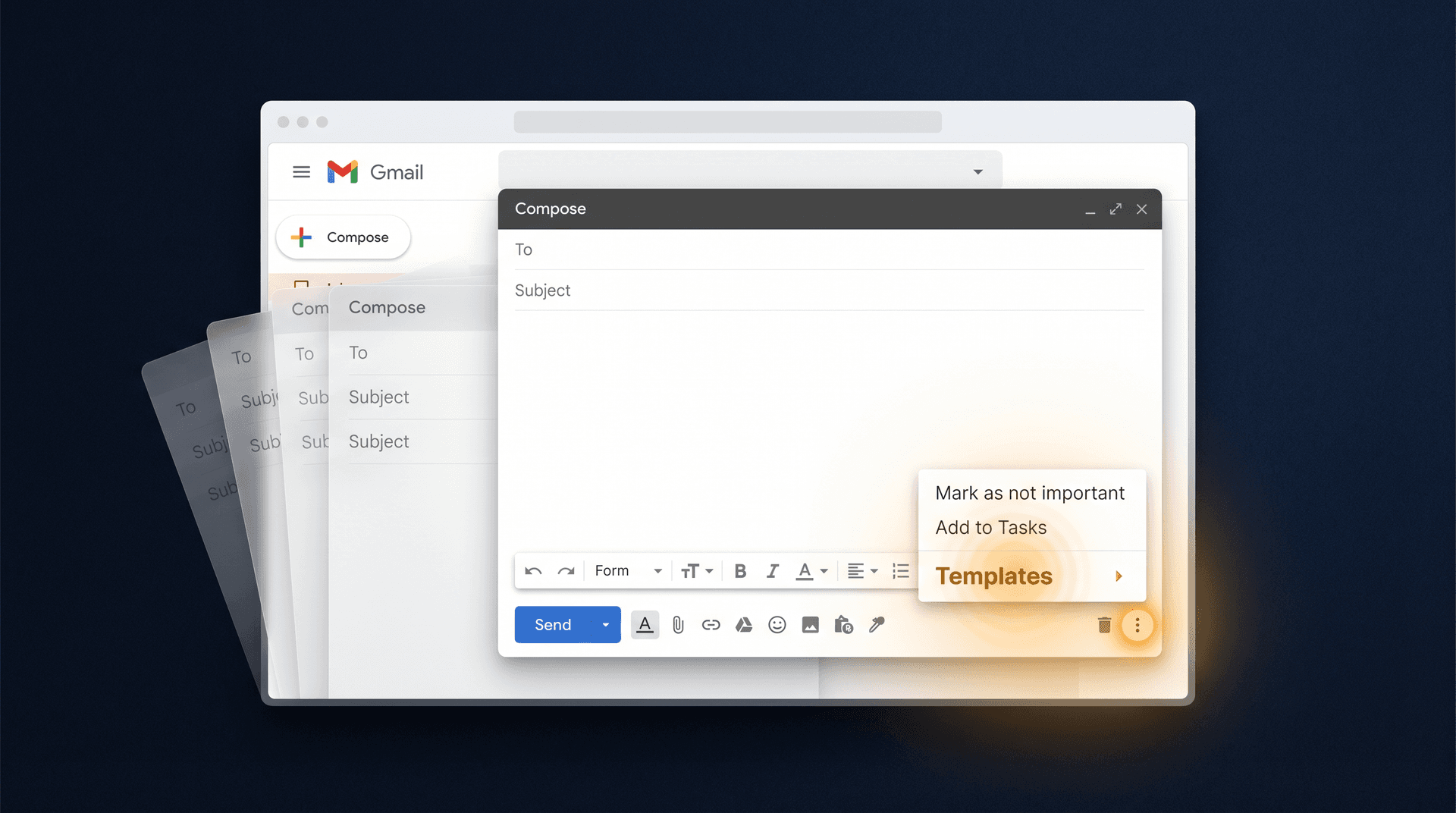
What Are Gmail Templates and Canned Responses?
Gmail Templates are reusable email drafts. You write a message once, save it, and insert it whenever you need that same reply again.
If you searched for "canned responses" and ended up here, you're in the right place. Canned Responses is the old name for this feature. Gmail's current help documentation calls it Templates now, but the functionality is exactly the same. Both names refer to the same built-in Gmail feature.
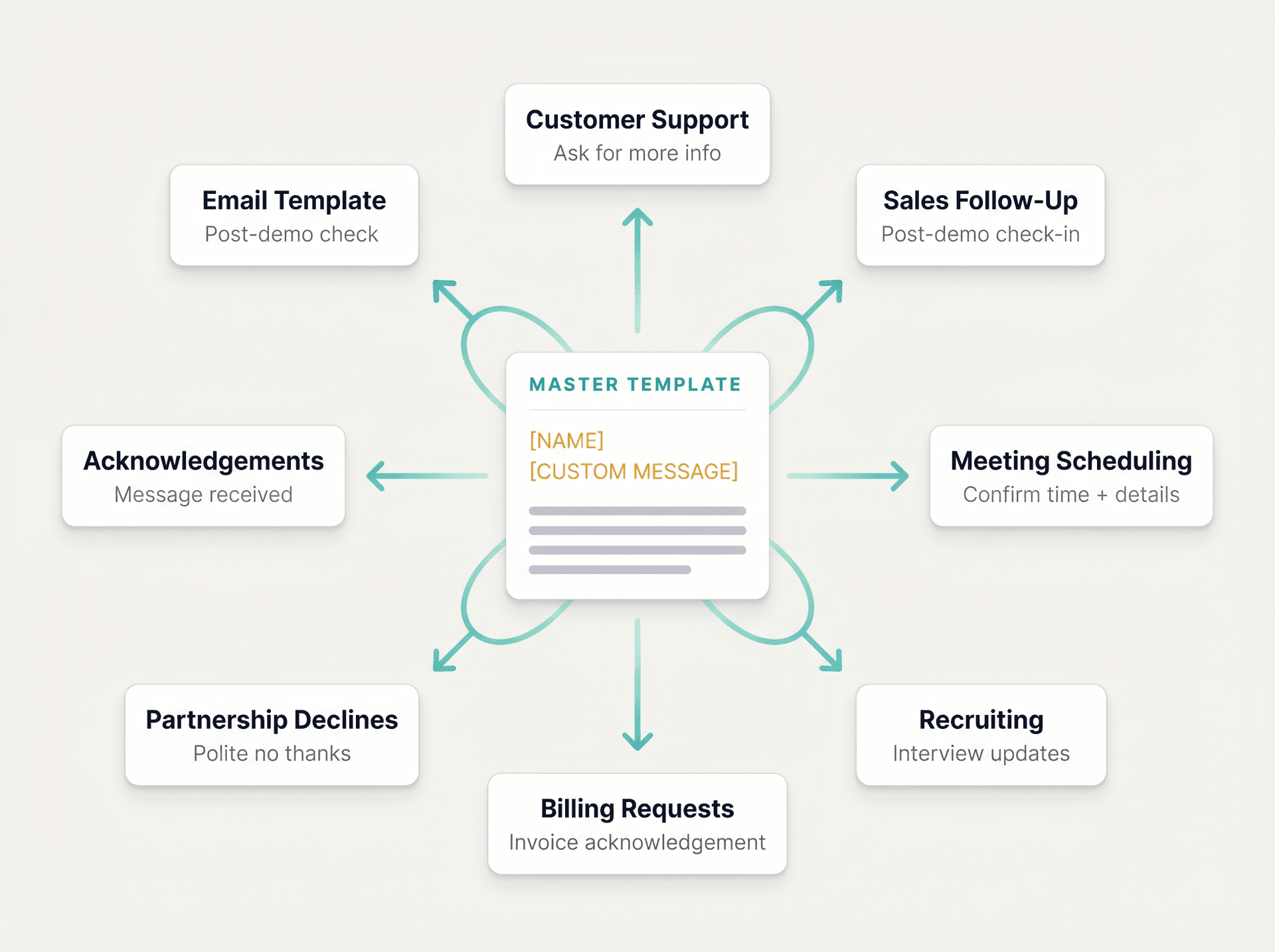
Templates work best for messages where the core content stays stable:
-
Customer support replies asking for more information
-
Sales follow-ups after demos or introductions
-
Meeting scheduling and rescheduling
-
Recruiting updates and candidate rejections
-
Invoice and billing request responses
-
Polite partnership or vendor declines
-
"We received your message" acknowledgements
They're not the right tool for every reply. If an email requires real judgment, a complex reading of the thread, or sensitive handling (angry customers, legal matters, enterprise negotiations), templates can make things worse. We'll cover that in more detail in the limits section below. Templates fit into a complete email management system that handles predictable messages with speed, and reserves your judgment for the ones that genuinely need it.
How to Enable Gmail Templates (It's Off by Default)
Gmail's Templates feature is off by default. You won't see it in your compose window until you flip this switch.
-
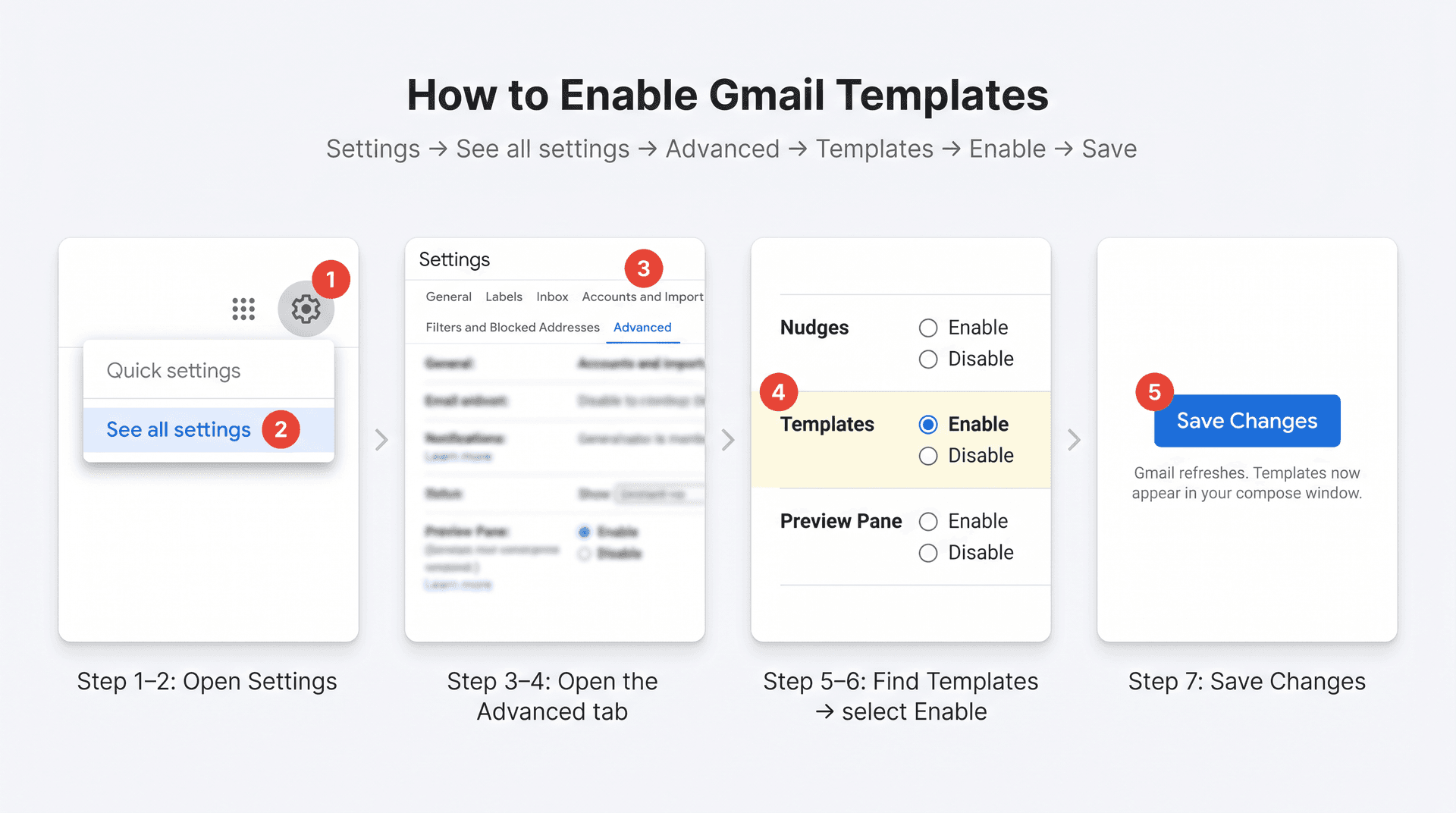
Open Gmail on your computer (not the mobile app)
-
Click the gear icon in the top-right corner
-
Click See all settings
-
Open the Advanced tab
-
Find the Templates row
-
Select Enable
-
Scroll down and click Save Changes
Gmail will refresh. After that, the Templates option appears in your compose window's three-dot menu. Google's official template documentation places this setting under Settings → See all settings → Advanced → Templates → Enable → Save Changes.
How to Create Your First Gmail Template
Once Templates is enabled, you're ready to save your first reusable message.
-
Click Compose
-
Write your email body (add a subject line if you want one)
-
Leave the To field blank (templates are about content, not recipients)
-
Click the three dots in the bottom-right of the compose window
-
Hover over Templates
-
Hover over Save draft as template
-
Click Save as new template
-
Give the template a descriptive name
-
Click Save
Google's documentation confirms this process: compose, open More options, go to Templates, then save the draft as a new template.
How to Name Gmail Templates So You Can Find Them
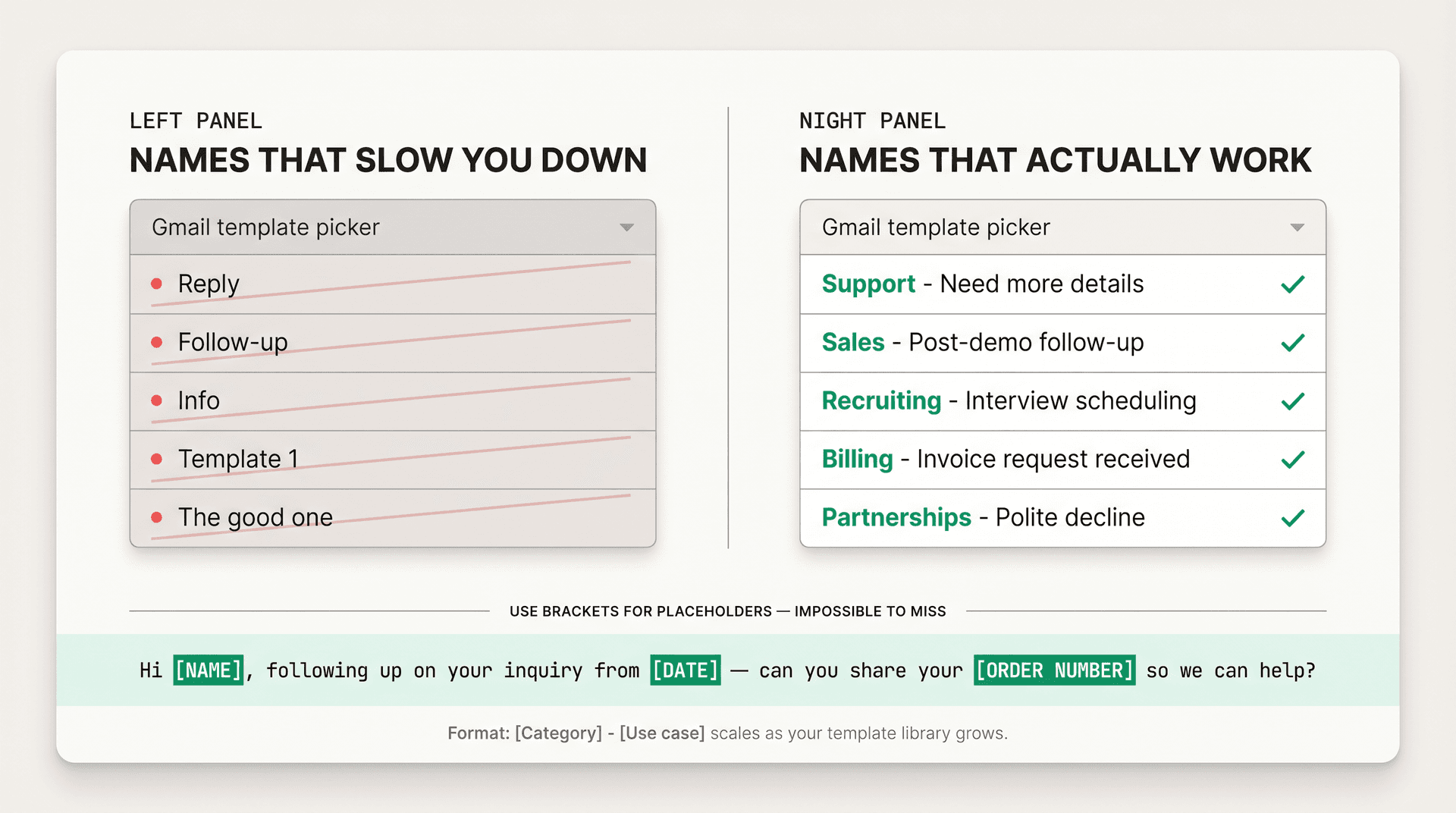
The template name is your future self's only guide. A name like "Reply" or "Template 1" is useless when you've got 20 templates and need one fast.
Names to avoid:
-
Reply
-
Follow-up
-
Info
-
Template 1
-
The good one
Names that actually help:
-
Support - Need more details
-
Sales - Post-demo follow-up
-
Recruiting - Interview scheduling
-
Billing - Invoice request received
-
Partnerships - Polite decline
-
Customer Success - Renewal next steps
The format [Category] - [Use case] scales well as your library grows.
How to Use Placeholders in Gmail Templates
Put placeholders in brackets so they're impossible to miss before you hit Send:
-
[NAME] -
[COMPANY] -
[DATE] -
[ORDER NUMBER] -
[NEXT STEP] -
[LINK] -
[CUSTOM SENTENCE]
Subtle placeholders like {name} or <name> are easy to overlook. Brackets stand out.
Avoid Duplicate Signatures in Gmail Templates
If Gmail automatically adds your email signature, don't put the same signature inside your templates too. You'll end up with duplicate signatures. Let Gmail handle the default sign-off and keep your template body focused on the reusable message. Building email productivity habits that compound over time starts with small decisions like this one.
How to Insert, Edit, and Delete Gmail Templates
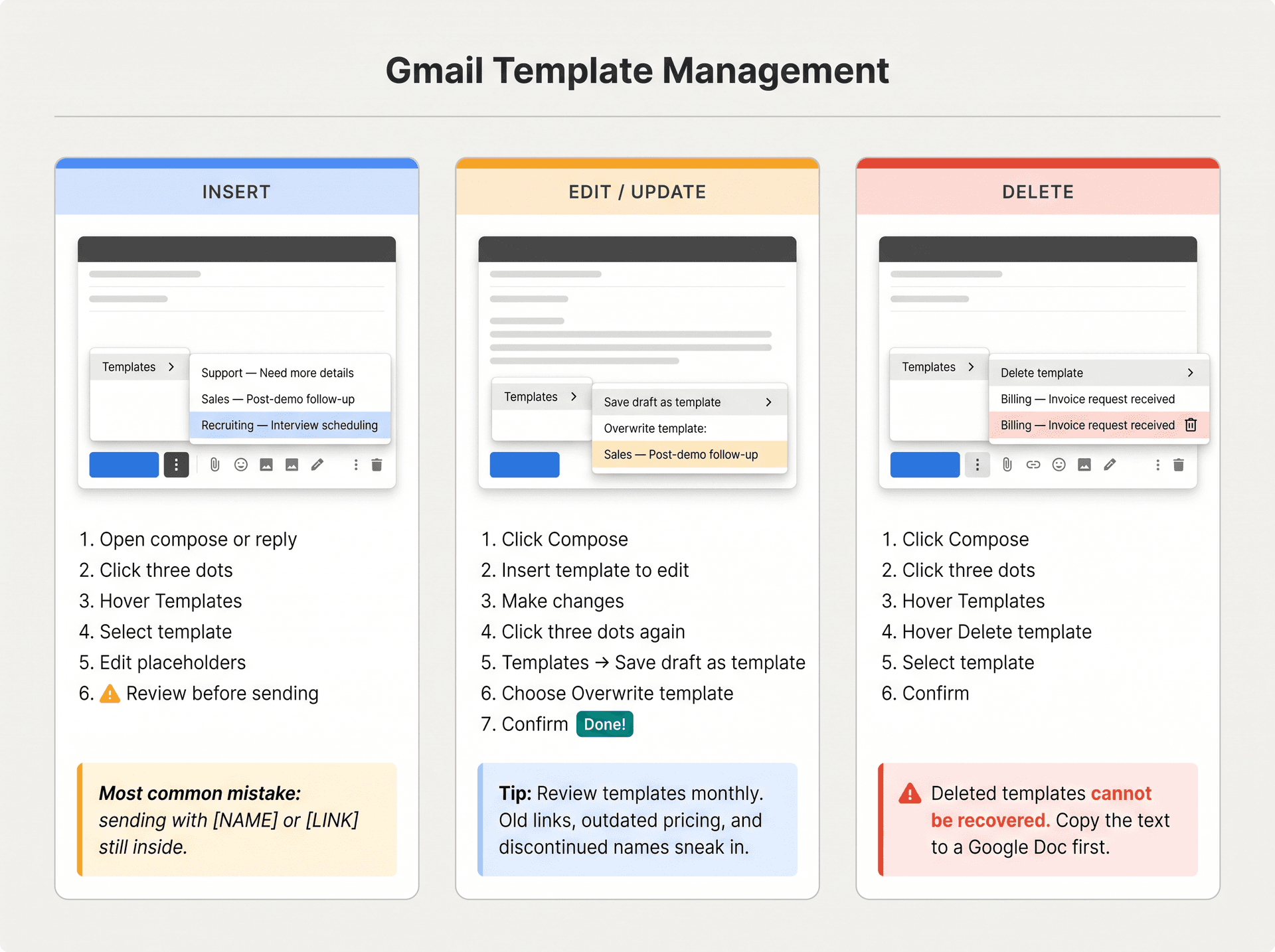
How to Insert a Gmail Template Into a Reply
-
Open a new compose window or reply to an email
-
Click the three dots in the compose window
-
Hover over Templates
-
Select the template you want
-
Edit any placeholders
-
Review the full message before sending
Don't skip that last review step. The most common template mistake is sending an email with [NAME] or [LINK] still in it.
How to Edit and Update a Gmail Template
Templates get stale. Old links, outdated pricing, discontinued product names. It happens to everyone. Plan to review your most-used ones every month or quarter. Good email management tips include scheduling regular audits of anything you send repeatedly, and templates are near the top of that list.
To update a template:
-
Click Compose
-
Insert the template you want to edit (three dots → Templates → select it)
-
Make your changes
-
Click the three dots again
-
Hover over Templates → Save draft as template
-
Under Overwrite template, select the template you want to replace
-
Confirm
Google's documentation describes this process as composing a changed draft, then saving it back over the existing template.
How to Delete a Gmail Template (And What You Lose)
-
Click Compose
-
Click the three dots
-
Hover over Templates
-
Hover over Delete template
-
Select the template to delete
-
Confirm
Important: Google explicitly warns that deleted templates cannot be recovered. Before deleting anything important, copy the text into a Google Doc or a shared knowledge base first.
How to Auto-Send Gmail Templates Using Filters
This is where templates get genuinely powerful. Gmail lets you create a filter that automatically sends a template whenever an incoming email meets specific criteria.
How to Set Up a Filter-Based Auto-Reply in Gmail
-
Open Gmail on your computer
-
Click the search options icon in the Gmail search bar (the small arrow or filter icon on the right side)
-
Enter your filter criteria (more on safe criteria below)
-
Click Create filter
-
Check Send template
-
Choose the template you want to send
-
Optionally apply a label
-
Click Create filter
Google's filter documentation explains that filters can manage incoming mail with a range of actions, and the Templates help page confirms Send template is available as a filter action.
3 Gmail Filter Examples for Template Auto-Replies
Contact form acknowledgement:
subject:"New website inquiry"
Send template: Contact form - Received
Invoice and billing requests:
subject:(invoice OR receipt) to:billing@yourcompany.com
Send template: Billing - Invoice request received
Support requests from a form tool:
from:(forms-receipts-noreply@google.com OR notifications@typeform.com)
Send template: Support - Request received
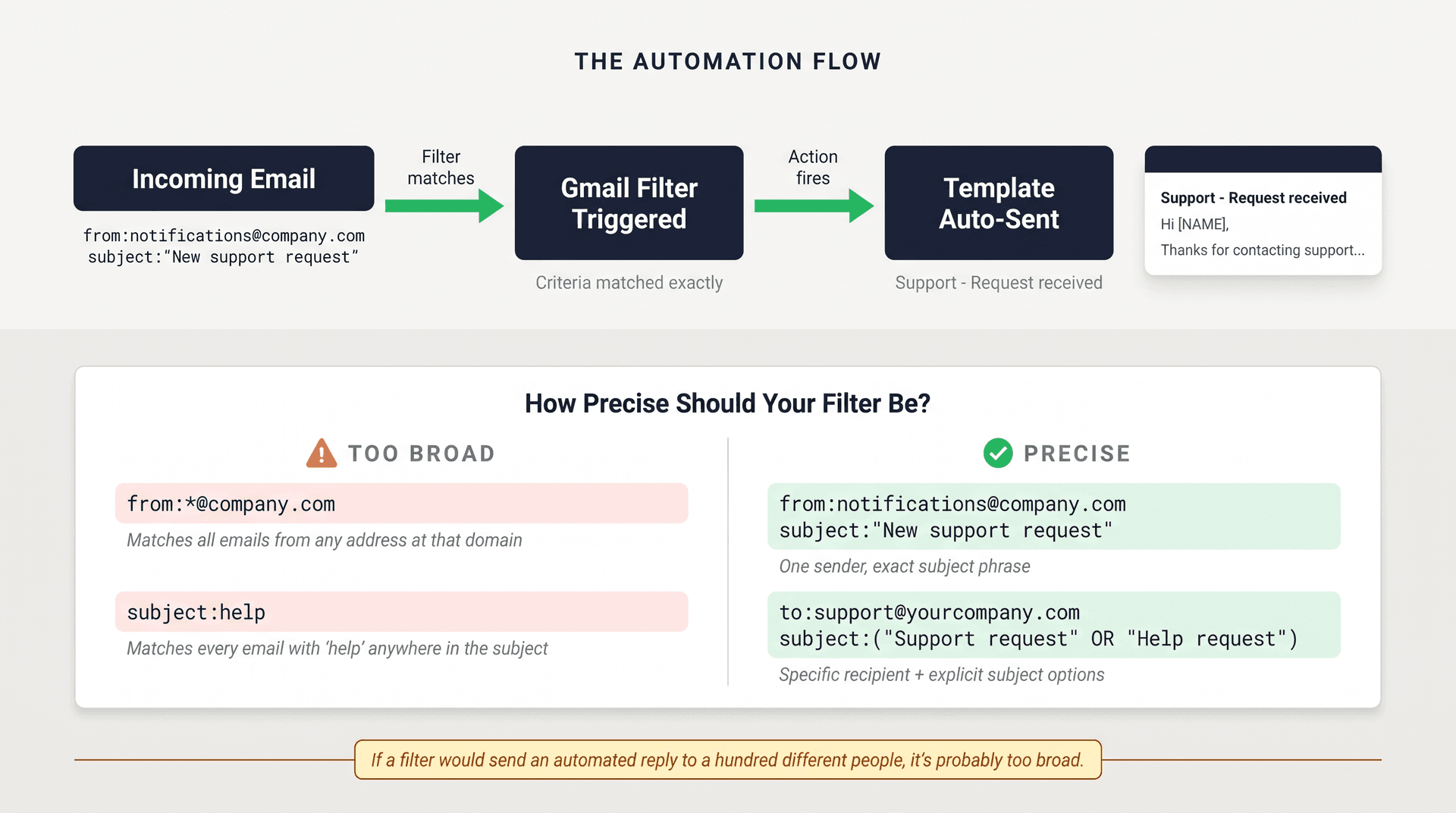
How to Write Safe Gmail Filter Criteria
Automated replies can create real problems if your filter is too broad. A filter that matches too many emails sends the wrong template to the wrong person.
Too broad (don't use):
from:*@company.com
Better:
from:notifications@company.com subject:"New support request"
Too broad:
subject:help
Better:
to:support@yourcompany.com subject:("Support request" OR "Help request")
The safest practice: run the filter as a search first. Gmail's search documentation explains that you can use search results to set up a filter. If the search results are exactly the emails you want to target, then turn the search into a filter. Pair this with a solid understanding of how Gmail labels and folders work to keep your inbox organized before any template ever fires.
Rule of thumb: If a filter would send an automated reply to a hundred different people, it's probably too broad. Narrow it until the match set is obvious and predictable.
Also worth noting: Gmail's filter documentation says that forwarding filters apply only to new messages, and replies are filtered only if they also meet the search criteria. So a reply won't trigger your filter unless the reply also matches the criteria you set. If Gmail filters aren't behaving as expected, that guide covers the most common reasons why, from conflicting rules to spam folder interference.
Gmail Templates vs. Vacation Responder and Mail Merge
Gmail has several features that look similar but solve different problems. Here's where each one fits.
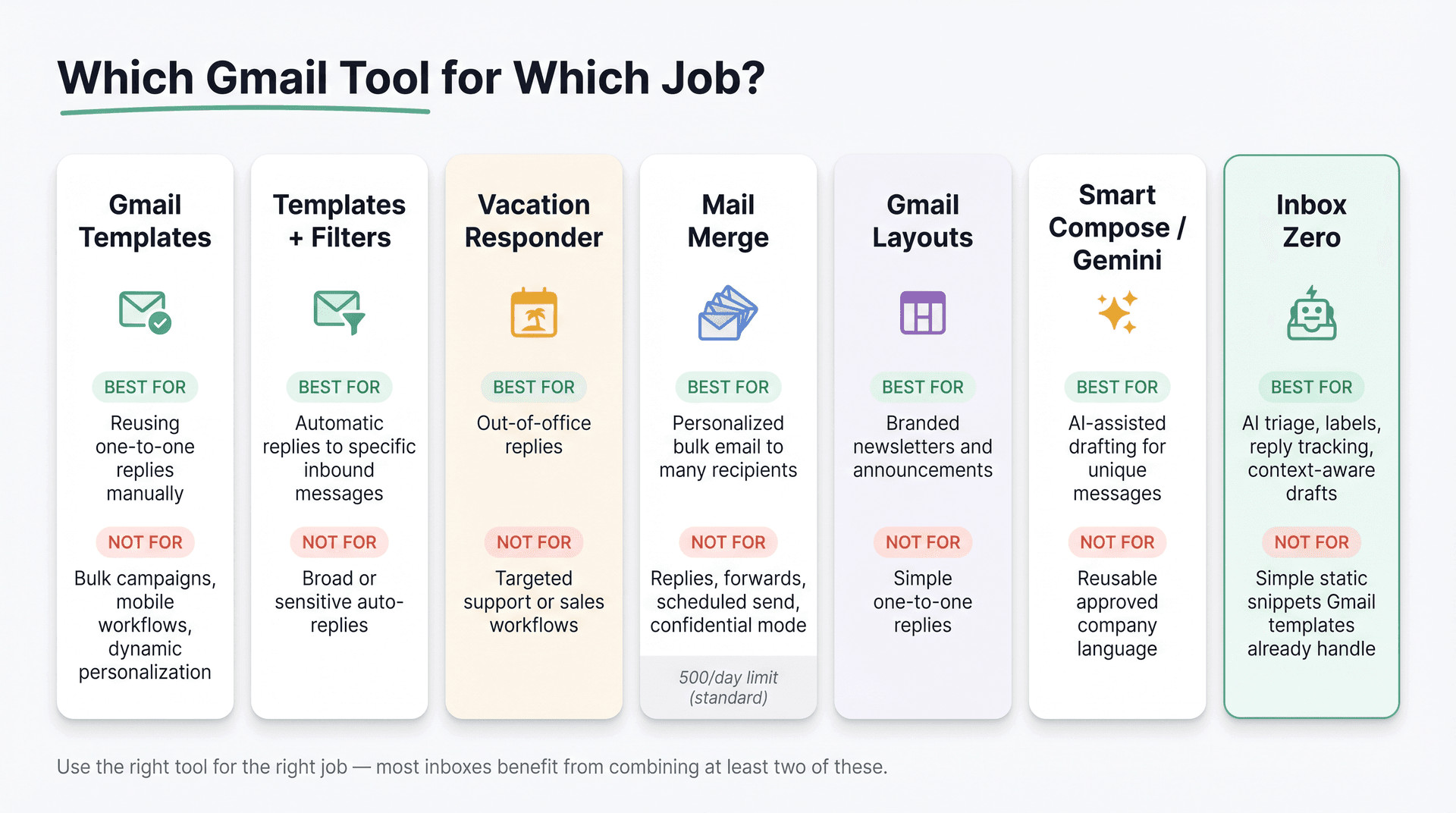
| Tool | Best for | Not best for |
|---|---|---|
| Gmail Templates | Reusing one-to-one replies manually | Bulk campaigns, mobile workflows, dynamic personalization |
| Templates + Filters | Automatic replies to specific inbound messages | Broad or sensitive auto-replies |
| Vacation Responder | Out-of-office replies | Targeted support or sales workflows |
| Mail Merge | Personalized bulk email to many recipients | Replies, forwards, scheduled send, confidential mode |
| Gmail Layouts | Branded newsletters and announcements | Simple one-to-one replies |
| Smart Compose / Gemini | AI-assisted drafting for unique messages | Reusable approved company language |
| Inbox Zero | AI triage, labels, reply tracking, context-aware drafts | Simple static snippets Gmail templates already handle |
A few notes on the tools most commonly confused with templates:
Vacation Responder sends a single broad out-of-office reply. Google's vacation responder documentation explains it usually sends once to each sender, may resend after four days if you edit it, and generally doesn't reply to spam or mailing lists. That makes it great for "I'm out until Thursday" but not for targeted customer workflows.
Mail Merge is for sending the same email (personalized with merge tags) to many recipients at once. Google's Mail Merge documentation notes that standard Gmail accounts can send up to 500 messages per day, while eligible Workspace accounts can reach 2,000. It also can't be used with replies, forwards, scheduled send, or confidential mode, and merge tags don't work in subject lines.
Gemini in Gmail drafts and refines individual emails based on prompts, and Google announced contextual Smart Replies with Gemini in Gmail in September 2024, with broader Gemini proofreading rollout announced in February 2026. Smart Compose offers writing suggestions as you type. Neither replaces templates for approved, consistent company language. For a deeper look at what Gmail's AI capabilities actually include today, that guide covers everything from Smart Compose to Gemini's current feature set.
Gmail Template Limits Most Tutorials Don't Mention
Gmail Templates are genuinely useful, but they have real ceilings. Know these before you build your whole reply workflow around them.
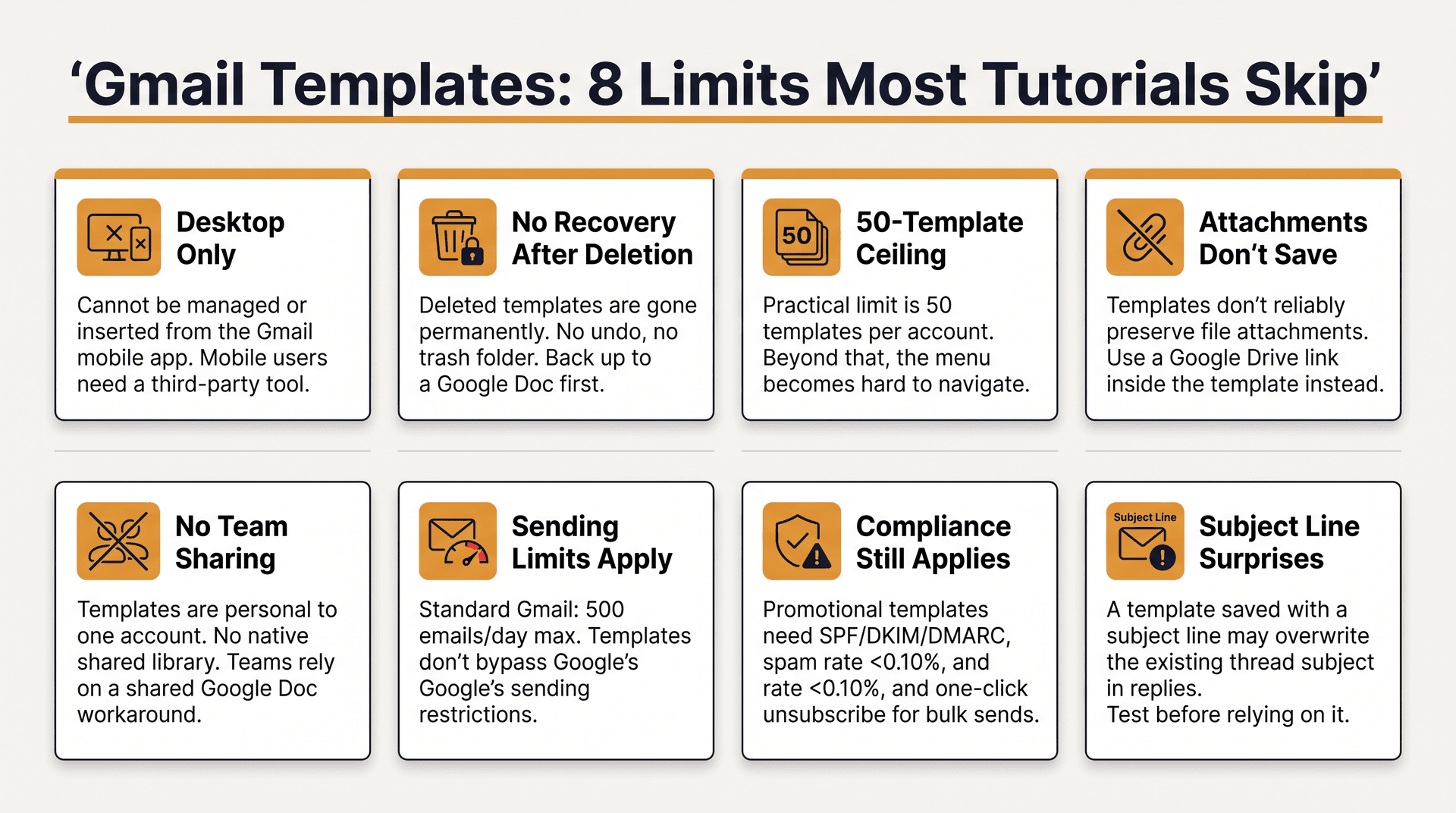
1. Desktop-only feature
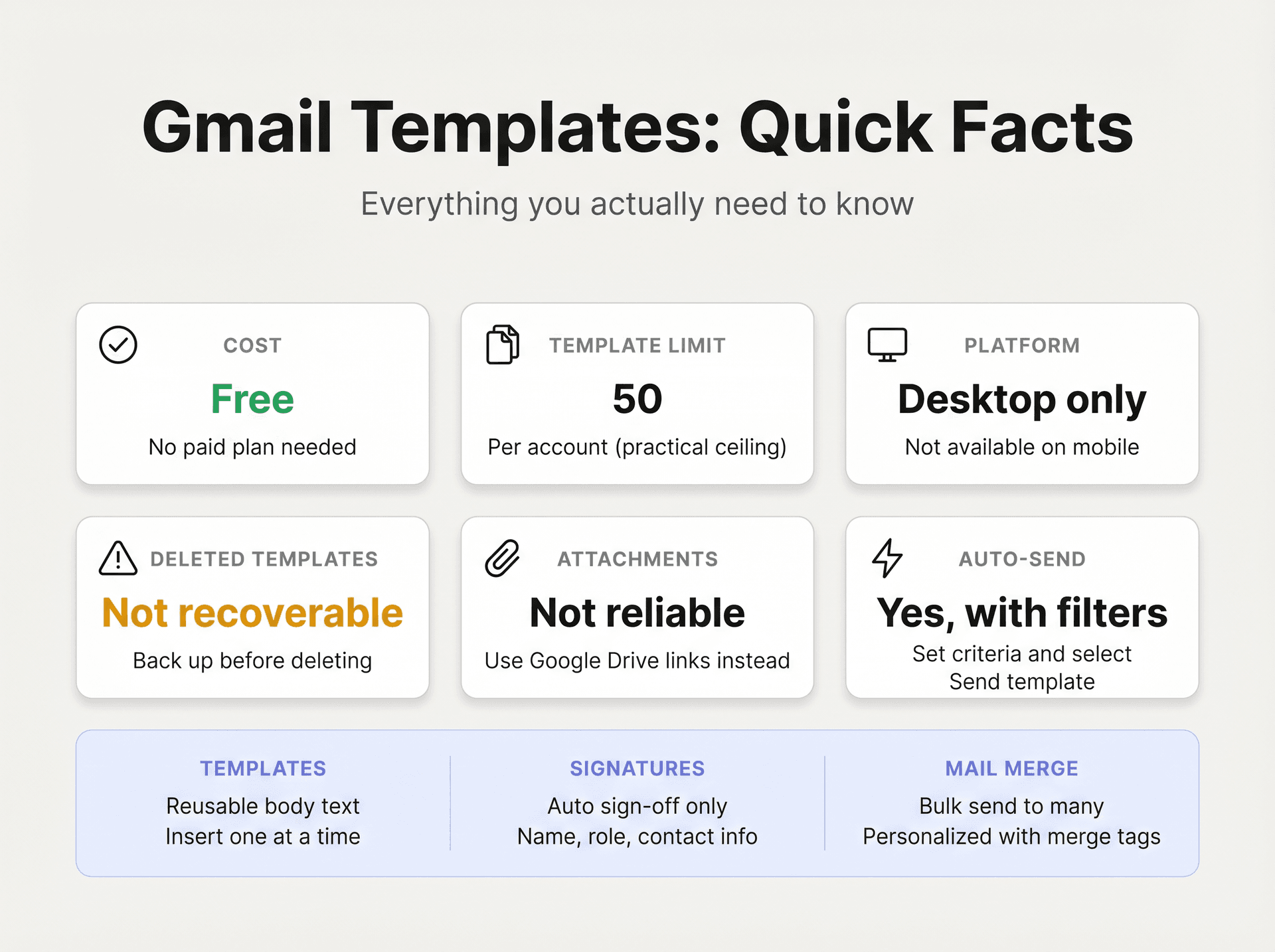
Gmail's template help page specifically says to turn on and use message templates from Gmail on your computer. You can't manage or insert templates from the Gmail mobile app. If your team works primarily on mobile, native Gmail templates won't cover your full workflow. You'll need to supplement with a third-party tool. Our Gmail productivity hacks guide covers the workarounds that work best in that scenario.
2. Deleted templates are gone permanently
No undo, no trash, no recovery. Google is explicit about this. Before you delete any important template, copy it to a Google Doc, Notion page, or wherever your team keeps shared reference content.
Before deleting anything: copy the template text to a Google Doc or shared notes first. There's no recovery option, no trash folder, no undo. Gone means gone.
3. The 50-template ceiling
Google's official template help page, as of April 25, 2026, doesn't display a numeric limit. But recent third-party Gmail guides (including ones updated in 2026) consistently report 50 templates per account as the practical limit. Treat that as your ceiling and prune old templates before your menu becomes unusable.
4. Attachments don't work as expected
Don't rely on Gmail templates to preserve file attachments. A better pattern: upload your file to Google Drive and include a shareable link inside the template. Recent third-party Gmail template guides updated in 2025 recommend this Drive-link workaround, with one important reminder to always check file-sharing permissions before sending.
Example template for files:
Hi [NAME],

Here's the document we discussed:

[GOOGLE DRIVE LINK]

Let me know if you have any trouble accessing it.

Best,
[YOUR NAME]
5. No robust team sharing
Gmail's built-in templates are personal to the account. There's no native shared template library across a team. For teams, the usual workaround is a shared Google Doc where everyone copies and pastes the approved text, then saves it individually in their own Gmail accounts. Teams that need real structure here benefit from shared inbox best practices that go beyond what Gmail's built-in tools can offer.
6. Sending limits still apply
Templates don't bypass Gmail's sending restrictions. Standard Gmail accounts can hit limits for sending more than 500 emails per day or to more than 500 recipients in a single email. Google Workspace limits are higher but vary by account type. Check Google's current table before planning any high-volume workflow. If you're running a support team using templates at volume, email management best practices covers how to structure your inbox system so throughput doesn't become a bottleneck.
7. Compliance obligations for bulk senders
If you use templates for promotional or marketing messages, the usual email compliance rules apply. Google's sender guidelines require authentication (SPF, DKIM, DMARC), TLS, and for bulk senders: spam rates below 0.10% and one-click unsubscribe for marketing messages. A template is not a license to mass-email people who didn't opt in.
8. Subject lines can surprise you
If you save a template with a subject line, Gmail may insert that subject when you use the template in a reply, which can overwrite the existing thread subject. A good practice: include subject lines only for new-message templates, not reply templates. Test each template once before you rely on it.
When Gmail Templates Aren't Enough: How Inbox Zero Helps
Gmail templates solve the "what do I say?" problem for predictable messages. But a lot of email isn't predictable.
When an email requires understanding the full thread, the relationship history, what you've already said to this person, or the specific context of someone's request, a static template doesn't help. You're back to writing from scratch, or worse, sending a generic reply that makes the recipient feel like they got a form letter.
This is where we built Inbox Zero.
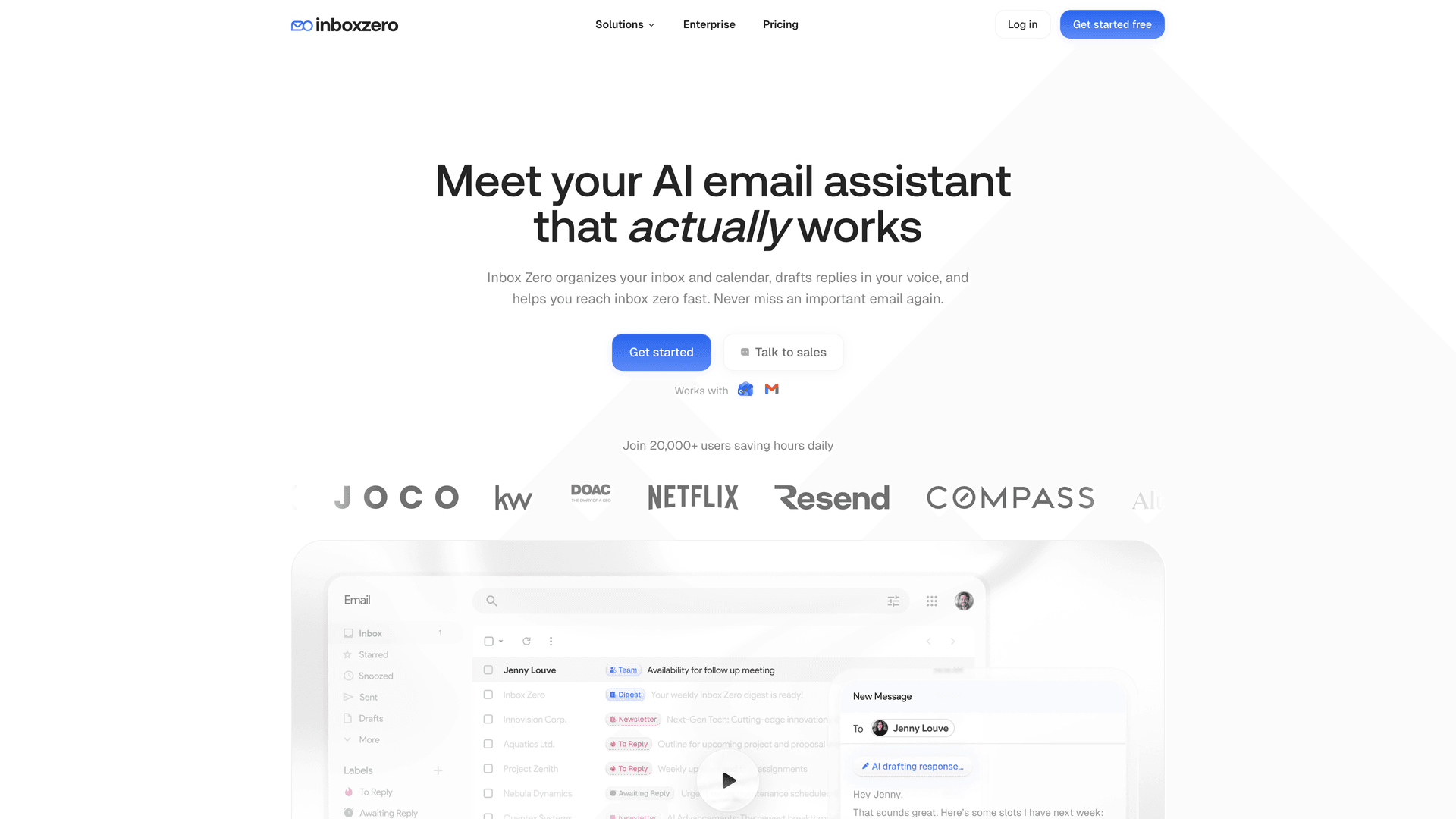
Inbox Zero's AI Personal Assistant is designed for the higher-level inbox problem: not just what to say, but what kind of email this is, whether it needs a reply, and if so, what kind of draft would actually be useful. It connects to Gmail, Google Workspace, and Microsoft Outlook via OAuth, and lets you describe how you want your email handled in plain English. Those instructions become rules that classify, label, and draft responses for you.
The key difference from templates:
| Gmail Templates | Inbox Zero AI | |
|---|---|---|
| Context-aware? | No (fixed text) | Yes (reads the thread) |
| Adapts to sender? | No | Yes |
| Works on mobile? | No | Yes |
| Requires manual insert? | Yes | No (drafts appear automatically) |
| Good for consistent language? | Yes | Yes, with customizable prompts |
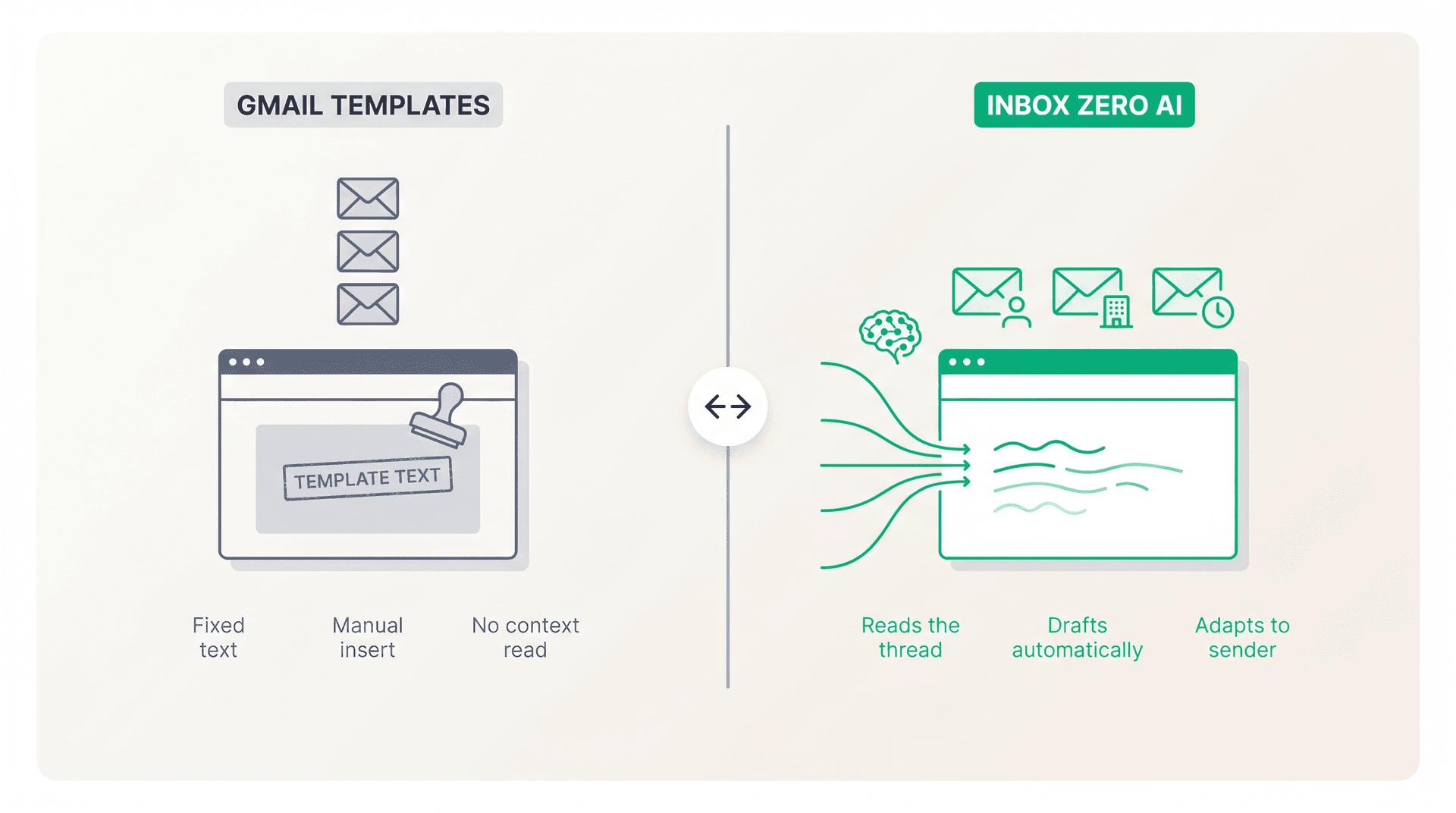
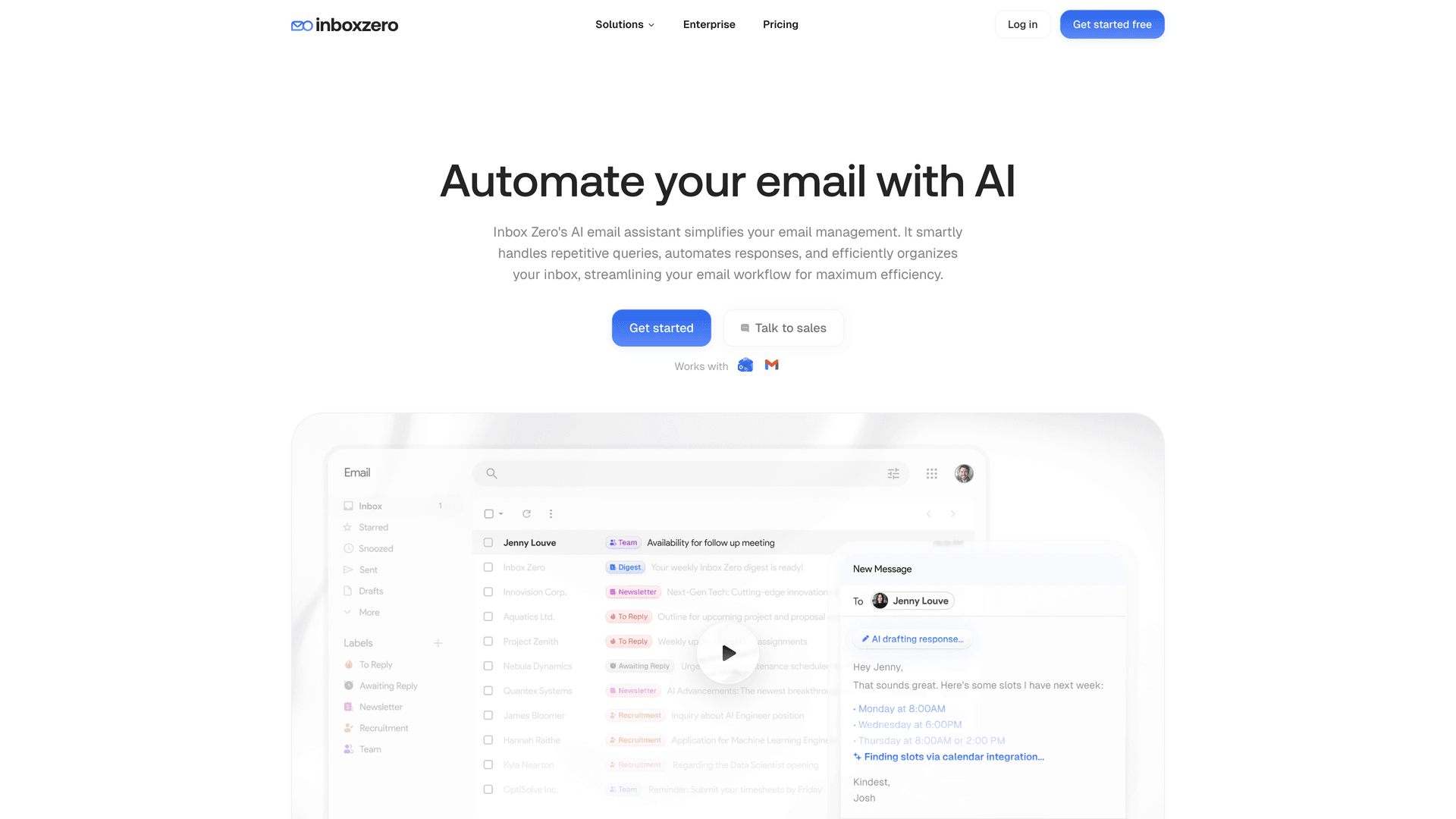
A Gmail template is a snippet you insert. Inbox Zero drafts a reply based on what the email actually says. These are tools for different problems, and most inboxes need both.
Reply Zero is another piece of this system. It labels every thread that needs a response as To Reply and every thread you're waiting on as Awaiting Reply, so you always know where things stand. No more emails falling through the cracks. You can see how to see all emails waiting for your response at a glance, which gives your template-based workflow a safety net for the threads that need personal attention.
For teams managing cold email at volume, Inbox Zero's Cold Email Blocker handles that layer automatically, keeping your inbox focused on the conversations that matter.
Ready to see how it works? Try Inbox Zero free and set up your first AI rule in under five minutes.
20 Ready-to-Use Gmail Templates You Can Copy Now
These are organized by use case. Replace every bracketed placeholder before sending.
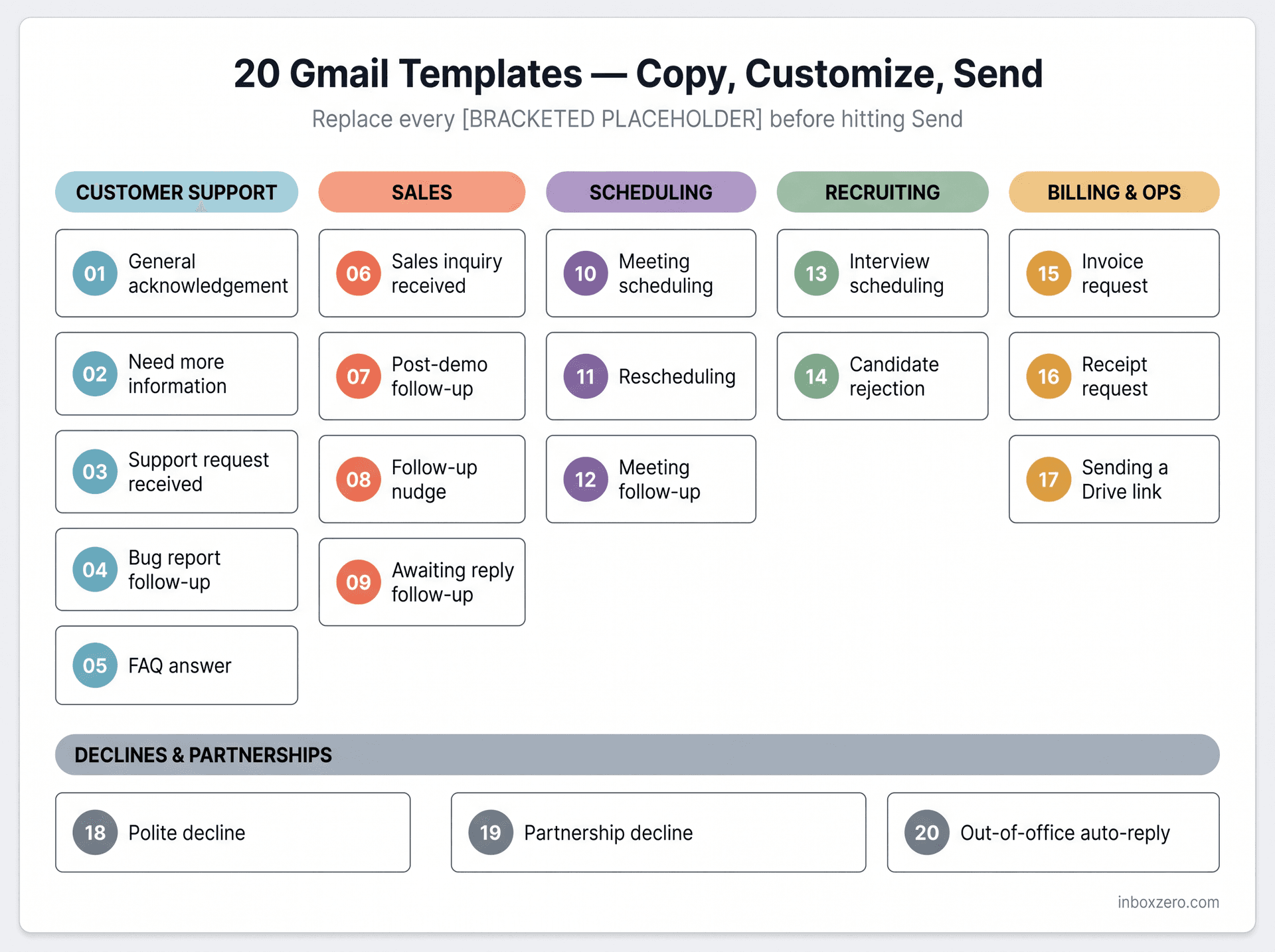
Customer Support Gmail Templates
1. General acknowledgement
Hi [NAME],

Thanks for your message. I received it and will take a look.

I'll get back to you by [DATE/TIME] with an update.

Best,
[YOUR NAME]
2. Need more information
Hi [NAME],

Thanks for reaching out. I can help, but I need a little more information first.

Could you send over:

- [DETAIL 1]
- [DETAIL 2]
- [DETAIL 3]

Once I have that, I'll be able to take a closer look.

Best,
[YOUR NAME]
3. Support request received
Hi [NAME],

Thanks for contacting support. We received your request about [ISSUE].

We'll review the details and follow up as soon as we can. If you have screenshots, error messages, or steps to reproduce the issue, please reply with them here.

Best,
[YOUR NAME]
4. Bug report follow-up
Hi [NAME],

Thanks for reporting this. To help us investigate, could you reply with:

- The email address on your account:
- Your browser and device:
- The steps you took before the issue happened:
- A screenshot or screen recording:
- Any error message you saw:

Once we have that, we can dig in further.

Best,
[YOUR NAME]
5. FAQ answer
Hi [NAME],

Thanks for asking about [TOPIC].

The short answer is: [ANSWER].

You can find the full details here: [LINK]

If you still have questions after reading that, reply here and I'll be happy to help.

Best,
[YOUR NAME]
Gmail Templates for Sales Emails
6. Sales inquiry received
Hi [NAME],

Thanks for your interest in [PRODUCT/SERVICE].

Based on what you shared about [COMPANY/USE CASE], I think the best next step is [NEXT STEP].

You can book a time here: [CALENDAR LINK]

Best,
[YOUR NAME]
7. Post-demo follow-up
Hi [NAME],

Thanks for taking the time to meet today.

Based on our conversation, the main priorities are:

- [PRIORITY 1]
- [PRIORITY 2]
- [PRIORITY 3]

The next step is [NEXT STEP]. I've included the relevant link here: [LINK]

Best,
[YOUR NAME]
8. Follow-up nudge
Hi [NAME],

Just following up on my note below.

Could you let me know whether [QUESTION/NEXT STEP] still makes sense?

Best,
[YOUR NAME]
9. Awaiting reply follow-up
Hi [NAME],

I wanted to check in on this.

Are you still the right person to discuss [TOPIC], or is there someone else I should coordinate with?

Best,
[YOUR NAME]
For sales teams, templates 7-9 are the foundation. Pair them with an understanding of how to see all emails waiting for a reply so no follow-up falls through the cracks.
Gmail Templates for Scheduling Meetings
10. Meeting scheduling
Hi [NAME],

Happy to connect.

Here are a few times that work for me:

- [OPTION 1]
- [OPTION 2]
- [OPTION 3]

If none of those work, feel free to send over a few options on your side.

Best,
[YOUR NAME]
11. Rescheduling
Hi [NAME],

Something came up and I need to reschedule our meeting.

Sorry for the inconvenience. Would any of these times work instead?

- [OPTION 1]
- [OPTION 2]
- [OPTION 3]

Best,
[YOUR NAME]
12. Meeting follow-up
Hi [NAME],

Thanks again for the conversation today.

Here's a quick recap:

- [POINT 1]
- [POINT 2]
- [POINT 3]

Next step: [NEXT STEP]

Best,
[YOUR NAME]
Gmail Templates for Recruiting and Hiring
13. Interview scheduling
Hi [NAME],

Thanks for your interest in the [ROLE] role.

We'd like to schedule the next conversation. Please send over a few times that work for you this week or next week, including your time zone.

Best,
[YOUR NAME]
14. Candidate rejection
Hi [NAME],

Thank you for taking the time to speak with us about the [ROLE] role.

After careful consideration, we will not be moving forward at this stage. We appreciate your interest and the time you invested in the process.

Wishing you the best in your search.

Best,
[YOUR NAME]
Gmail Templates for Billing and Operations
15. Invoice request
Hi [NAME],

Thanks for your message. We received your invoice request.

Could you send over the following details?

- Company name:
- Billing email:
- Invoice number:
- Amount:
- Date of transaction:

Once we have that, we'll review and follow up.

Best,
[YOUR NAME]
16. Receipt request
Hi [NAME],

Thanks for reaching out.

Could you send the email address used for the purchase and the approximate transaction date? Once we have those details, we can look up the receipt.

Best,
[YOUR NAME]
17. Sending a Drive link
Hi [NAME],

Here is the file we discussed:

[GOOGLE DRIVE LINK]

Please let me know if you have any trouble accessing it.

Best,
[YOUR NAME]
Before using this one, double-check the file's sharing permissions in Google Drive.
Gmail Templates for Declines and Partnerships
18. Polite decline
Hi [NAME],

Thanks for reaching out and for thinking of us.

This isn't a fit for us right now, so we'll pass for the moment. I appreciate you sending it over and wish you the best with it.

Best,
[YOUR NAME]
19. Partnership decline
Hi [NAME],

Thanks for sharing the opportunity.

After reviewing it, I don't think this is the right partnership fit for us at the moment. We're currently focused on [CURRENT PRIORITY], so we'll pass for now.

Thanks again for reaching out.

Best,
[YOUR NAME]
20. Targeted out-of-office auto-reply
Hi [NAME],

Thanks for your message. I'm currently away from email and will be back on [DATE].

For urgent issues related to [TOPIC], please contact [BACKUP NAME] at [BACKUP EMAIL].

Otherwise, I'll reply when I return.

Best,
[YOUR NAME]
For broad out-of-office coverage, Gmail's Vacation Responder usually works better. This template is best used with a narrow filter for specific types of messages that need a targeted response. For the full walkthrough (including how to set up automatic replies, configure your message, and schedule when it turns on and off), see our Gmail out-of-office setup guide.
How to Organize Gmail Templates So You Can Find Them
A template system breaks down when the menu becomes a junk drawer. Ten templates with clear names are more useful than fifty templates you can't find.
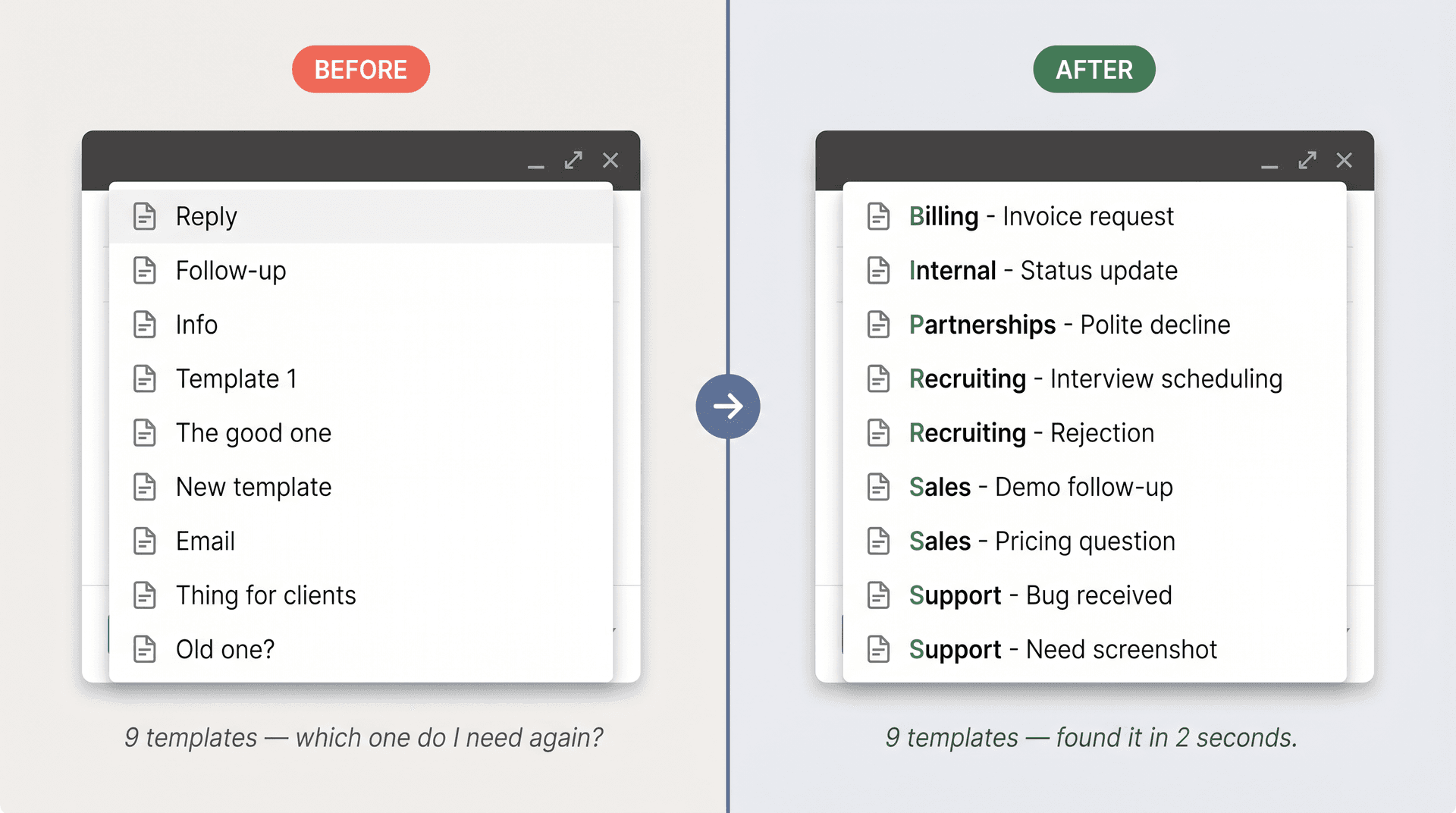
A Naming System for Gmail Templates That Scales
Stick to this pattern:
[Category] - [Use case]
Examples:
Support - Need screenshot
Support - Bug received
Sales - Demo follow-up
Sales - Pricing question
Billing - Invoice request
Recruiting - Interview scheduling
Recruiting - Rejection
Partnerships - Polite decline
Internal - Status update
When your template list is sorted alphabetically, grouping by category means related templates appear next to each other.
How to Do a Quarterly Gmail Template Cleanup
Every quarter, go through your list and delete (or rewrite) templates that are:
-
Outdated (old pricing, old product names, old policies)
-
Too long to be useful
-
Rarely or never used
-
Duplicates of another template
-
Linked to pages that no longer exist
Applying these email management best practices to your template library keeps it lean and actually useful. And because deleted templates can't be recovered, save anything worth keeping to a Google Doc before you delete it from Gmail.
When to Stop Using Gmail's Built-In Template Library
A personal Gmail template library of 10-20 templates is manageable. Once you're approaching 50, the built-in menu becomes hard to navigate, and you've probably outgrown native templates as your primary system. At that point, a complete inbox management system (one that combines labels, filters, AI-assisted drafting, and team workflows) makes more sense than trying to maintain a massive personal template library.
How to Build a Complete Gmail Workflow Around Templates
Templates solve one specific problem: what to say in a repeatable reply. But a complete inbox workflow needs more than that.
Every email should end up as one of these: delete, archive, reply, delegate, defer, label, unsubscribe, or defer for follow-up. Templates only help with the reply step. Here's how to wire everything together.
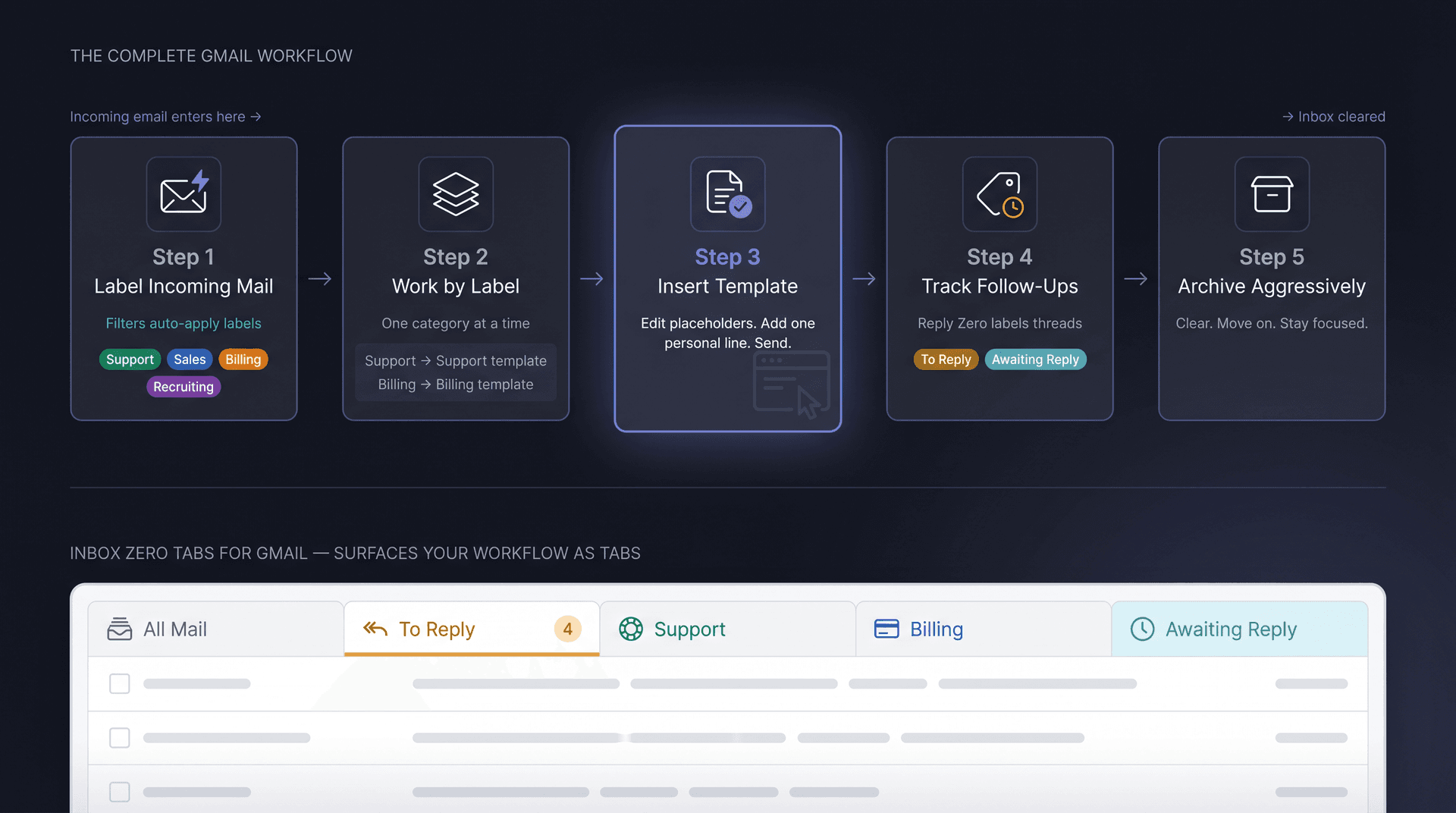
Step 1: Label incoming email by type
Use Gmail filters to automatically apply labels (Support, Sales, Billing, Recruiting, etc.) to incoming messages. Gmail's filter documentation includes labeling as one of the core filter actions.
Step 2: Work by label, not by inbox
Instead of hunting through your whole inbox, open a label view and handle one category at a time. Support emails → Support label → Support template. Billing emails → Billing label → Billing template. This is faster and less mentally taxing. Understanding how Gmail labels and folders work differently helps you choose the right organizational structure for your workflow.
Step 3: Use templates for the repeatable replies
Insert the right template, edit the placeholders, add one personalized sentence at the top if the person deserves it, and send.
Step 4: Track what needs follow-up
Reply Zero (part of Inbox Zero) labels every thread waiting on a response as To Reply and every thread you're waiting on as Awaiting Reply. This keeps things from falling through the cracks without any manual tracking.
Step 5: Archive aggressively after action
Once an email no longer needs attention, get it out of the inbox. Don't let it sit there as a reminder. Knowing when to snooze, archive, or mute an email makes this decision faster and more consistent.
How to Add Gmail Tabs for Faster Navigation
Labels help, but they can still feel buried if you work in Gmail heavily. This is where Inbox Zero Tabs for Gmail comes in.
It's a free browser extension that adds custom tabs to Gmail based on labels or search queries. You can set up tabs for To Reply, Awaiting Reply, Support, Billing, Newsletters, or whatever your actual workflow is. The Chrome Web Store listing was updated April 7, 2026 (version 1.2.5), and Inbox Zero's documentation notes the extension is 100% private, stores data locally in your browser, and collects no email data.
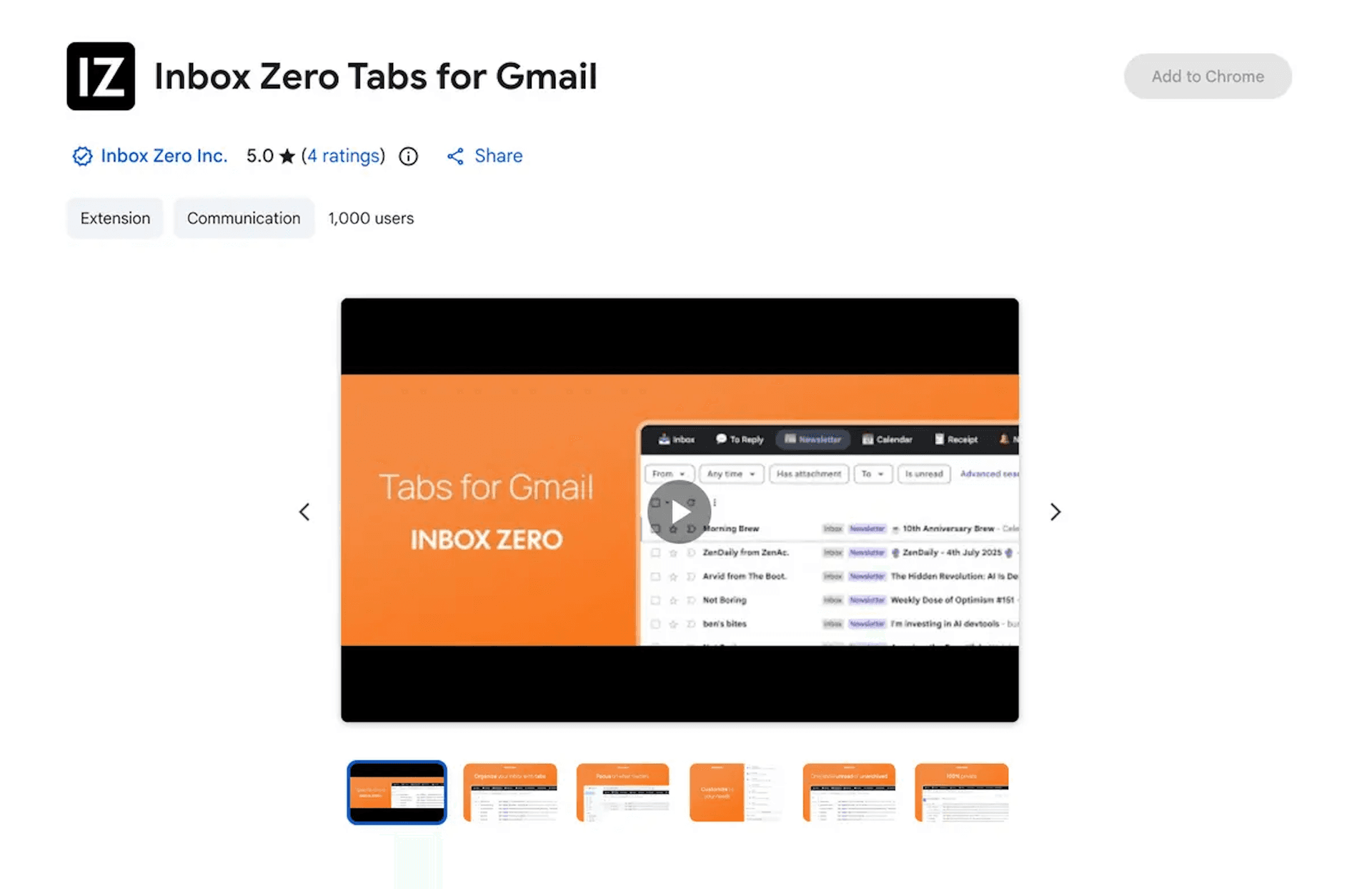
Some useful tab setups:
To Reply
label:to-reply in:inbox
Support
label:support in:inbox
Billing
(label:billing OR subject:invoice OR subject:receipt) in:inbox
Awaiting Reply
label:awaiting-reply
A template system works significantly better when the emails that need those templates are easy to spot.
How to Fix Common Gmail Template Problems
"I don't see Templates in the compose window"
The feature needs to be enabled first. Go to Settings → See all settings → Advanced → Templates → Enable → Save Changes. After saving, Gmail's template help page notes the option will appear in your compose window's three-dot menu.
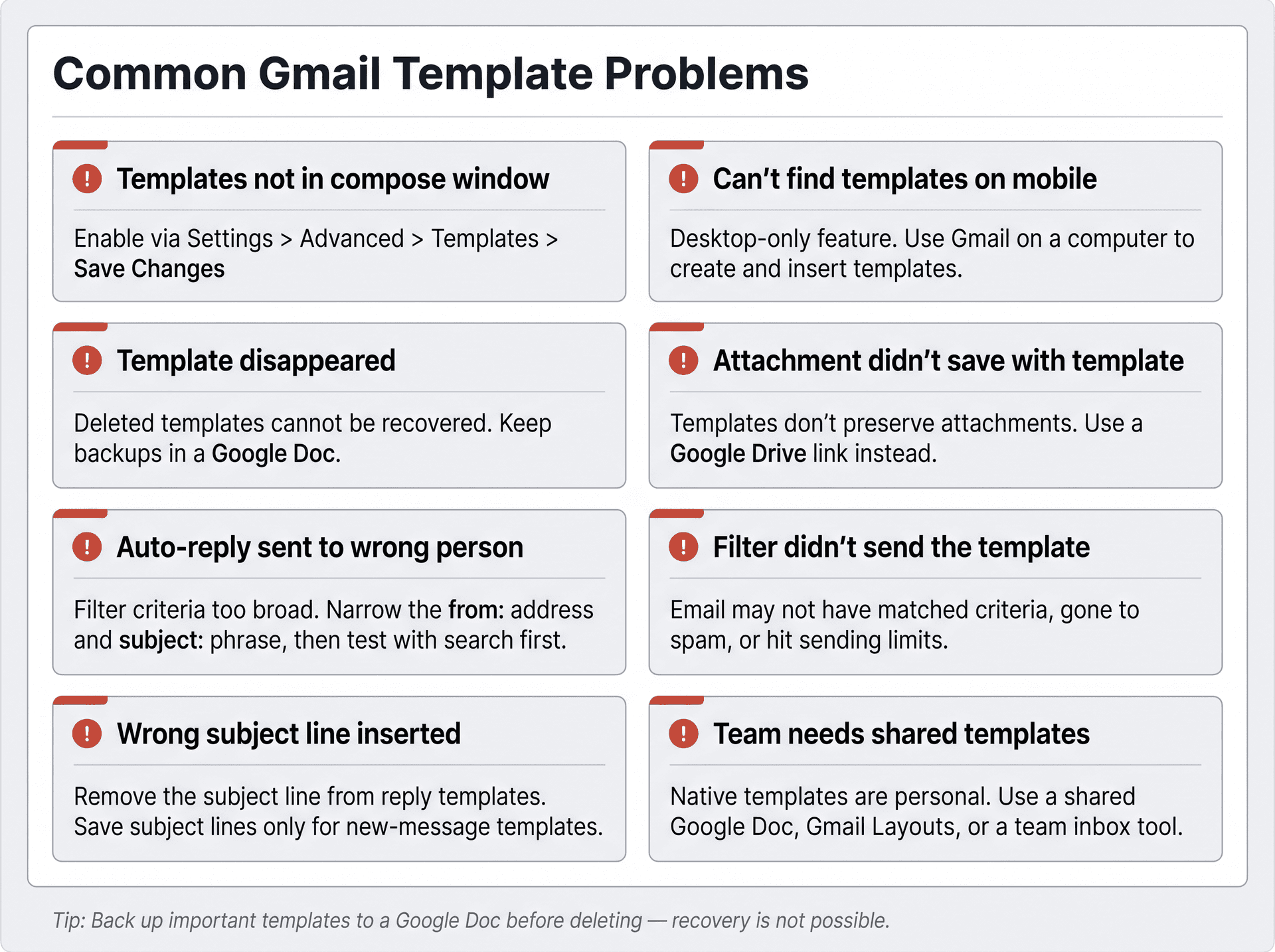
"I can't find Gmail templates on my phone"
Gmail's built-in Templates feature is desktop-only. Google confirms it should be turned on and used from Gmail on a computer. Use desktop Gmail to create and manage templates.
"My template disappeared"
If you deleted it, it's gone. Gmail doesn't allow recovery of deleted templates. For important templates, keep a backup outside Gmail going forward.
"The attachment didn't save with my template"
Built-in Gmail templates don't reliably preserve file attachments. Use a Google Drive link inside the template instead. Always check Drive sharing permissions before sending.
"My auto-reply sent to the wrong person"
Your filter criteria were too broad. Fix it by:
-
Opening Gmail search
-
Running the exact filter query
-
Reviewing the results carefully
-
Adding more specific criteria (a more specific from: address, an exact subject phrase, etc.)
-
Editing the filter with the tighter criteria
Gmail's filter documentation explains that filters can be edited or deleted after creation. If Gmail filters aren't working as expected even after you've tightened the criteria, that troubleshooting guide covers the most common underlying causes.
"My filter didn't send the template"
Check whether the incoming email actually matched the filter criteria. Also check whether Gmail put the message in spam (filters don't apply to spam), whether another filter caught it first, or whether you hit sending limits. Gmail filter behavior is criteria-based. If the message didn't match exactly, the filter won't fire.
"My template inserted the wrong subject line"
Edit the template and remove or change the subject line. For reply templates, consider saving them without a subject line to avoid this issue.
"My team needs shared Gmail templates"
Native Gmail templates are personal to each account. The usual options for teams:
-
Store approved templates in a shared Google Doc
-
Use Gmail Layouts for branded reusable announcements
-
Use a help desk or CRM with team template functionality
-
Use Inbox Zero for AI-assisted drafting and automated inbox workflows
Teams with shared email workflows also benefit from understanding shared inbox management tools that solve the template-sharing problem at a system level, not a workaround level.
Gmail Templates: Frequently Asked Questions
Are Gmail templates the same as canned responses?
Yes. Canned Responses is the old name. Gmail's current help documentation calls the feature Templates, but the functionality is identical. If you enabled Canned Responses years ago and see Templates in your compose window now, you're using the same feature.
Are Gmail templates free?
Gmail's built-in Templates feature is included with Gmail at no extra cost. Availability can depend on your account type and admin settings, but it's not a separate paid add-on. If you want to go beyond what Gmail includes natively, our guide to the best email management apps covers the options worth considering.
Can I use Gmail templates on mobile?
Gmail's official documentation says templates should be turned on and used from Gmail on a computer. If you need mobile-first reusable replies, a text expansion tool, CRM app, or AI email assistant is a better fit.
How many Gmail templates can I create?
Google's official template documentation, as reviewed for this article, doesn't state a numeric limit. But multiple third-party Gmail guides updated in 2026 consistently report 50 templates per account as the practical ceiling. Treat 50 as the number to stay under.
Can Gmail templates include attachments?
Not reliably. Built-in Gmail templates don't preserve normal file attachments. Use a Google Drive link inside the template instead, and always check the file's sharing settings before sending.
Can Gmail automatically send a template?
Yes, with a filter. Create a Gmail filter, enter your search criteria, select Send template, choose the template, and save. Google's template documentation includes this workflow. Keep the filter criteria narrow to avoid sending the template to the wrong people. If something goes wrong, how Gmail filters work can help you debug the issue.
Can I edit a Gmail template?
Yes. Insert the template into a compose window, make your changes, then go to three dots → Templates → Save draft as template → Overwrite template → select the existing one. Google's documentation covers this flow.
Can I recover a deleted Gmail template?
No. Google says deleted templates cannot be recovered. Back up important templates outside Gmail before deleting them.
What's the difference between Gmail templates and Gmail signatures?
A template is reusable message content (the body of the email). A signature is your automatic sign-off with your name, role, and contact information. Use templates for replies. Use signatures for identity. Don't duplicate signatures inside templates.
What's the difference between Gmail templates and Mail Merge?
Templates are for reusable reply text, inserted one email at a time. Mail Merge is for sending the same email (with merge tags for personalization) to many recipients at once. Gmail has daily sending limits for both, and Mail Merge has restrictions on replies, forwards, and scheduled send in Gmail.
Can I share Gmail templates with my team?
Not through a native shared library. The common workarounds: shared Google Doc, Gmail Layouts for branded emails, or a help desk with team template support. For workflow-level automation and AI drafting, Inbox Zero is worth exploring.
Can Inbox Zero create email templates?
Inbox Zero's AI Personal Assistant does something different from static templates. It drafts replies based on what the incoming email actually says, using rules you define in plain English. It's better suited for high-context replies where every message is a little different, while Gmail templates are better for consistent approved language that rarely changes. Most people end up using both.
How to Build a Gmail Template System That Works
Gmail's built-in Templates feature is underused because it's hidden, and it's underrated because most tutorials stop at "here's how to enable it."
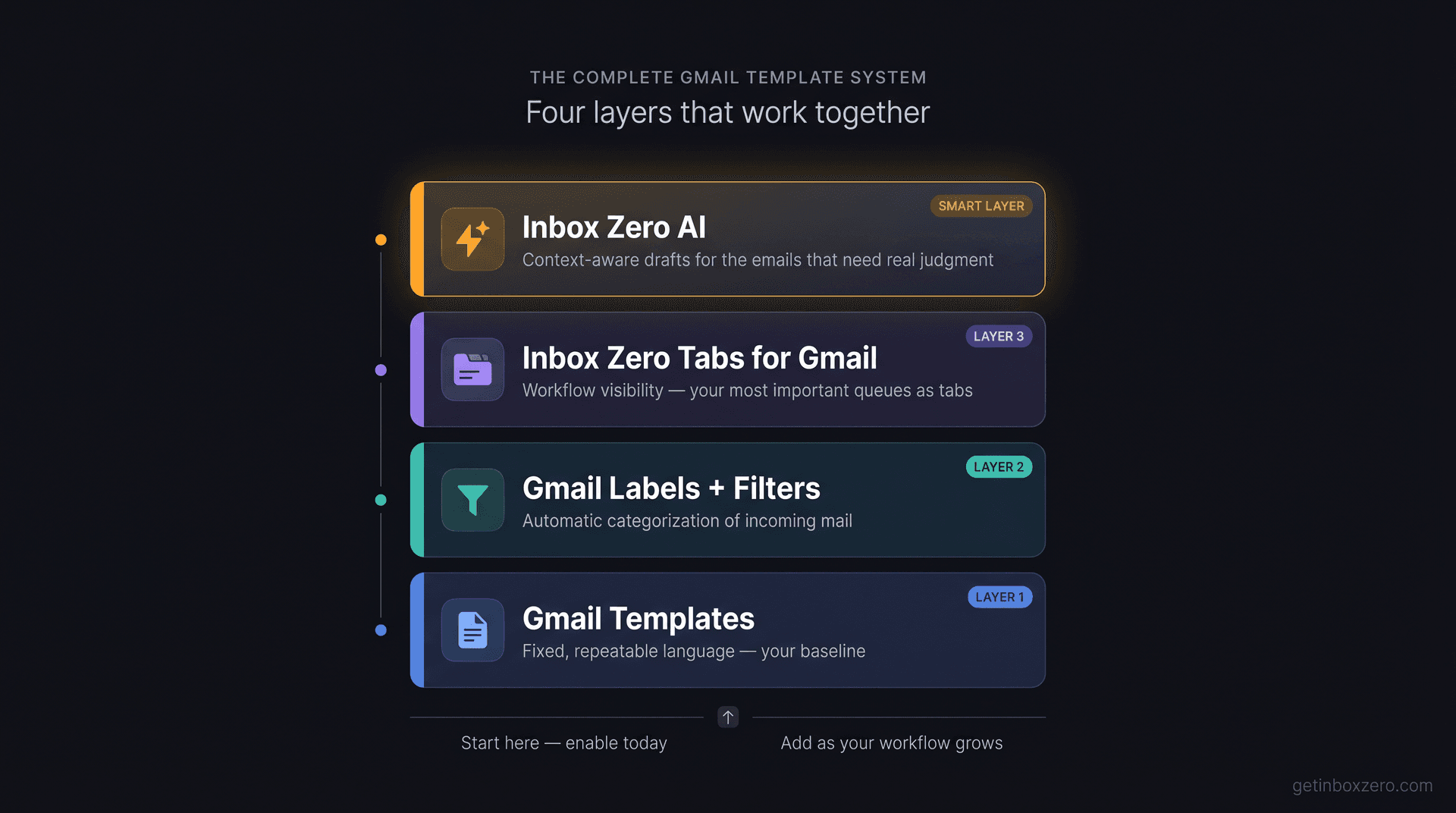
A template system that actually saves time uses all four layers:
-
Gmail Templates for fixed, repeatable language
-
Gmail Labels + Filters for automatic categorization of incoming mail
-
Inbox Zero Tabs for Gmail to make your most important workflows visible as tabs
-
Inbox Zero AI for the high-context replies where static templates fall short
Start with the 20 templates in this article. Enable the feature today, save the five replies you send most often, pair them with labels, and automate only the safest workflows with filters. Once you've done that, you'll notice quickly which replies still require real judgment. Those are the ones where an AI that actually reads the thread is worth having. That's the Inbox Zero method applied to your entire inbox, not just the predictable emails.
See how Inbox Zero handles the hard part: the emails that are just different enough to need a real draft.
What is the Inbox Zero Method & How do I Master It?
Discover the Inbox Zero method and learn simple steps to take control of your email inbox, stay organized, and boost productivity.

4 Email Productivity Hacks from Tim Ferriss, Andrew Huberman, and Sam Harris
Explore 4 powerful email productivity hacks from tech and wellness experts like Tim Ferriss and Andrew Huberman. Learn to create focus, optimize processing, manage time wisely, and delegate effectively to conquer your inbox.
Best Time to Send Emails for Response (2026)
Stop guessing when to send emails. Get data-backed timing strategies from 2026 research that improve response rates across all scenarios.
How To Organize Outlook Inbox? (2026 Guide)
Learn how to organize Outlook inbox with rules, folders, categories, and AI automation. Step-by-step guide for 2026 that actually works.