How to Delete Archived Emails in Gmail (2026)
Gmail storage won't budge even after archiving? Step-by-step guide to delete archived emails in Gmail, plus the search operators that make it safe.

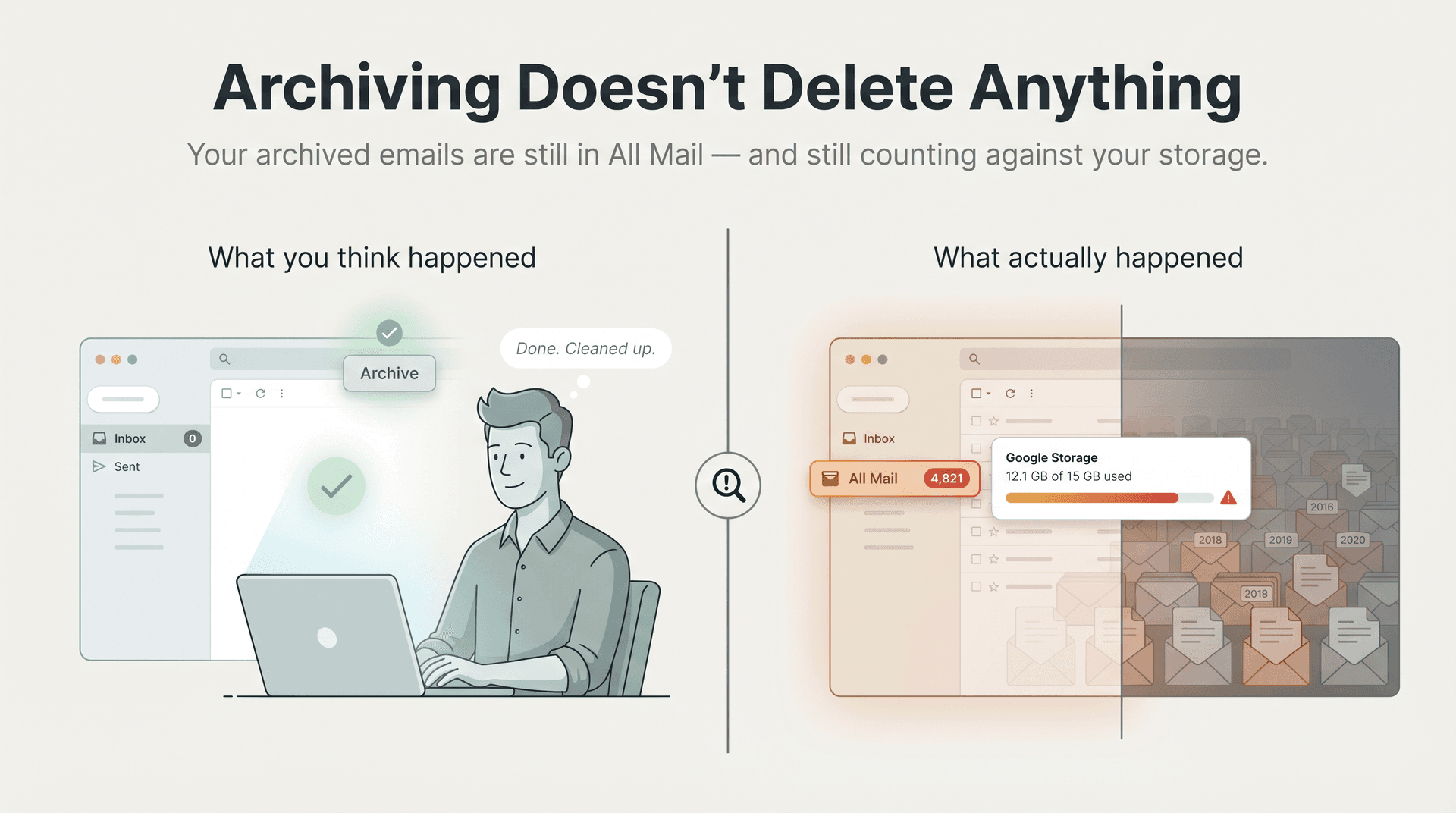
Your Gmail storage bar keeps creeping up even though you've been hitting "Archive" for years. You assumed archived emails were out of the way, maybe even out of your account. They're not. Archiving doesn't delete anything. It only removes the Inbox label, and the email sits in All Mail, counting against your storage just like every other message in your account.
That misunderstanding is the #1 reason Gmail users end up with gigabytes of "cleaned up" mail that's still very much there.
This guide explains exactly how to delete archived emails in Gmail, how to do it safely without losing things you'll regret, and how to use Gmail's search operators to target the mail that actually matters for storage cleanup. We work with Gmail users every day at Inbox Zero, and the questions we see most often come down to this one confusion: archive versus delete.
Quickest Way to Delete Archived Gmail Emails
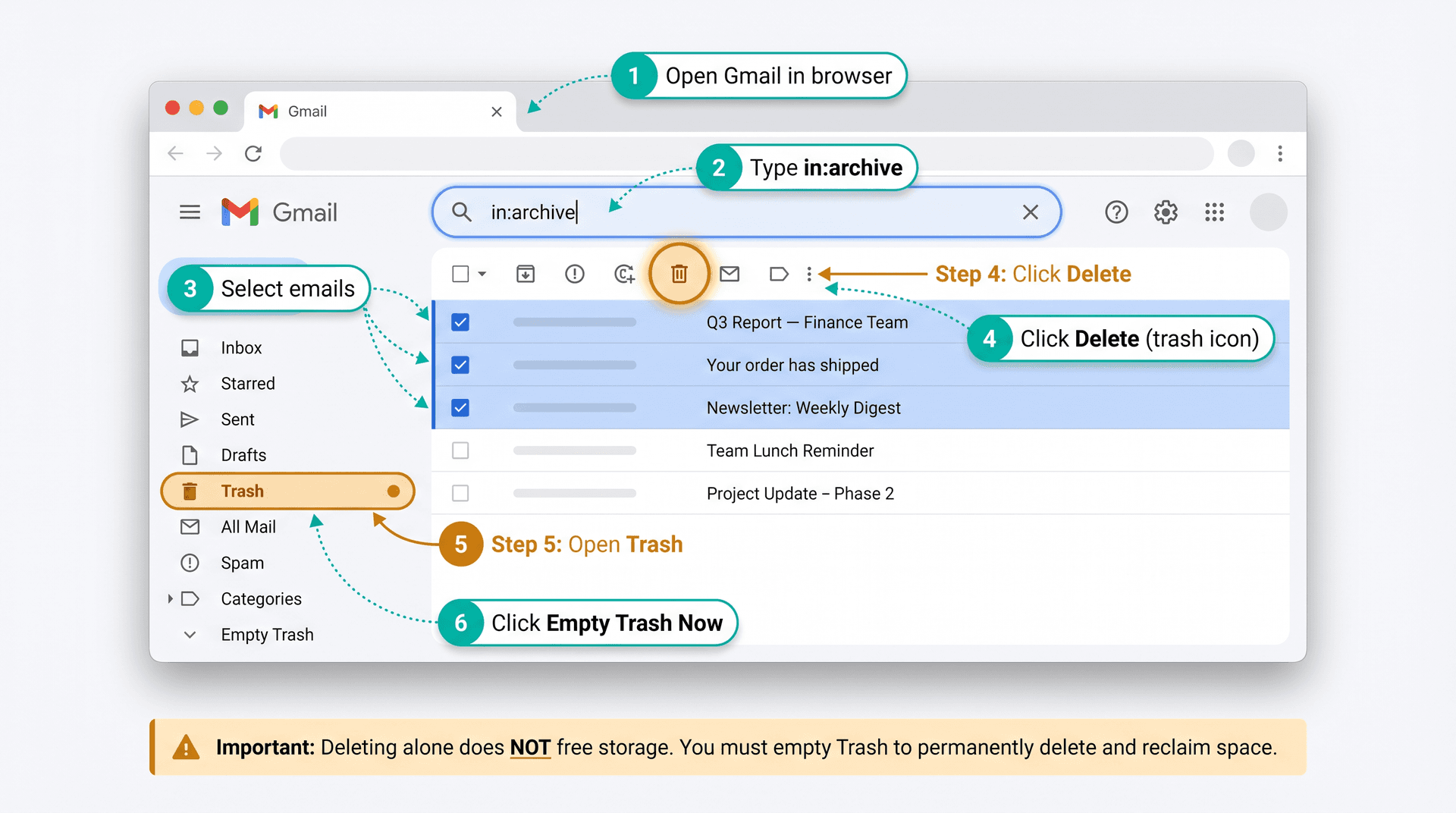
To delete archived emails in Gmail on desktop:
-
Open Gmail in your browser.
-
Click the search bar and type:
in:archive
-
Select the emails you want to delete.
-
Click the trash-can icon (Delete).
-
Open Trash from the left sidebar (you may need to click More first).
-
Click Empty Trash now to permanently delete and free storage, or select specific messages and choose Delete forever.
Gmail Archive vs Trash: What's the Difference?
Most Gmail cleanup problems trace back to one thing: treating Archive and Delete as interchangeable. They're not.
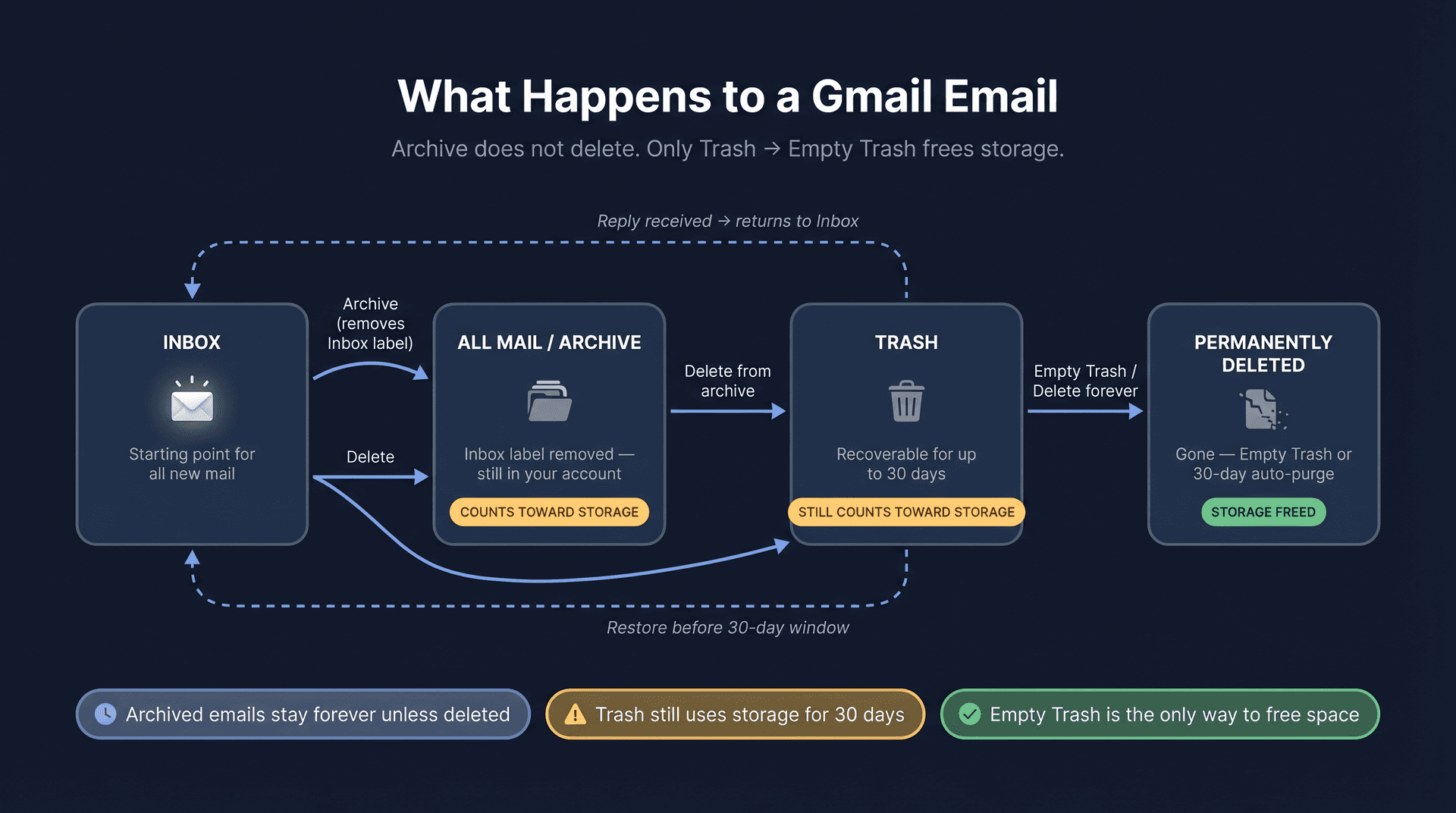
Archive removes the Inbox label. The email stays in your account, in a view called All Mail, and it's fully searchable. It still counts toward your Google storage. If someone replies to it, the thread returns to your Inbox automatically.
Delete moves the email to Trash. It's still recoverable for up to 30 days. Only after you empty Trash (or the 30-day timer runs) is the message permanently gone and the storage actually freed.
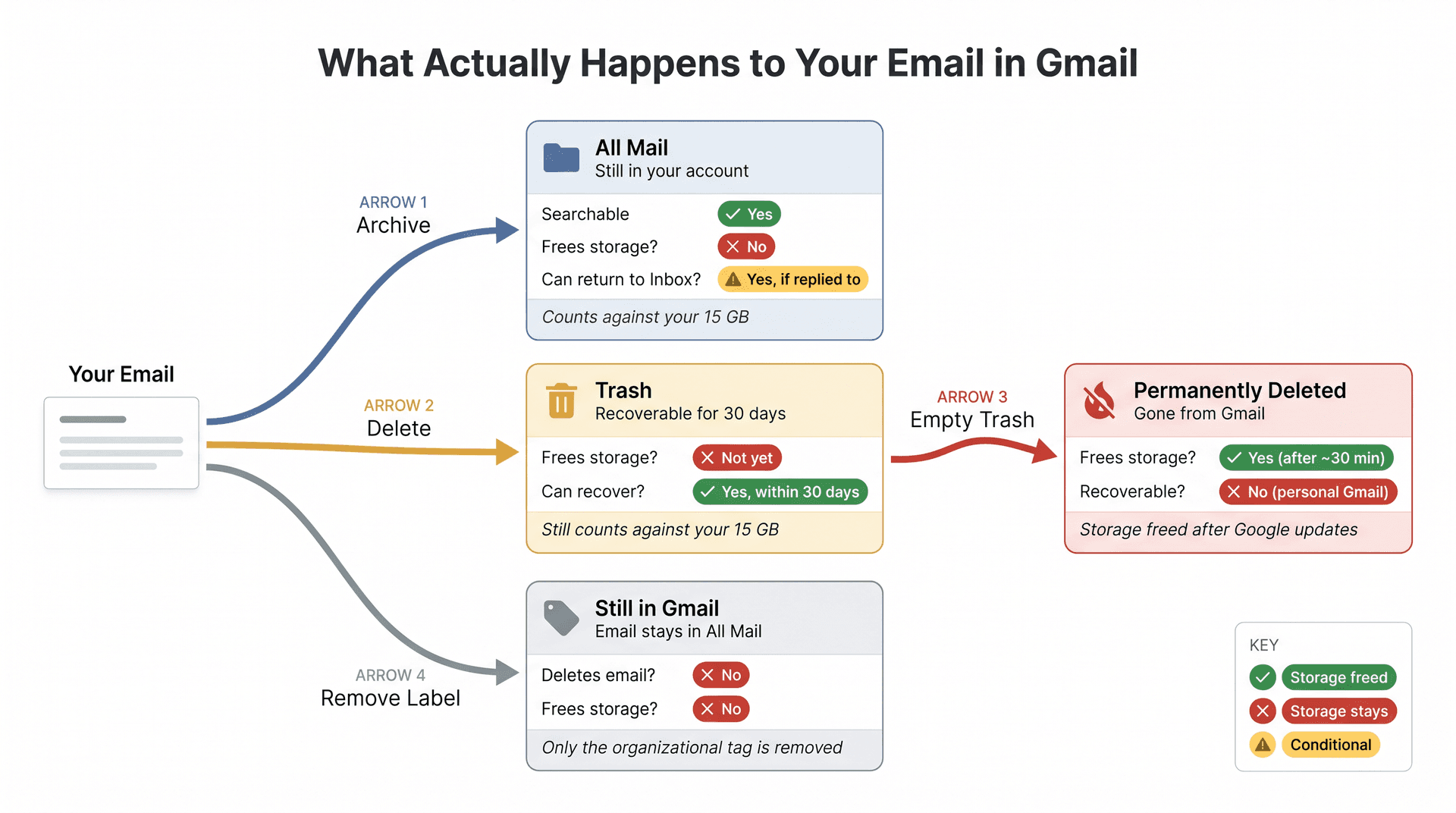
Here's the full breakdown:
| Action | What it does | Where the email goes | Frees storage? | Can it come back to Inbox? |
|---|---|---|---|---|
| Archive | Removes the Inbox label | All Mail (searchable via in:archive) | No | Yes, if someone replies |
| Delete | Moves to Trash | Trash | Not until Trash is emptied | Yes, if restored before permanent deletion |
| Empty Trash / Delete forever | Permanently removes the message | Gone from Gmail | Yes, after Google updates storage | No (personal Gmail) |
| Remove label | Removes an organizational label | Still in Gmail, still in All Mail | No | Not applicable |
Google's Gmail Help explains that archived messages are removed from the Inbox but remain findable in All Mail and through the in:archive search operator. That same page notes that archived conversations return to the Inbox when someone replies.
The storage point is worth sitting with for a second. Google's storage documentation is clear: Gmail messages and attachments count toward your 15 GB of shared storage across Gmail, Google Drive, and Google Photos. Archived mail is not exempt.
If you're also wondering how Gmail labels work and why removing a label is different from deleting or archiving, that distinction matters for understanding what the table above means.
For a deeper dive on how All Mail and Archive actually relate to each other (including what shows up where and why), our Gmail All Mail vs Archive guide covers the full picture. And if you want to understand how snooze and mute compare to archiving, that guide walks through when each action is actually the right one.
When Should You Delete vs Archive Gmail Emails?
Not every archived email deserves deletion. The wrong bulk delete can wipe out tax records, account confirmations, legal correspondence, or client conversations you'll wish you had later.
Use this as a starting guide:
| Delete these | Keep archived (or label) |
|---|---|
| Old promotional emails and sale alerts | Tax records and financial documents |
| Newsletters you never read | Receipts for valuable purchases |
| Large attachments you already saved elsewhere | Legal, HR, medical, or compliance messages |
| Old automated notifications | Ongoing client or customer conversations |
| Duplicate alerts and reports | Travel confirmations you might still need |
| Expired coupons or event invites | Messages tied to active subscriptions or accounts |
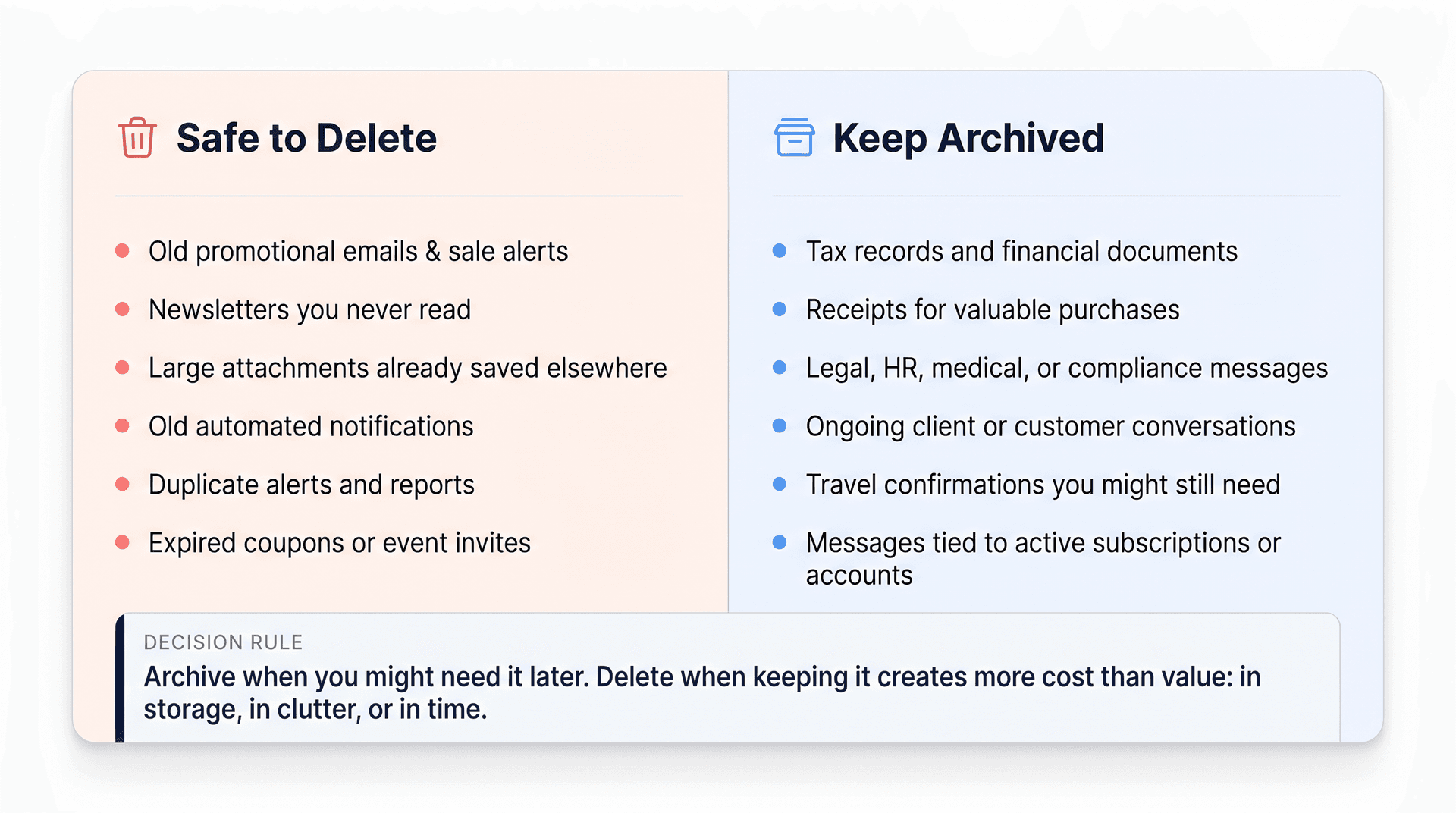
The decision rule we use:
Archive when you might need the message later. Delete when keeping it creates more cost than value: in storage, in clutter, or in time.
If you're about to do a significant cleanup and aren't sure what's worth keeping, it's worth taking a few minutes to back up your archive first, especially if you have tax records, receipts, or legal correspondence mixed in. Exporting before you delete gives you a safety net.
If storage is your main goal, don't start by deleting random emails by the hundred. Start with large archived emails. Deleting 10,000 tiny newsletters might free less space than deleting 15 emails with large PDF attachments. Google's storage cleanup guidance specifically recommends searching for large attachments using queries like has:attachment larger:10M. That's exactly the strategy we cover in the search operators section below.
If you prefer a structured cleanup checklist that walks through every category of email worth reviewing, that guide gives you a repeatable process for annual or seasonal cleanups.
How to Delete Archived Emails in Gmail on Desktop
Desktop is the right place for any cleanup involving more than a few dozen emails. The mobile app has a 50-message selection limit; desktop lets you select and act on entire search results at once.
Step 1: Open Gmail in Your Browser
Go to Gmail in your browser.
Step 2: Search for Archived Emails
Click the search bar at the top and type:
in:archive
This returns all messages that've been archived (removed from your Inbox but not deleted). Google's search operator reference lists in:archive specifically for this purpose.
Step 3: Narrow Your Search Before Selecting Anything
This is the most important step. Don't select everything and delete.
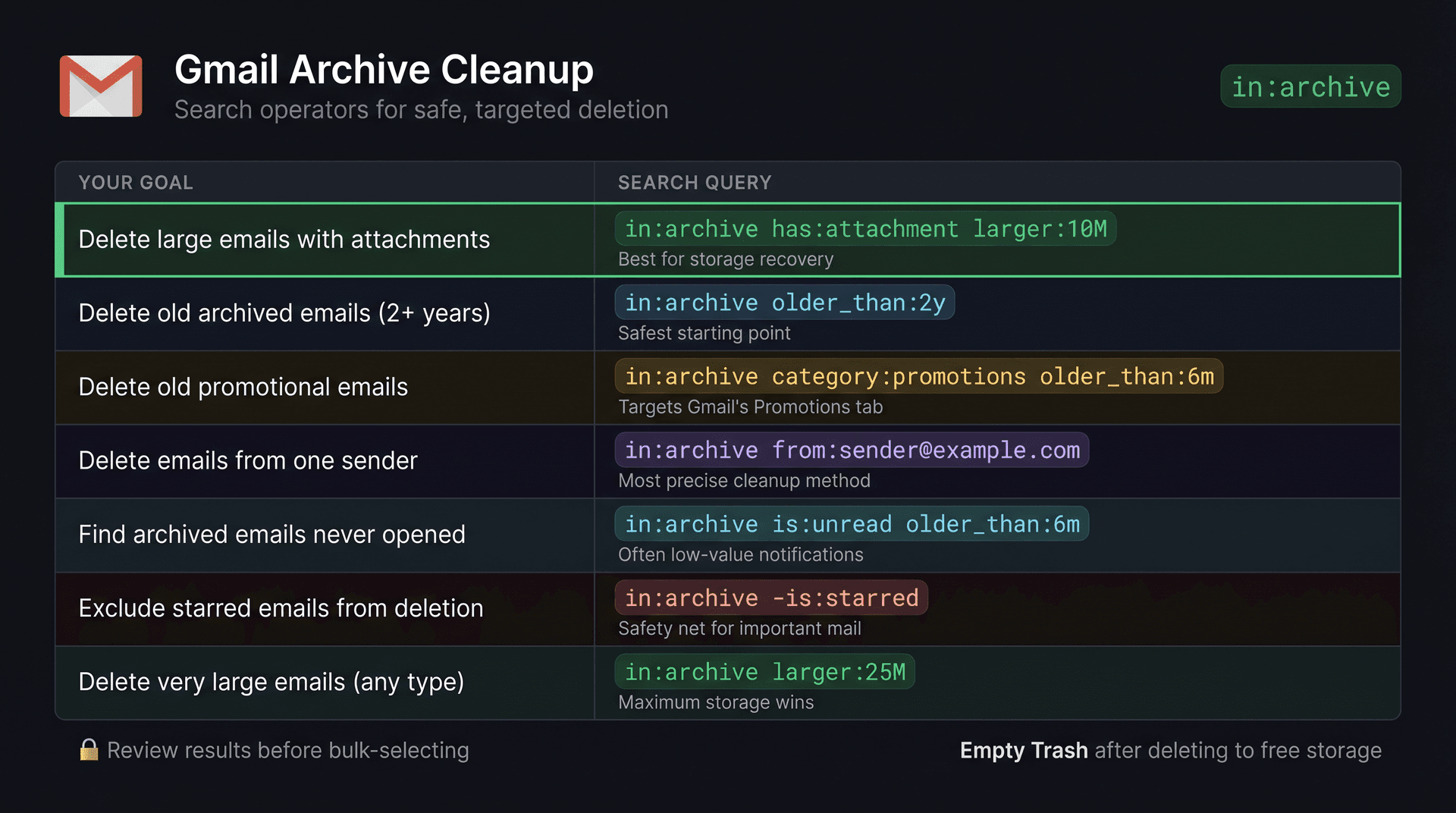
Use a safer, more targeted search first. Here are the most useful ones:
| Your goal | Search to use |
|---|---|
| Archive older than 1 year | in:archive older_than:1y |
| Archive older than 2 years | in:archive older_than:2y |
| Large archived emails (best for storage) | in:archive has:attachment larger:10M |
| Old archived promotions | in:archive category:promotions older_than:1y |
| From one specific sender | in:archive from:sender@example.com |
| Very large emails (any type) | in:archive larger:25M |
| Archived but never read | in:archive is:unread older_than:6m |
Start with the search that fits your goal. Review what comes up before selecting anything.
One small caveat: Google notes that negative operators like -is:starred can behave unexpectedly with conversations, since matching can happen at the conversation level. Scan results before bulk-deleting when you're using exclusions.
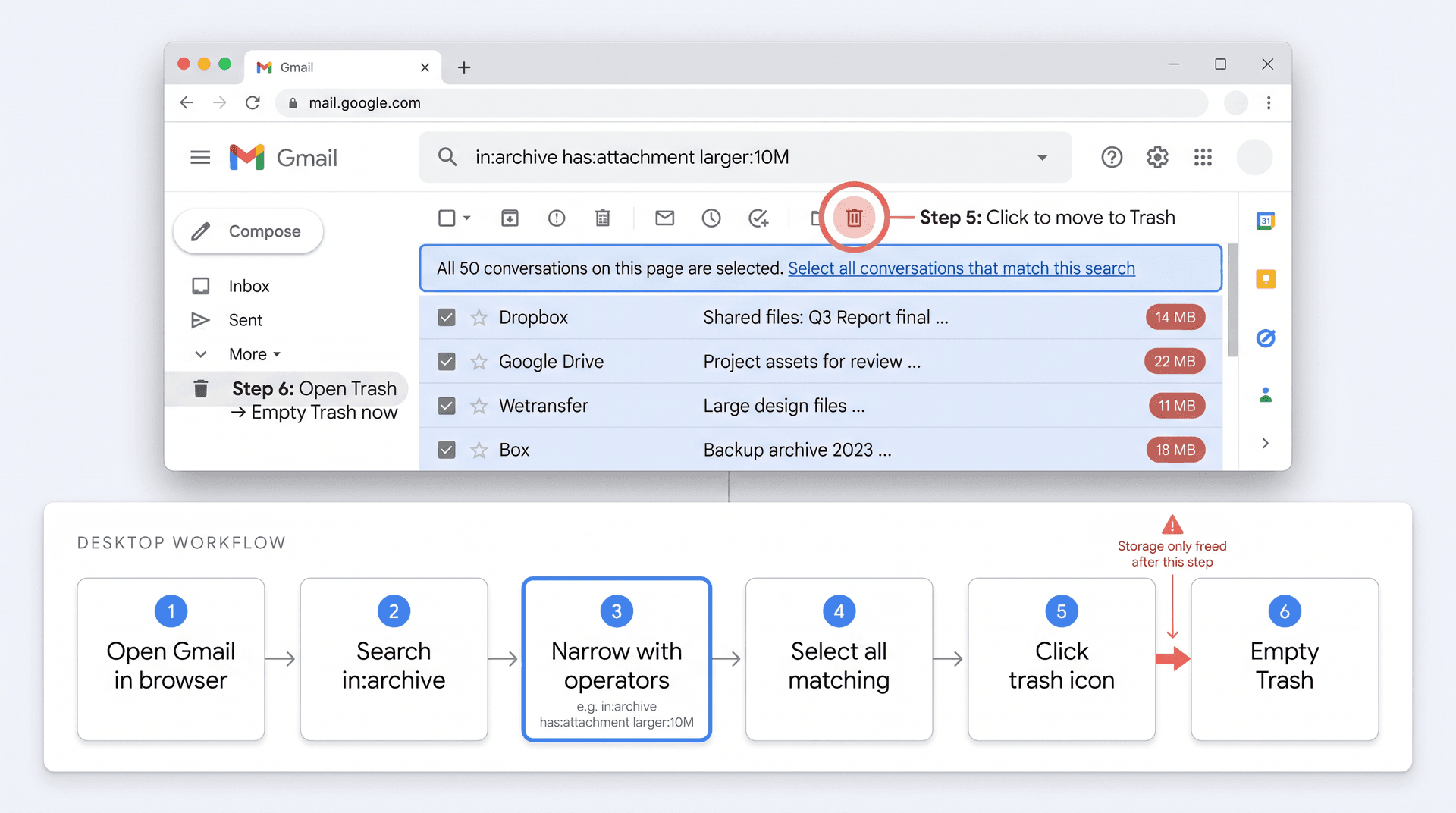
Step 4: Select the Emails You Want to Delete
Click the checkbox at the top left of the message list to select all visible messages on the page.
If Gmail shows a message like "All 50 conversations on this page are selected", look for the line just below it: "Select all conversations that match this search". Click that to select every result in the search, not just the current page. Google's deletion guide describes this exact flow for bulk deletion.
Step 5: Delete the Selected Messages
Click the trash-can icon in the toolbar.
This moves the selected archived emails to Trash. They're not permanently deleted yet. You still have a safety window. If Gmail freezes or the delete action doesn't respond, our guide to fixing Gmail when it won't let you delete emails covers the common causes and fixes.
Step 6: Empty Trash to Free Storage
In the left sidebar, click More, then click Trash. Look through what you sent there. If anything looks like a mistake, you can restore individual messages before they're gone forever.
When you're confident:
-
Click Empty Trash now to permanently delete everything in Trash, OR
-
Select specific messages and click Delete forever to remove them individually.
Google confirms that permanently deleting requires either the 30-day auto-purge or manual emptying. There's no shortcut that skips Trash.
If you're on a Google Workspace account, your organization may have retention rules that affect deletion. Google Workspace admins can configure auto-delete settings that apply to archived messages, and Google Vault may retain data even after user deletion. Check with your IT admin before doing large cleanups.
How to Delete Archived Emails on Mobile (Android and iPhone)
The process is the same on mobile, just scaled down.
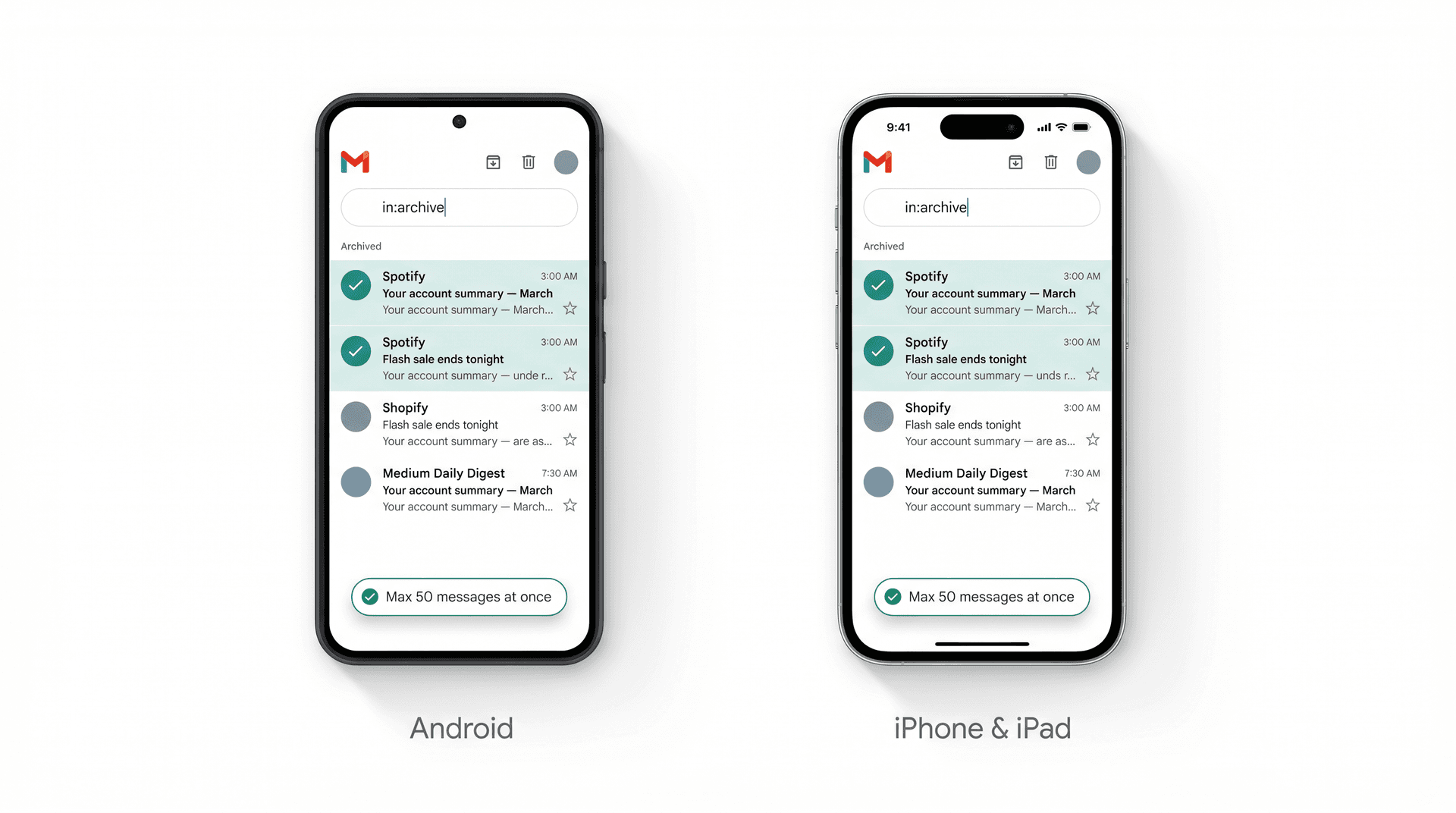
Delete Archived Emails on Android
-
Open the Gmail app.
-
Tap the search bar.
-
Type
in:archiveand search. -
Touch and hold a message to enter selection mode.
-
Tap additional messages to add them to the selection.
-
Tap the trash-can icon to move them to Trash.
Google's Android Gmail Help confirms that deleted messages move to Trash, stay recoverable for up to 30 days, and can be permanently deleted sooner. It also notes that "select all" on mobile defaults to a maximum of 50 messages at a time.
Delete Archived Emails on iPhone and iPad
-
Open the Gmail app.
-
Tap the search bar.
-
Type
in:archiveand search. -
Touch and hold a message to begin selecting.
-
Tap more messages to add to the selection.
-
Tap the trash-can icon.
Google's iPhone and iPad Gmail Help describes the same Trash behavior, including the 50-message selection limit for mobile bulk actions.
Gmail Desktop vs Mobile: Which to Use for Bulk Cleanup
For a quick cleanup of 20 or 30 emails, mobile works fine. For hundreds or thousands of archived messages, use desktop. You get:
-
The "select all conversations matching this search" option (not just 50 at a time)
-
A better view for reviewing results before deleting
-
Faster navigation between Trash and search results
For a full comparison of what desktop does that mobile can't, including interface differences and workflow tradeoffs, that guide walks through both in detail.
Gmail Search Operators for Safely Deleting Archived Emails
The single most useful skill for Gmail cleanup is knowing how to search precisely before you delete. These search operators let you target exactly the emails that are safe to remove without touching anything you want to keep.
All of these combine with in:archive. Gmail's full search operator reference documents every operator covered here.
Delete by Date: The Safest Starting Point
in:archive older_than:1y
in:archive older_than:2y
Old archived mail is usually the lowest-risk to delete. If you haven't needed it in two years, you're unlikely to need it tomorrow. For a guide to hunting down your oldest archived messages across your whole account, including how Gmail handles date searches, that walkthrough goes into more depth.
Delete Large Archived Emails by Attachment Size
in:archive has:attachment larger:10M
This is the single most impactful search for storage recovery. Google's own storage cleanup guide recommends large-attachment searches specifically. A few dozen emails with 10MB+ attachments can free more space than thousands of plain-text messages. For finding every large email across your entire account, not just archived ones, that guide shows how to sort by size and work through the results systematically.
For finding the very largest emails:
in:archive larger:25M
Delete Archived Promotions by Category
in:archive category:promotions older_than:6m
Gmail's automatic categorization labels most newsletters, deals, and marketing emails as Promotions. This search finds the old ones sitting in your archive. If you want to go further and clear out every promotional email in Gmail, not just archived ones, that guide covers the full cleanup flow, including how to stop more from arriving.
You can also target Newsletters or Social if those categories are relevant:
in:archive category:newsletters older_than:1y
Delete Archived Emails from a Specific Sender
in:archive from:sender@example.com
Sender-specific cleanup is the most precise approach. You can audit one noisy sender at a time rather than trusting a broad category sweep. Once you've cleaned up what's there, setting up automatic deletion for emails older than a certain age means you won't have to do this manually in the future.
Find Archived Emails You Never Read
in:archive is:unread older_than:6m
Emails archived without being read are often low-value: automated notifications, newsletters you skimmed past, alerts you didn't need. This search surfaces them.
How to Exclude Starred Emails from Deletion
in:archive -is:starred
If you use stars to mark important messages, this excludes them from your deletion search. It's a useful safety net. Keep in mind Google's note that exclusion operators can behave unexpectedly with conversation-level matching. Review results before selecting all.
Find Archived Emails with No Labels
in:archive has:nouserlabels
Google's documentation confirms has:nouserlabels finds messages without user-created labels. These are often generic archived messages that slipped through without being organized.
Search Everywhere in Gmail (Including Spam and Trash)
in:anywhere invoice
Standard Gmail search doesn't include Spam or Trash by default. Google documents in:anywhere for including everything. Use this for investigation when you can't find an email, not as your bulk-delete search.
Why Deleting Archived Emails Didn't Free Storage (And What Actually Does)
You've done the cleanup. You've deleted hundreds of archived emails. But your storage bar hasn't budged much. Here's why.
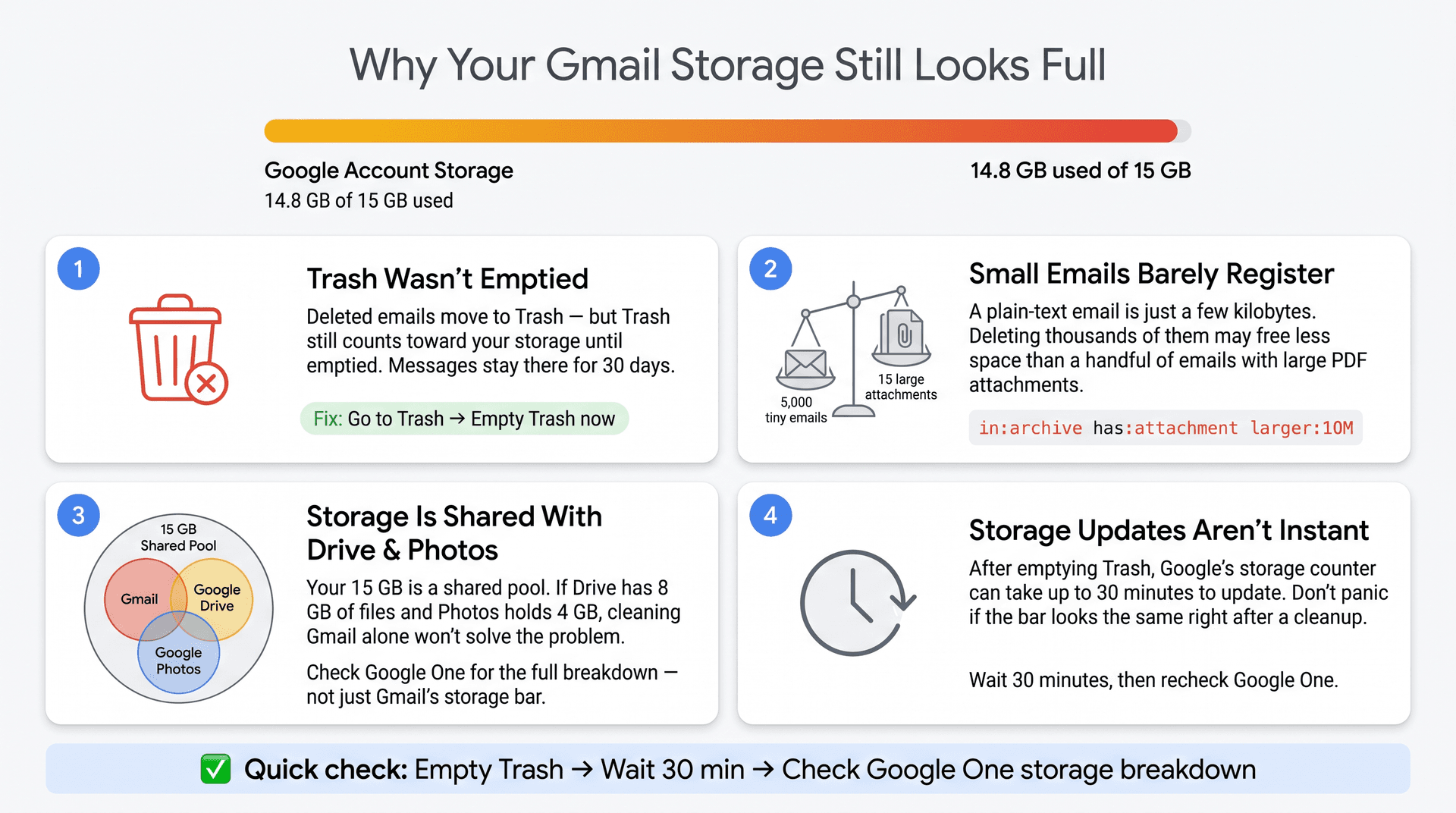
First, check whether you emptied Trash. Deleted emails stay in Trash, still consuming storage, until Trash is emptied or the 30-day timer runs. Google's storage guidance is explicit: messages in Trash still count. Go to Trash and empty it. If you've done everything right and Gmail storage is still stubbornly full, our guide to fixing Gmail running out of space covers every reason this happens and how to address each one.
Second, small emails barely register. A plain-text email is a few kilobytes. Deleting 5,000 small emails might free less space than you think. The real storage wins come from emails with attachments.
Start here:
in:archive has:attachment larger:10M
Then follow with:
in:archive larger:25M
Third, Gmail storage is shared with Drive and Photos. Google's storage documentation confirms that your 15 GB is a shared pool across Gmail, Google Drive, and Google Photos. If Drive has 8 GB of old files and Gmail has 6 GB of archived mail, deleting all your archived Gmail will only get you part of the way. That's also why Gmail storage can appear full even when your inbox looks empty: the culprit is often Drive or Photos, not Gmail. Check your Google One storage breakdown before spending hours on Gmail cleanup specifically. If you're weighing whether to buy more storage, our breakdown of how much Gmail storage costs walks through the Google One tiers and when upgrading is actually worth it.
Fourth, storage updates aren't instant. Google's cleanup guidance notes that storage can take a short period to update after deleting and emptying Trash. If storage still appears full about 30 minutes after a cleanup, Google recommends more advanced options.
Quick check before assuming the worst: Empty Trash → Wait 30 minutes → Check your Google One storage breakdown (not just Gmail's storage bar). Many "cleanup didn't work" problems are solved by one of these three steps.
How to Stop Gmail Archive Buildup Before It Starts
The steps above show you how to clean up what's already in your archive. But if archived email keeps piling up because newsletters, cold emails, and automated notifications never stop arriving, you're playing a game of whack-a-mole with your inbox.
Inbox Zero solves the upstream problem.

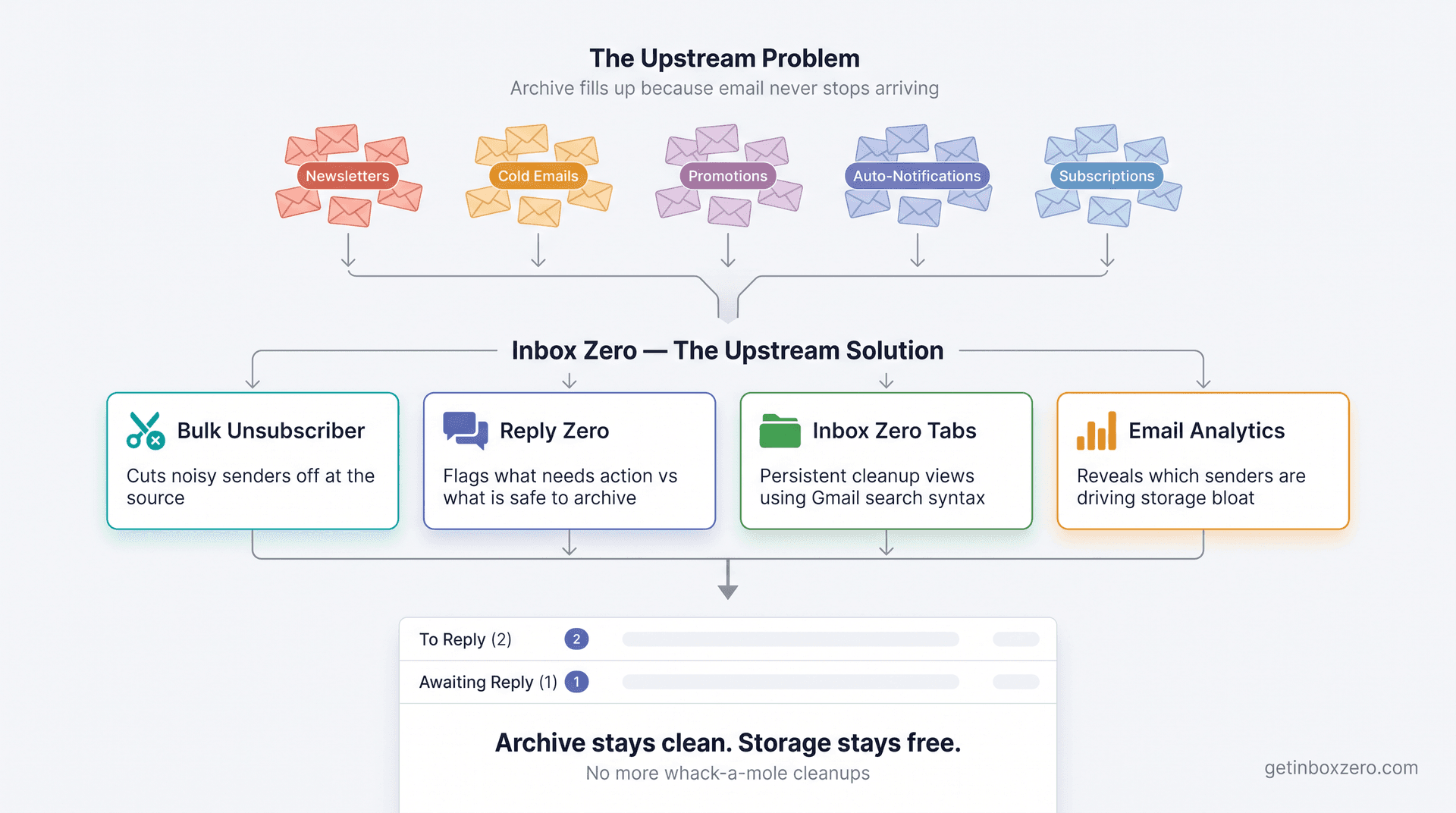
| Feature | What it does for your archive |
|---|---|
| Bulk Unsubscriber | Identifies noisy senders and cuts them off at the source |
| Reply Zero | Separates emails that need action from ones safe to archive |
| Tabs for Gmail | Builds persistent cleanup views using Gmail search syntax |
| Email Analytics | Shows which senders and categories are driving storage bloat |
Bulk Email Unsubscriber: Stop Archive Buildup at the Source
Inbox Zero's Bulk Email Unsubscriber scans your inbox for subscription senders, shows you how often you actually read them, and lets you unsubscribe or auto-archive with one click. Deletion is cleanup after the fact. Unsubscribing stops the flow from the source.

For senders you want to keep but don't want in your Inbox, the auto-archive path routes them out of your way automatically, so they never build up in the first place. For a full system to manage email subscriptions long-term, choosing what to keep, what to unsubscribe from, and how to organize what stays, that guide gives you the complete framework.
Reply Zero: See Which Archived Emails Still Need a Response
One of the real risks with aggressive archiving is hiding emails that still need a response. Inbox Zero's Reply Zero labels every thread requiring action as To Reply and every thread you're waiting on as Awaiting Reply. That separation makes it obvious which emails are safe to archive and which ones need to stay visible.
Inbox Zero Tabs: Build Persistent Gmail Cleanup Views
The Inbox Zero Tabs for Gmail Chrome extension adds custom tabs inside Gmail using Gmail search syntax. That means you can build a persistent cleanup view with searches like:
in:archive has:attachment larger:10M
in:archive category:promotions older_than:6m
The extension works entirely in your browser: no external servers, no data collection, no account creation required. You can read exactly how the Tabs extension works in the documentation.
Email Analytics: Find Which Senders Are Filling Your Archive
Inbox Zero's analytics surface your top senders, archiving rates, reading behavior, and largest emails. That data makes cleanup decisions easier: you can see which senders are generating volume you never read, which categories are eating your storage, and where to focus your unsubscribe effort.
What About Google's "Manage Subscriptions" Feature?
In July 2025, Google launched a Manage subscriptions view in Gmail that shows active subscriptions and allows one-click unsubscribe requests. It's useful for reducing future email volume.
But it doesn't clean up what's already in your archive. Google's own help page for the feature notes that unsubscribing can take a few days, and blocking a sender sends future messages to Spam without removing the historical archive. The cleanup steps earlier in this guide still apply.
Start free at Inbox Zero and connect your Gmail account to stop the archive from rebuilding.
Common Mistakes When Deleting Archived Gmail Emails
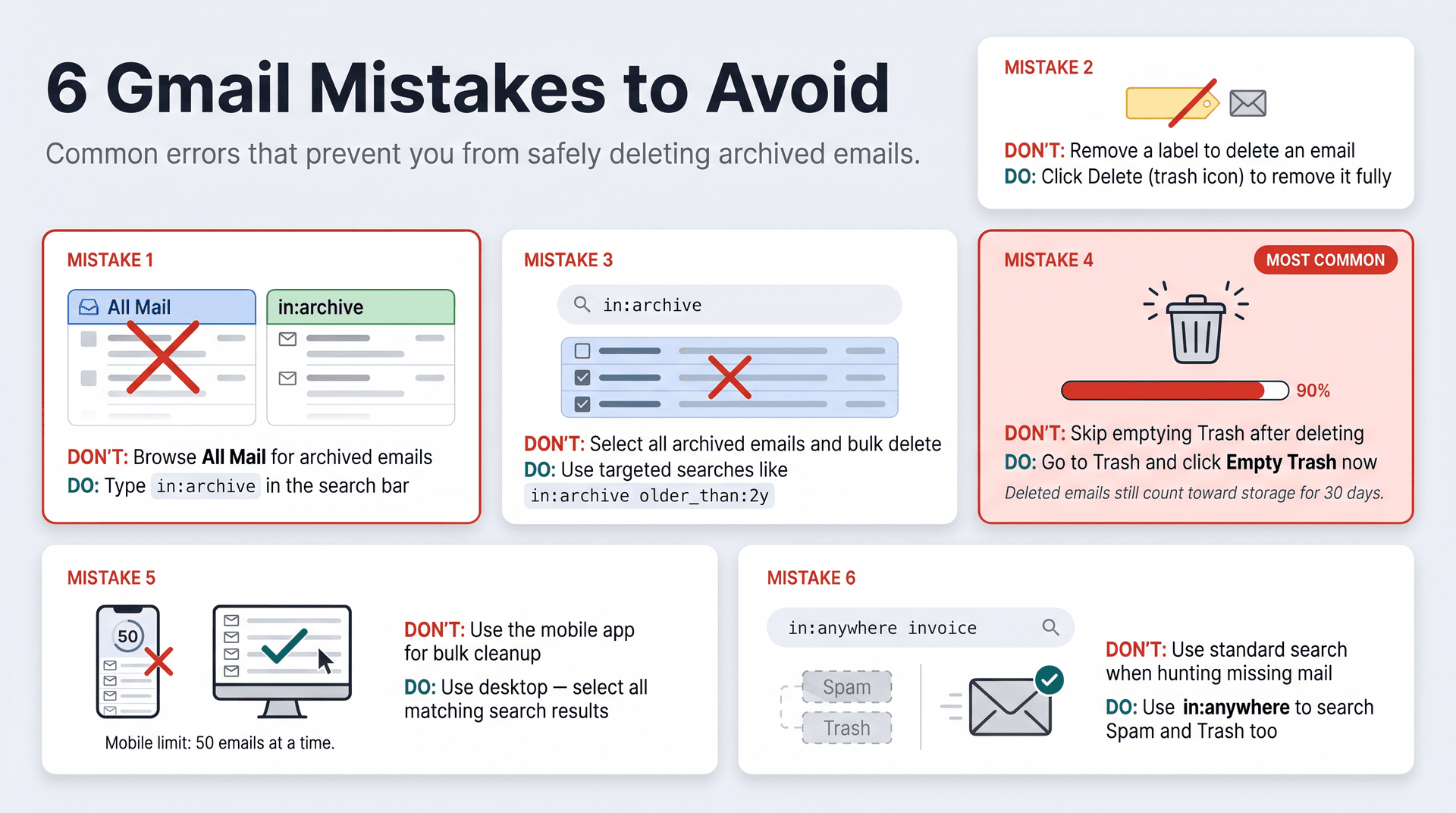
Mistake 1: Confusing All Mail with Your Gmail Archive
All Mail shows everything that isn't in Spam or Trash: your Inbox, your archive, Sent, and more. The in:archive search operator is more precise. When you want to work with archived-only emails, use in:archive in the search bar, not the All Mail view.
Google's Gmail Help confirms that archived messages are removed from the Inbox but remain findable in All Mail and through in:archive. If you regularly lose archived emails or aren't sure where Gmail put something, our guide to finding archived emails in Gmail covers all the search paths.
Mistake 2: Removing a Label and Thinking the Email Is Deleted
Labels are organizational. Removing a label doesn't delete the email. Google explains that deleting an email removes it from every label and from the Inbox. If you want the email gone, you need to delete it, not just remove a label.
Mistake 3: Bulk-Deleting Your Entire Archive
Your archive is full of things you intentionally saved: account confirmations, receipts, tax documents, old conversations. Deleting everything archived at once is risky. Start with narrow searches (old promotions, large attachments from senders you no longer use) and work outward slowly.
If you do want to delete everything, our comprehensive guide to deleting all emails in Gmail walks through that process with the safety checkpoints you need.
Mistake 4: Forgetting to Empty Trash After Deleting
This one bites almost everyone. After you delete emails, they sit in Trash for 30 days still consuming your storage. Google confirms that Trash contents count toward storage until permanently deleted. Go to Trash and empty it after any significant cleanup. And if you realize you deleted something important, our guide on recovering deleted Gmail emails explains what options exist while the Trash window is still open.
Mistake 5: Using the Gmail Mobile App for Large Cleanups
The Gmail mobile app is fine for deleting 20 or 30 emails. For bigger jobs, desktop is the right tool. Google's mobile Gmail Help notes that "select all" on mobile defaults to 50 messages. On desktop, you can select all conversations matching an entire search at once.
Mistake 6: Not Including Spam and Trash When Searching for Missing Mail
Standard Gmail search excludes Spam and Trash by default. If you're hunting for an email you think you accidentally deleted, use Gmail's in:anywhere operator to include everything. Don't use this as your bulk-delete search. Use it only for investigation.
Gmail Archive and Delete: Frequently Asked Questions
I Archived an Email in Gmail. Where Did It Go?
It went to All Mail. Search in:archive in Gmail to find it. Google confirms that archived messages are removed from the Inbox but remain in All Mail and are searchable. You can also click All Mail in the left sidebar (you may need to click More to see it). For a complete walkthrough of how to find archived emails in Gmail, including what to do when the in:archive search shows nothing, that guide covers every scenario.
Why Did My Archived Email Come Back to My Inbox?
Someone replied to the conversation. Google's Help page on archiving states that if someone replies to an archived message, the thread returns to your Inbox. That's by design. To prevent a specific thread from returning, you'd need to mute it.
I Deleted Archived Emails but My Storage Didn't Go Down. Why?
Three things to check:
-
Did you empty Trash? Emails in Trash still count toward storage until permanently deleted.
-
Were the deleted emails actually large? Plain-text emails barely move the needle. Large attachments matter.
-
Is the real culprit Google Drive or Photos? Google's storage documentation confirms the 15 GB is shared across Gmail, Drive, and Photos. Check your storage breakdown in Google One before assuming Gmail is the problem.
Also keep in mind that Google notes storage updates can take about 30 minutes after emptying Trash.
Can I Recover Deleted Archived Emails?
If they're still in Trash, yes. Go to Trash and restore them before the 30-day window closes or before you empty Trash. Google confirms that deleted messages stay in Trash for up to 30 days and can be recovered during that window.
If they've been permanently deleted, the recovery options that still exist depend on whether you're on a personal Gmail or a Google Workspace account. Personal Gmail users should generally assume no recovery after permanent deletion. Workspace admins may have an additional recovery window. That guide explains what's possible and how to attempt it.
How Do I Delete All Archived Emails at Once?
On desktop:
-
Search
in:archive. -
Click the top checkbox to select all visible messages.
-
Click Select all conversations that match this search (Gmail shows this when there are more results than the current page).
-
Click Delete.
-
Open Trash and click Empty Trash now.
This is powerful and permanent. Google's deletion guide covers this select-all flow. For most people, it's safer to delete subsets first (old promotions, large attachments) rather than everything at once. If you'd rather set up automatic deletion so you never have to do this manually again, Gmail filters and tools like Inbox Zero make that possible.
Does Deleting an Archived Email Delete It from Labels Too?
Yes. Google explains that when you delete an email, it's removed from every label and from the Inbox. Deleting is stronger than removing a label. It removes the message entirely, not just its organizational tags.
Does Archiving Gmail Emails Keep Them Forever?
Archiving doesn't start any deletion countdown. Archived messages stay in Gmail indefinitely unless you delete them, your account hits a storage or policy issue, or your organization (for Workspace accounts) applies retention rules. Google's archiving documentation confirms that archived messages remain in All Mail until they're explicitly deleted. If you want to see exactly what archiving all emails in Gmail looks like as a first step before deciding what to delete, that guide covers the bulk archive workflow. For Workspace users, Google Vault retention rules can purge data according to organizational schedules. That's separate from the user-side archive behavior.
What's the Safest Gmail Search Query to Start With?
Start here:
in:archive has:attachment larger:10M
This targets emails most likely to matter for storage while avoiding the risk of deleting every archived message. Review the results manually before selecting anything. This is safer than in:archive by itself, and it's where the most storage recovery usually happens.
The Right Way to Delete Archived Gmail Emails
The fix for deleting archived Gmail emails is straightforward once you know the two things most people miss: in:archive is how you find them, and emptying Trash is how you actually free storage.
The smarter move, though, is using targeted searches to delete precisely: by age, by size, by sender, by category. Bulk-deleting your entire archive is risky. Deleting the oldest promotional emails and the largest attachments from senders you'll never need again is not.
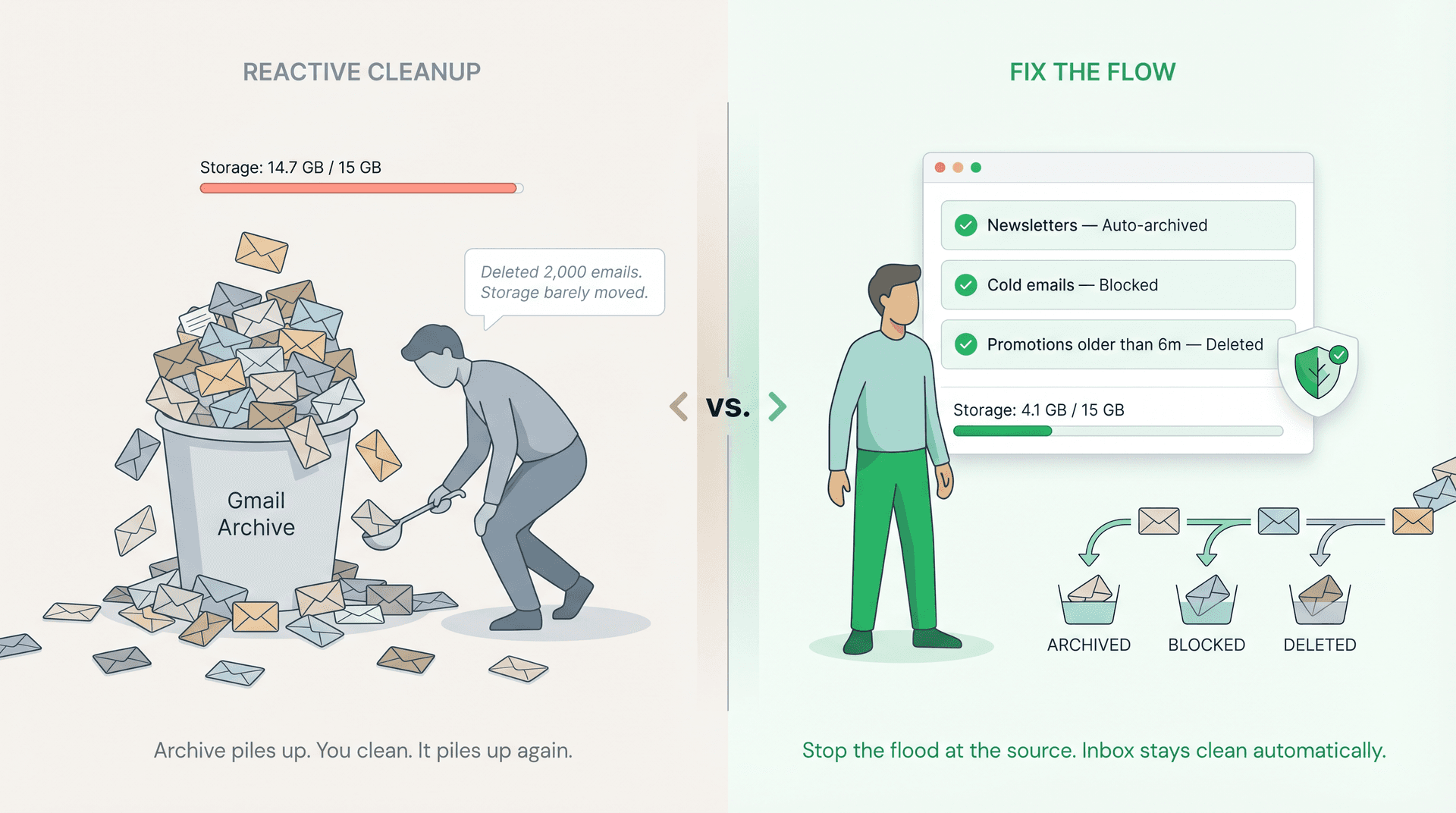
If your archive keeps rebuilding because newsletters and automated emails never stop arriving, that's an upstream problem. Inbox Zero handles it at the source: bulk unsubscribing from senders you never read, automatically routing mail that doesn't need your attention, and surfacing the emails that do. The result is an archive that stays manageable instead of becoming a hidden storage drain you have to clean up every few months. That's the inbox zero method in practice: not just emptying what's there, but fixing the system so it doesn't fill back up.
Use the search operators. Empty Trash. And if the problem keeps coming back, fix the flow, not just the backlog.

What is the Inbox Zero Method & How do I Master It?
Discover the Inbox Zero method and learn simple steps to take control of your email inbox, stay organized, and boost productivity.

4 Email Productivity Hacks from Tim Ferriss, Andrew Huberman, and Sam Harris
Explore 4 powerful email productivity hacks from tech and wellness experts like Tim Ferriss and Andrew Huberman. Learn to create focus, optimize processing, manage time wisely, and delegate effectively to conquer your inbox.

Best Time to Send Emails for Response (2026)
Stop guessing when to send emails. Get data-backed timing strategies from 2026 research that improve response rates across all scenarios.

How To Organize Outlook Inbox? (2026 Guide)
Learn how to organize Outlook inbox with rules, folders, categories, and AI automation. Step-by-step guide for 2026 that actually works.