How to Find Unread Emails in Gmail (Search Filter Guide)
Find unread emails in Gmail with the right search operators, from is:unread to category filters. Plus how Inbox Zero stops the pile-up at the source.

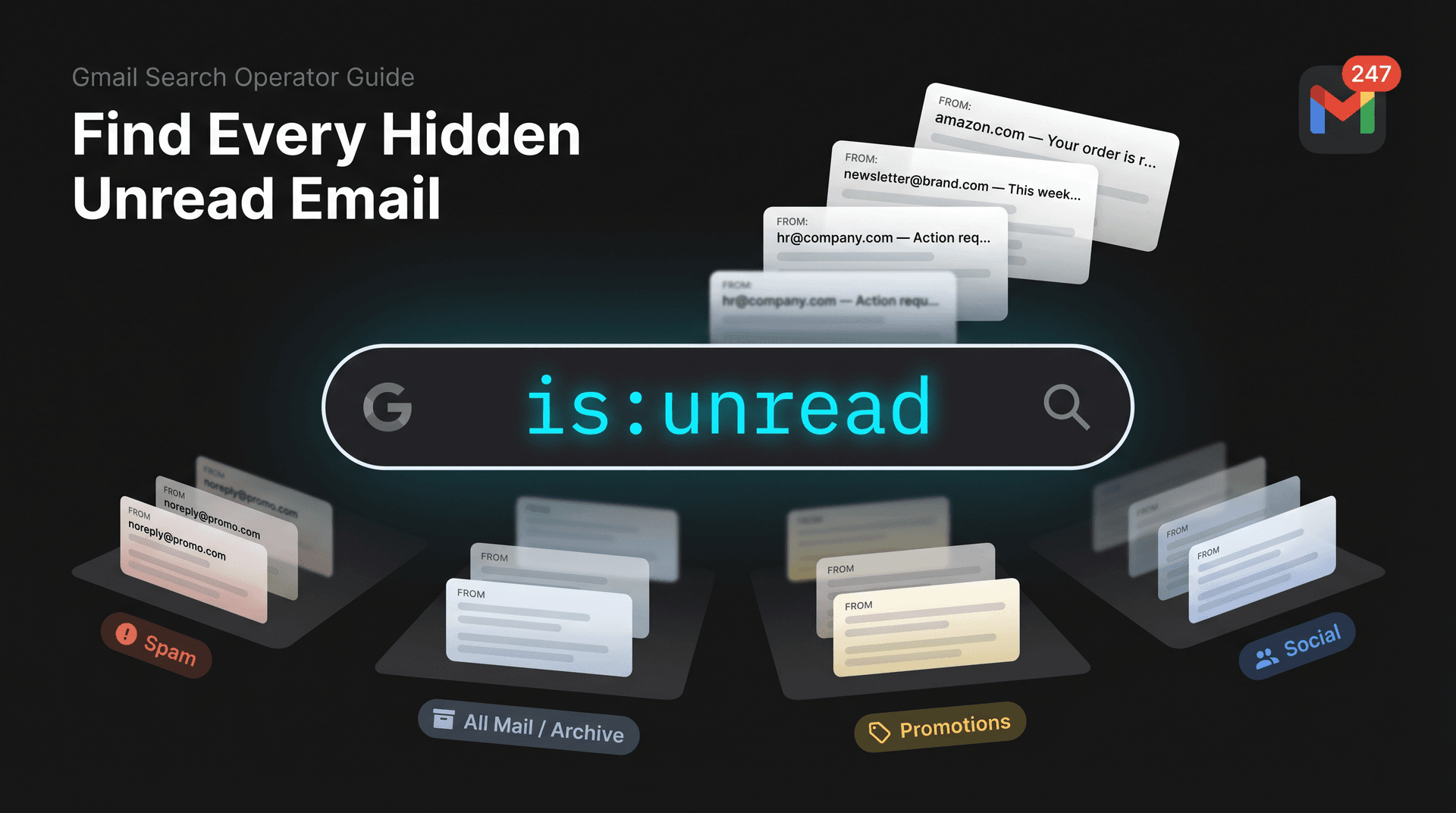
If your Gmail shows a badge count that doesn't match what you can actually see in your inbox, you're not imagining things. Archived threads, emails that slipped into Spam, and messages buried in category tabs all count as "unread" even if they never appeared where you expected them. The fix, in most cases, is a single search operator that most Gmail users never learn.
Type this into the Gmail search bar and press Enter:
is:unread
That's it. Gmail officially supports is:unread as a search operator for status-based filtering, and it works across your entire mailbox. You can pair it with dozens of other operators to zero in on exactly the unread emails you're looking for.
At Inbox Zero, we work with people trying to get control of their inboxes every day. The search operators below are the ones that actually make a difference.
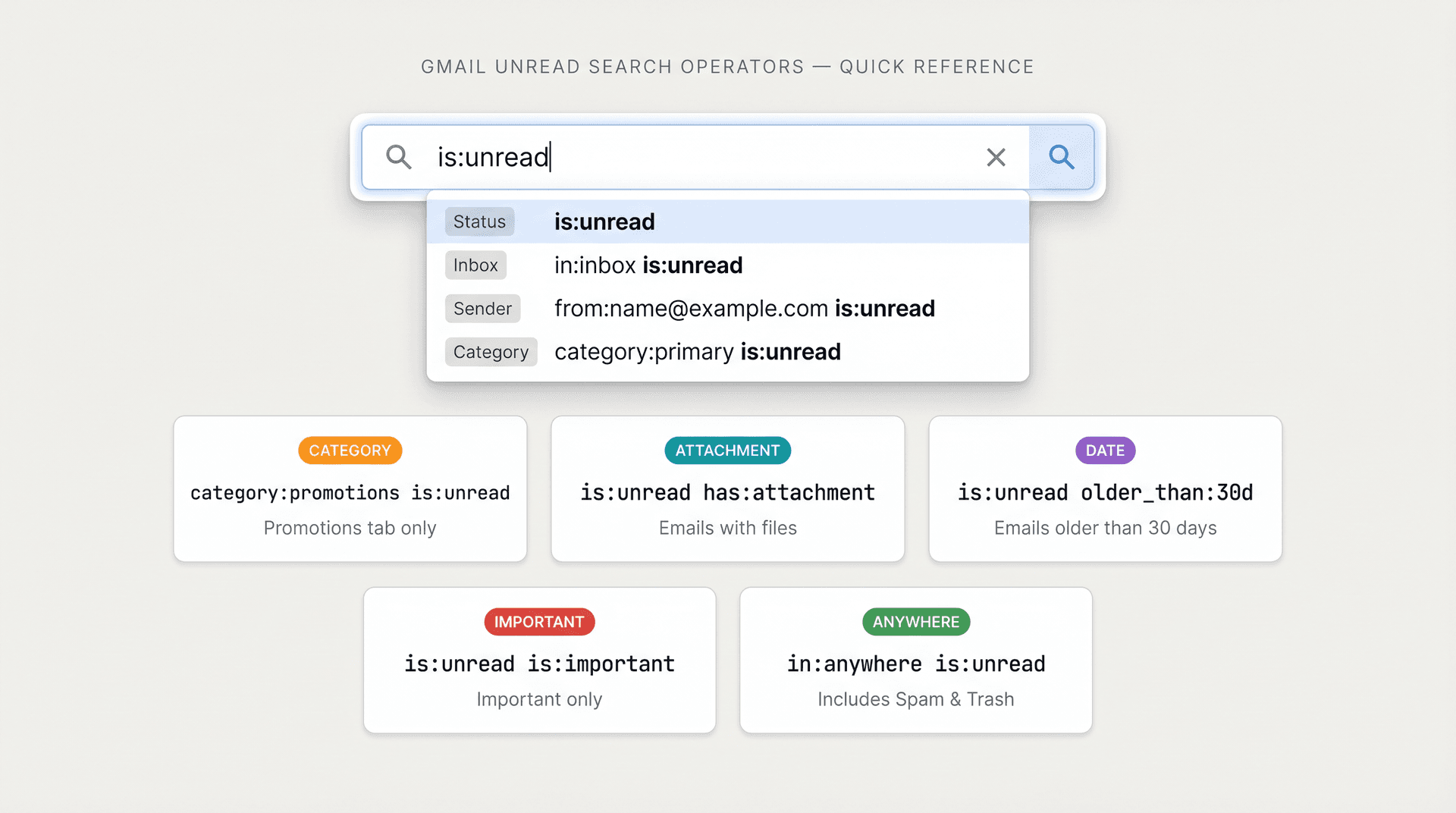
Gmail Unread Search Filters: Quick Reference
Copy any of these directly into the Gmail search bar.
| What you want to find | Gmail search query |
|---|---|
| All unread emails | is:unread |
| Unread emails only in Inbox | in:inbox is:unread |
| Unread emails from one person | from:name@example.com is:unread |
| Unread emails sent to you | to:me is:unread |
| Unread emails in Primary | category:primary is:unread |
| Unread emails in Promotions | category:promotions is:unread |
| Unread newsletters | is:unread list:* |
| Unread emails with attachments | is:unread has:attachment |
| Unread PDFs | is:unread filename:pdf |
| Unread emails older than 30 days | is:unread older_than:30d |
| Unread emails from this week | is:unread newer_than:7d |
| Unread emails including Spam and Trash | in:anywhere is:unread |
| Unread important emails | is:unread is:important |
| Unread starred emails | is:unread is:starred |
Each of these searches is more useful than it looks at first glance. Here's where each one actually earns its keep.
How to Find Unread Emails by Gmail Category
Gmail automatically sorts incoming mail into five categories: Primary, Social, Promotions, Updates, and Forums. When you search with is:unread alone, results come from all of them at once. To isolate one category, add category: to your search.
Gmail's search documentation confirms that category:primary, category:social, category:promotions, category:updates, and category:forums are all supported operators.
category:primary is:unread
category:promotions is:unread
category:social is:unread
category:updates is:unread
category:forums is:unread
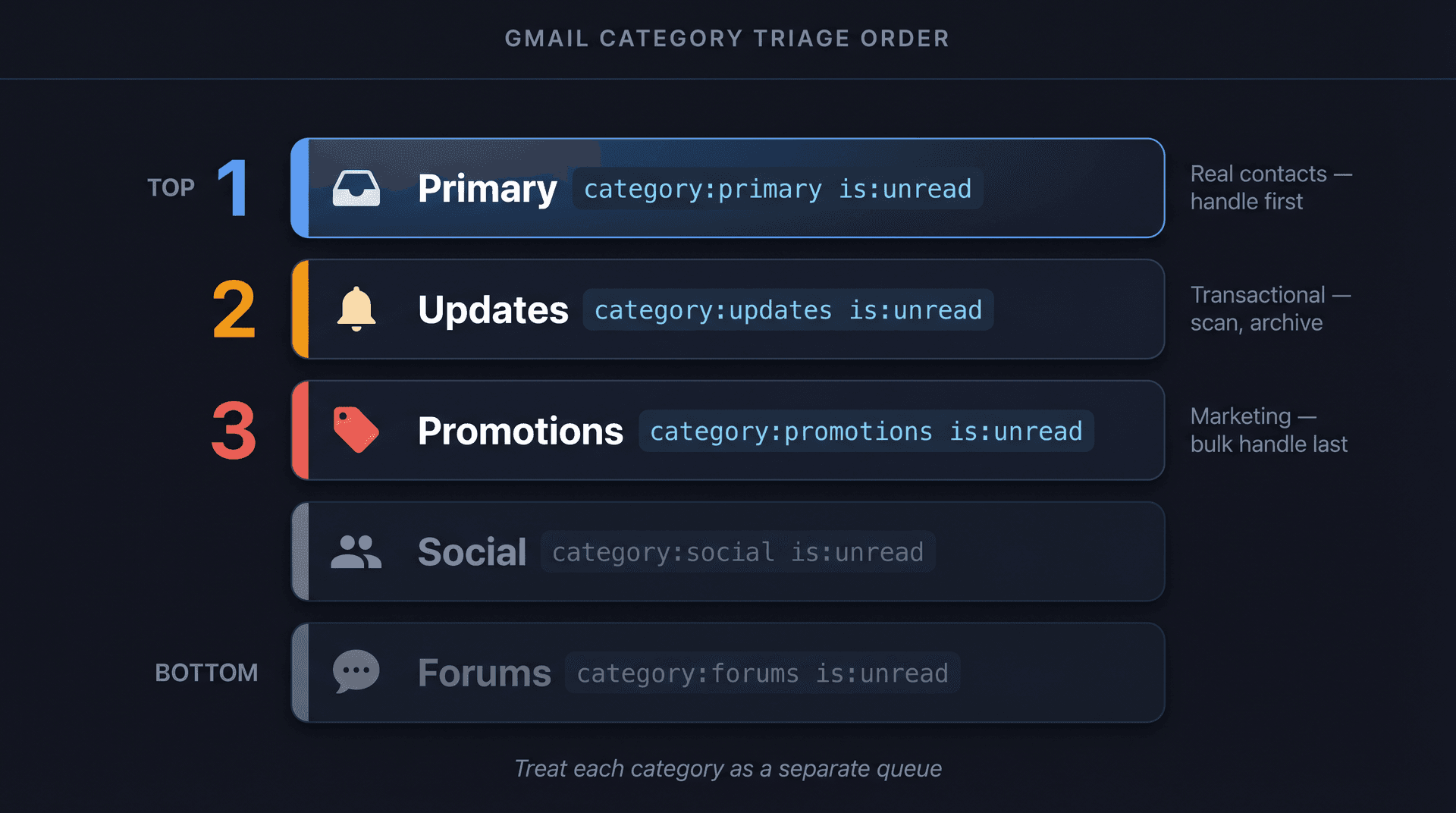
If you're trying to clear your inbox efficiently, there's a smart order to follow:
-
Start with
category:primary is:unread. These are the emails from real contacts that probably need attention. -
Move to
category:updates is:unread. These are transactional messages like shipping notifications and account alerts. Scan for anything that requires action, archive the rest. -
Bulk-handle
category:promotions is:unreadlast. Most of these are safe to mark as read or archive without reviewing every one, and if you want to clear out your entire Promotions tab at once, that's a worthwhile follow-up step.
Treating categories as separate queues rather than one undifferentiated inbox makes the triage much faster.
How to Find Unread Emails From a Specific Sender in Gmail
When you're hunting for something specific from a person or company, from: is the fastest path.
from:person@example.com is:unread
A real-world example: if you're waiting on an order confirmation and can't find it:
from:amazon.com is:unread
Gmail supports from: for emails sent by a specific person or address. You don't have to use the full email address. A partial name or domain often works.
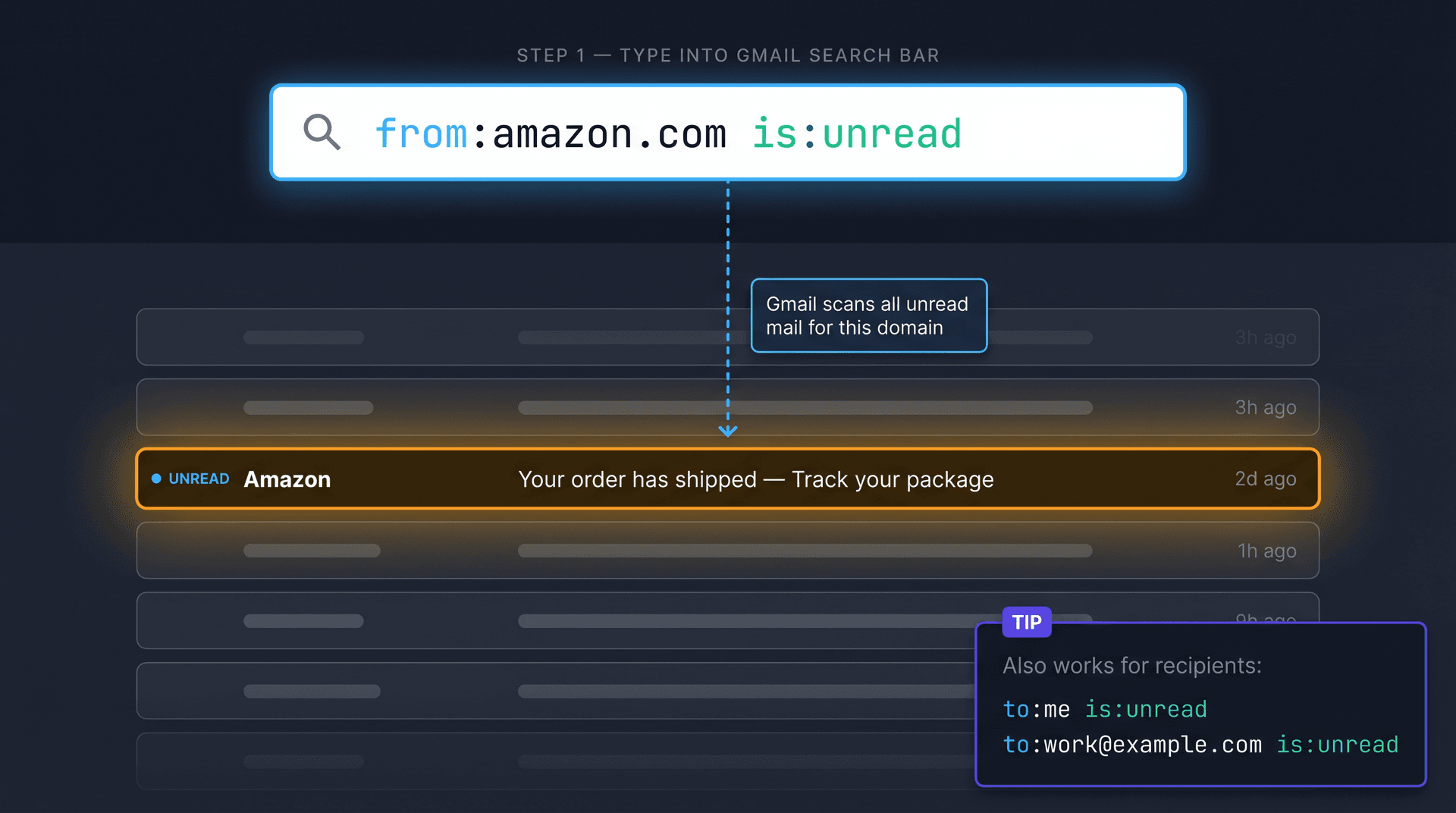
You can also search by recipient. This matters if you're managing multiple Gmail addresses or if you have email aliases:
to:me is:unread
Or target a specific address:
to:work@example.com is:unread
The to: operator finds messages sent to a specific person, which is useful when you've set up email aliases or delegation and want to see what arrived at a particular address.
One more thing worth knowing: labels and categories in Gmail are different. Categories (Primary, Promotions, etc.) are Gmail's automatic groupings. Labels are the tags you apply manually, or that filters apply automatically. Both work with is:unread.
How to Filter Unread Gmail Emails by Label, Attachment, or File Type
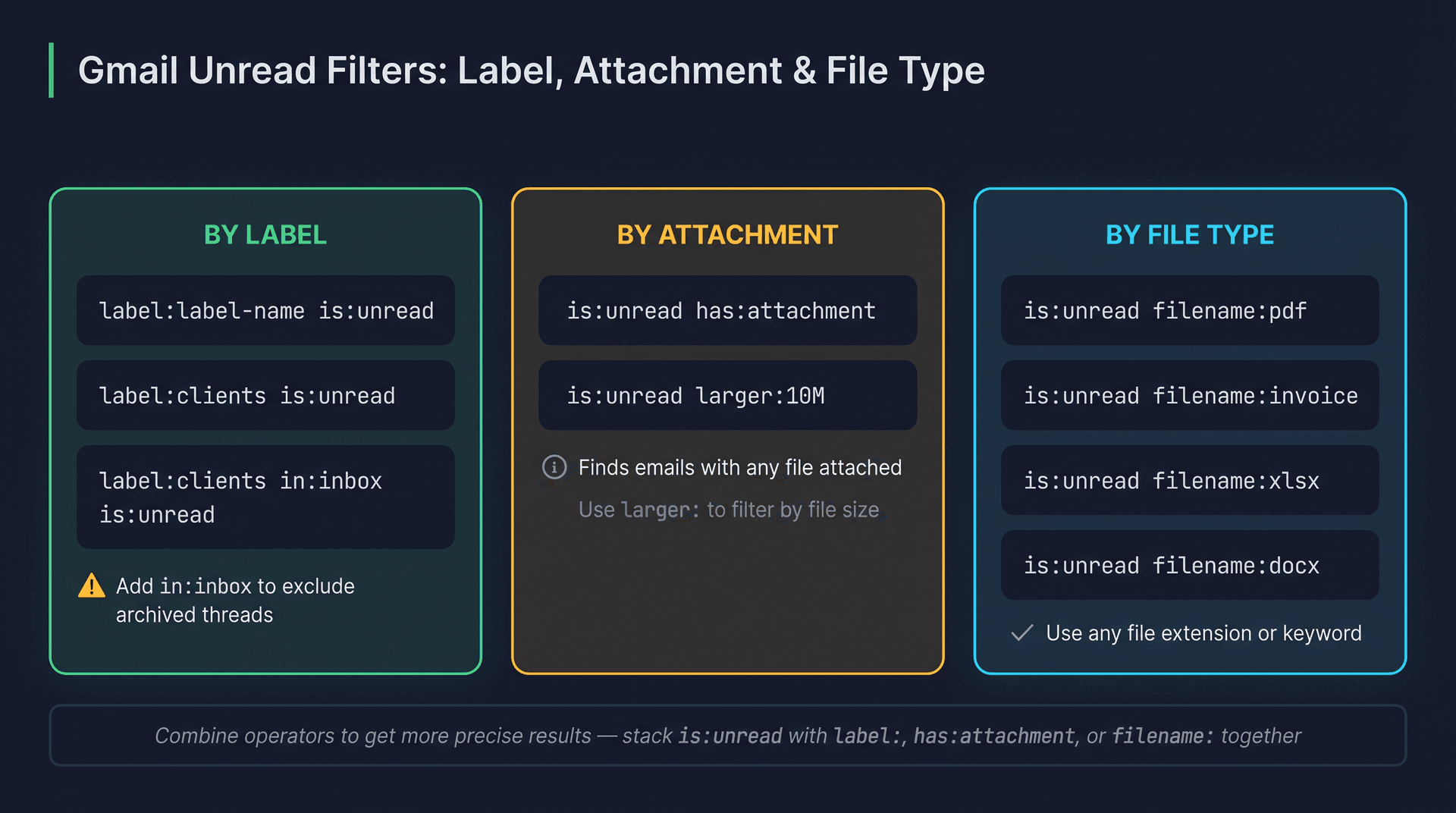
If you've set up labels in Gmail (or use an automation tool to label incoming mail), you can combine labels with the unread filter.
label:label-name is:unread
For example, if you have a label called "Clients":
label:clients is:unread
One thing to watch: labeled emails can be archived, so this search might surface old archived threads. If you only want active unread client emails still in your inbox:
label:clients in:inbox is:unread
Gmail confirms that label: finds emails with a specific Gmail label applied.
For attachments, the operator is has:attachment. For a full walkthrough of searching unread emails with attachments, including filtering by specific file type, the dedicated guide covers every case:
is:unread has:attachment
Need a specific file type? Use filename: with the extension:
is:unread filename:pdf
is:unread filename:invoice
is:unread filename:xlsx
Gmail's has:attachment and filename: operators also support Google-native file types like Drive files, Docs, Sheets, Slides, and YouTube links embedded in messages. If you find yourself frequently searching for unread emails with attachments, Inbox Zero's auto-file feature can automatically route those attachments into Google Drive or OneDrive.
How to Find Unread Emails by Date in Gmail
Date filtering is especially useful for bulk cleanup. Old unread promotional emails rarely need attention. Recent ones sometimes do.
Relative date operators:
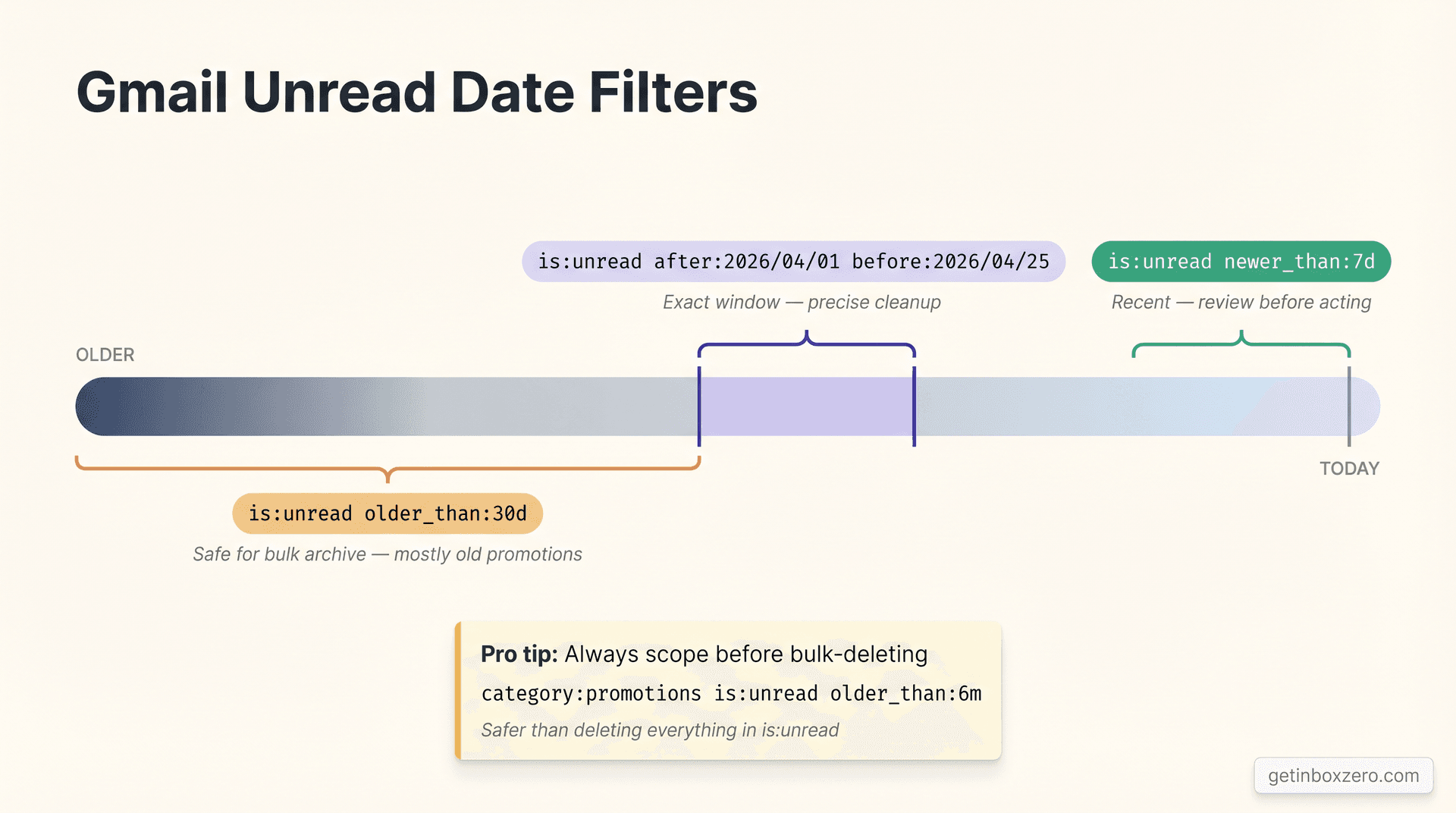
is:unread newer_than:7d
is:unread older_than:30d
Exact date range:
is:unread after:2026/04/01 before:2026/04/25
Gmail supports older_than: and newer_than: with d for days, m for months, and y for years. The after: and before: operators use the date format YYYY/MM/DD.
You can also filter by email size, which is handy for storage cleanup:
is:unread larger:10M
Gmail's larger:, smaller:, and size: operators let you find unread messages with large attachments taking up space. If you want to take cleanup a step further, our guide on how to automatically delete emails older than 30 days in Gmail walks through both native Gmail methods and automation approaches. And if you're looking for your oldest emails in Gmail specifically, the older_than: operator pairs well with the cleanup steps there.
Practical tip: Before bulk-archiving or deleting old unread emails, scope them first.
category:promotions is:unread older_than:6mis much safer than deleting everything inis:unread.
Why Gmail Shows Unread Emails You Can't Find
This is the frustrating one. Gmail shows an unread badge, you click into your inbox, you read every visible email, and the badge still doesn't go to zero. Where are these phantom unread emails?
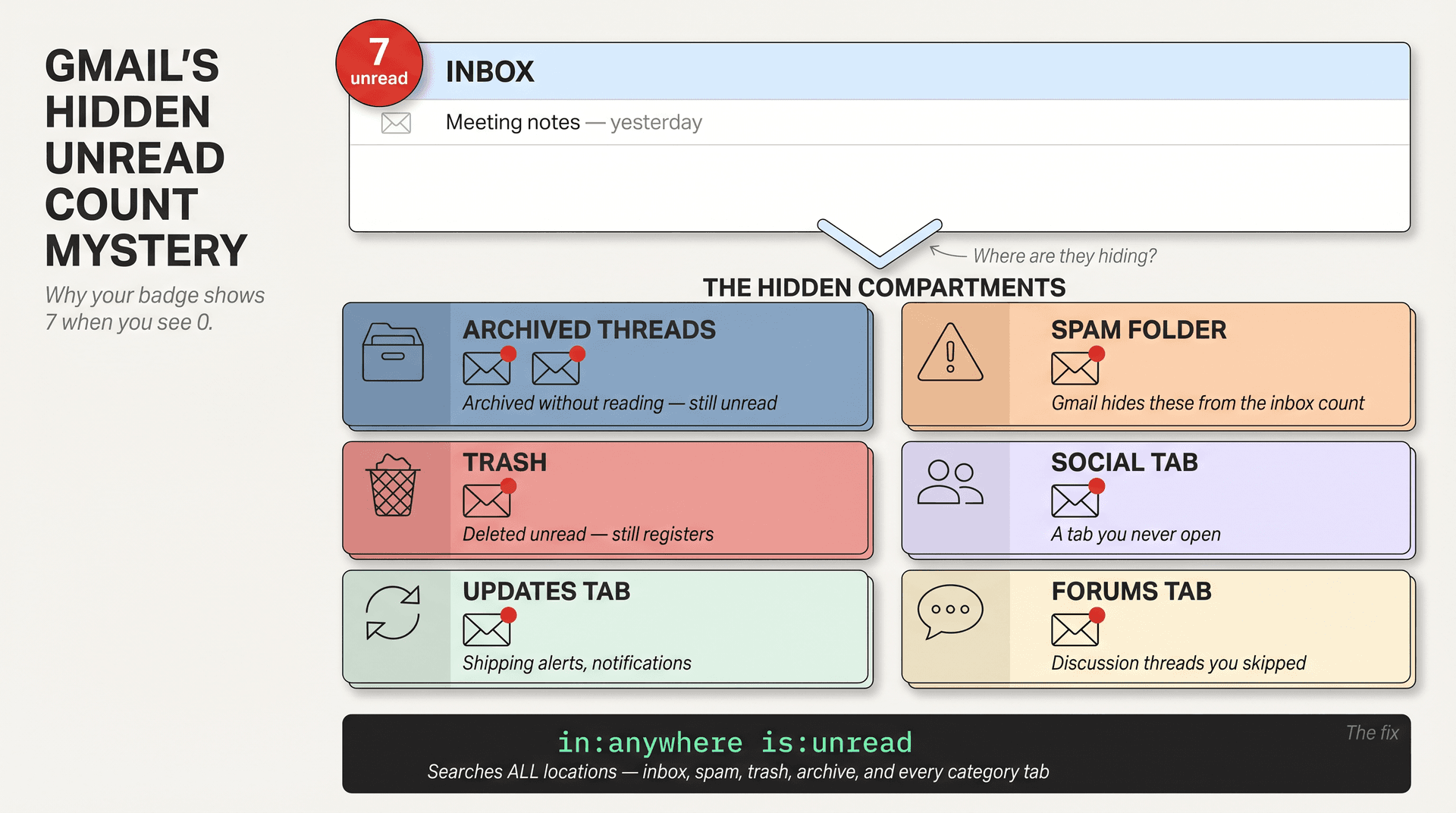
There are a few places they hide:
-
Archived conversations that were never opened (they're out of the inbox but still marked unread)
-
Spam (Gmail doesn't count these in your inbox count, but they do have an unread status)
-
Trash (deleted unread emails still register)
-
Category tabs you never check (Social, Updates, Forums)
By default, a standard is:unread search does include all of these. But if you've already scanned your inbox and still can't find the source, use:
in:anywhere is:unread
This searches across all of Gmail's All Mail and archive locations, including Spam and Trash. This is the nuclear option. It pulls in everything. Sort by location or sender to find the stragglers.
Once you identify the culprits, mark them as read, archive them, or delete them. The badge will update.
Typing in:anywhere is:unread every day to manage your inbox is not a sustainable system, though. The next two sections cover how to make this less of a chore.
How to See Unread Emails in Gmail Without Searching
If your primary goal is just keeping track of what's unread without having to type a search each time, Gmail's inbox layout settings are worth knowing.
On desktop:
-
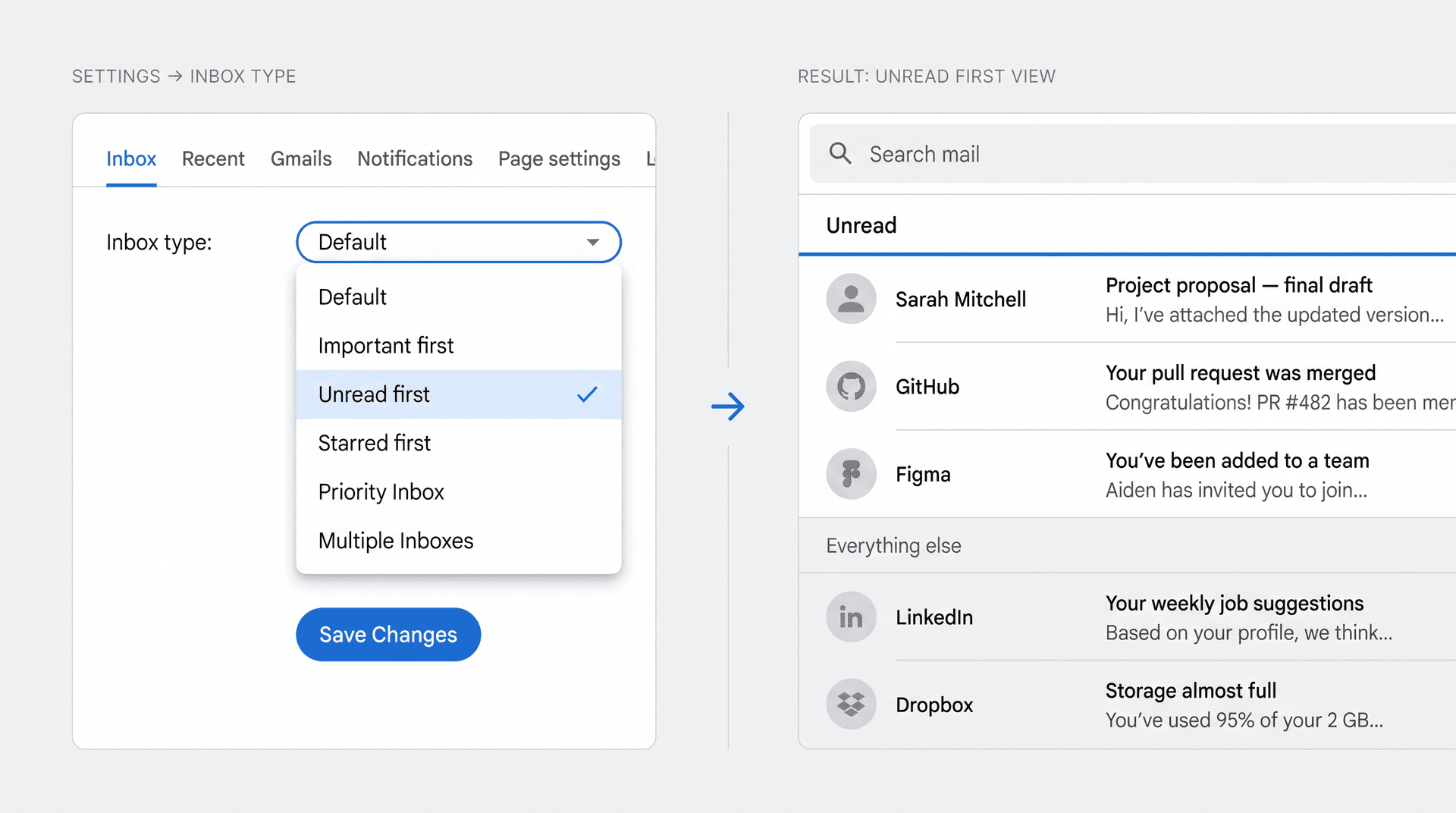
Open Gmail and click Settings (the gear icon in the top right).
-
Click See all settings.
-
Under the Inbox tab, look for Inbox type.
-
Select Unread first.
-
Click Save Changes at the bottom.
Gmail's "Unread first" layout separates your inbox into two sections: Unread at the top and Everything else below. It's a clean way to keep unread messages visible without manually searching. (If you set it up and it doesn't seem to work as expected, the Gmail Multiple Inboxes troubleshooting guide covers common display issues.)
Gmail also offers several other inbox styles you can choose from:
| Inbox type | What it does |
|---|---|
| Default | Standard chronological inbox |
| Important first | Prioritizes messages Gmail thinks are important |
| Unread first | Unread section above everything else |
| Starred first | Starred messages at the top |
| Priority Inbox | Split view with sections Gmail auto-populates |
| Multiple Inboxes | Custom sections using search queries |
URL: https://mail.google.com/mail/u/0/#settings/inbox Location: "How to See Unread Emails in Gmail Without Searching" — Inbox type settings Instructions: A real Gmail Settings screenshot showing the Inbox tab with the Inbox type dropdown (Unread first selected) could replace the AI illustration above. Capture requires an authenticated Gmail session. Because this is Google's proprietary UI, confirm brand/legal approval before publishing a real Gmail screenshot. If approved, capture at 1920x1080 desktop and replace images/image-08-gmail-inbox-type-settings-1777125903546.png with the real screenshot. Reason skipped: client instructions prohibit screenshotting Google's proprietary Gmail interface for publication without explicit authorization. For most people, Unread first is the lowest-friction change that makes a real difference.
Build a Gmail Unread Dashboard With Multiple Inboxes
If you want more structure than "Unread first" gives you, Gmail's Multiple Inboxes feature lets you build a custom multi-panel view using search operators.
Google says Multiple Inboxes can use search operators or custom labels to create additional inbox sections. You can add panels for things like:
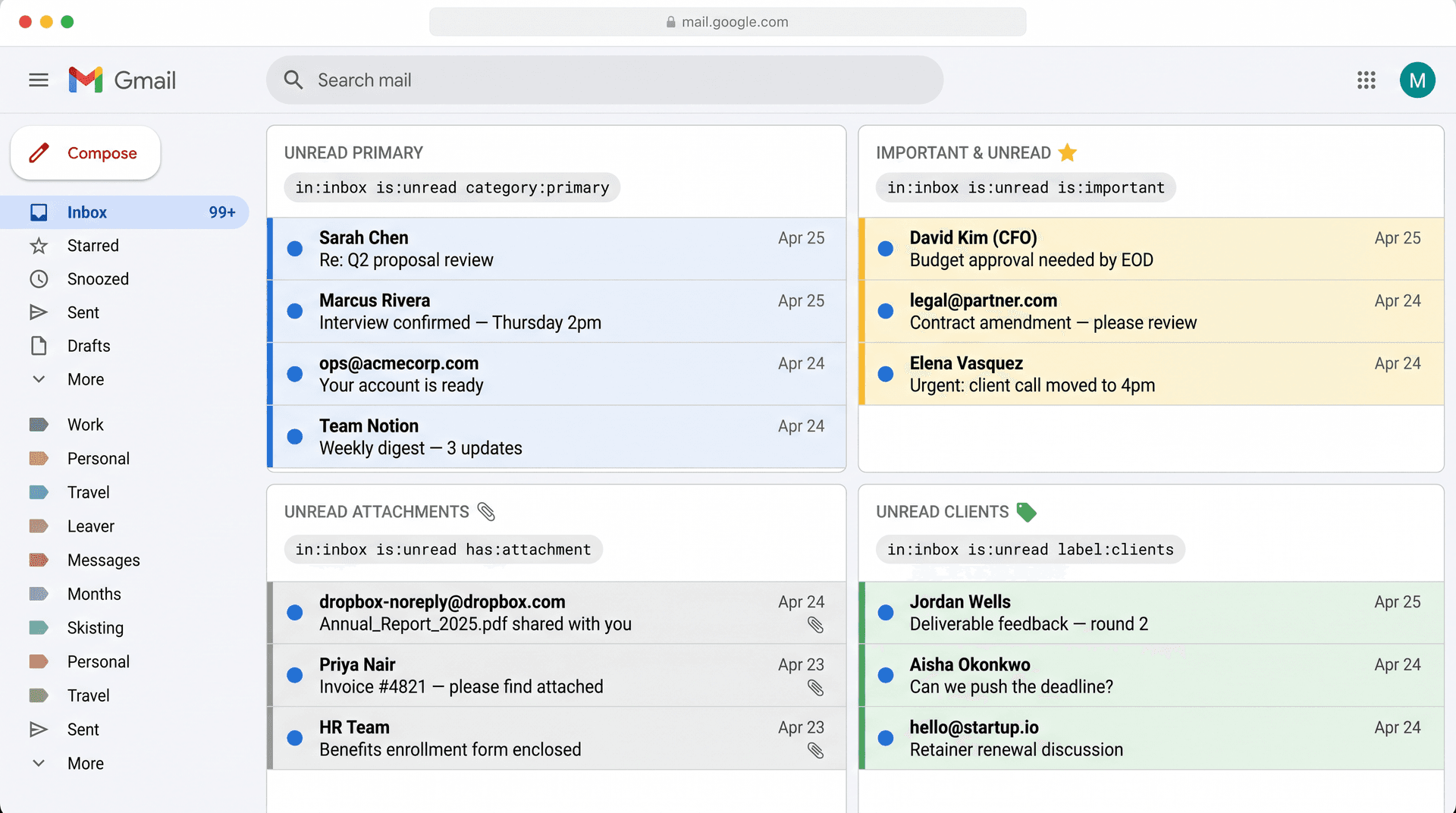
-
in:inbox is:unread category:primary(unread Primary emails) -
in:inbox is:unread is:important(unread important emails) -
in:inbox is:unread has:attachment(unread emails with files) -
in:inbox is:unread label:clients(unread client emails)
Each panel shows up as a separate section in your Gmail view. It's the closest Gmail gets to a split-inbox experience without installing anything.
To set it up: Settings → See all settings → Inbox tab → Inbox type → Multiple Inboxes. Enter your search queries as section parameters and save.
The limitation is that you're still manually sorting and triaging everything yourself. Multiple Inboxes gives you a better view of the problem. It doesn't solve the problem.
How to Stop Having Too Many Unread Emails in Gmail
Search operators help you find unread emails. But the reason most people end up with hundreds of unread emails they don't know what to do with is a different problem: there's no system deciding what needs your attention versus what doesn't.
That's what Inbox Zero does.

Reply Zero: never lose a thread that needs your attention
Inbox Zero's Reply Zero feature automatically identifies which emails in your inbox need a response and which ones are waiting on someone else. It creates two focused views: To Reply (emails that need action from you) and Awaiting Reply (threads where you're waiting on someone else to respond).
Instead of scanning your full inbox for things that need attention, you start each day in To Reply. Everything there is actionable. Everything in Awaiting Reply is on someone else. That's it. For a deeper look at how to see all emails waiting for a reply, we cover that separately.
No more opening an email, realizing you need to respond, and then forgetting it's there.
AI automation: make the sorting happen automatically
Inbox Zero's AI automation lets you describe how you want your email handled in plain language. You can set up rules like "archive all promotional emails from brands I haven't ordered from in 6 months" or "draft a reply to any email asking for my availability." The AI reads each incoming message, applies your rules, and either takes the action directly or puts it in a Pending queue for your review.
The result is that your inbox only shows you what genuinely needs your attention, rather than making you sort through everything yourself.
Bulk Unsubscriber: reduce the flood
A big reason unread counts climb is that newsletters, marketing emails, and automated notifications arrive faster than anyone reads them. Inbox Zero's bulk unsubscriber scans your inbox for newsletter and marketing senders, shows you how often you actually read each one, and lets you unsubscribe or auto-archive with one click. This addresses the volume problem directly.
The shift in thinking: search operators solve the symptom (I can't find my unread emails). Inbox Zero addresses the cause (I have too many emails I don't know what to do with). Both are worth having.
Inbox Zero Tabs: your most-used searches as one-click tabs
For users who want to stay in Gmail without setting up full AI automation, the free Inbox Zero Tabs for Gmail Chrome extension is worth installing. It adds custom tabs to Gmail using any search query you choose.
Set up tabs for:
-
in:inbox is:unread category:primary -
in:inbox is:unread is:important -
in:inbox is:unread has:attachment -
in:inbox is:unread label:clients
Instead of typing those searches every time, they're always one click away. The extension works with any Gmail search syntax, supports multiple Gmail accounts, and stores all data locally with no tracking. The Chrome Web Store listing confirms it has no data collection.
Gmail Unread Email Search Operators: Full Cheat Sheet
Bookmark this. Every operator listed here works with is:unread. For keyboard shortcuts that complement these search operators, the Gmail shortcuts cheat sheet is worth saving alongside this one.
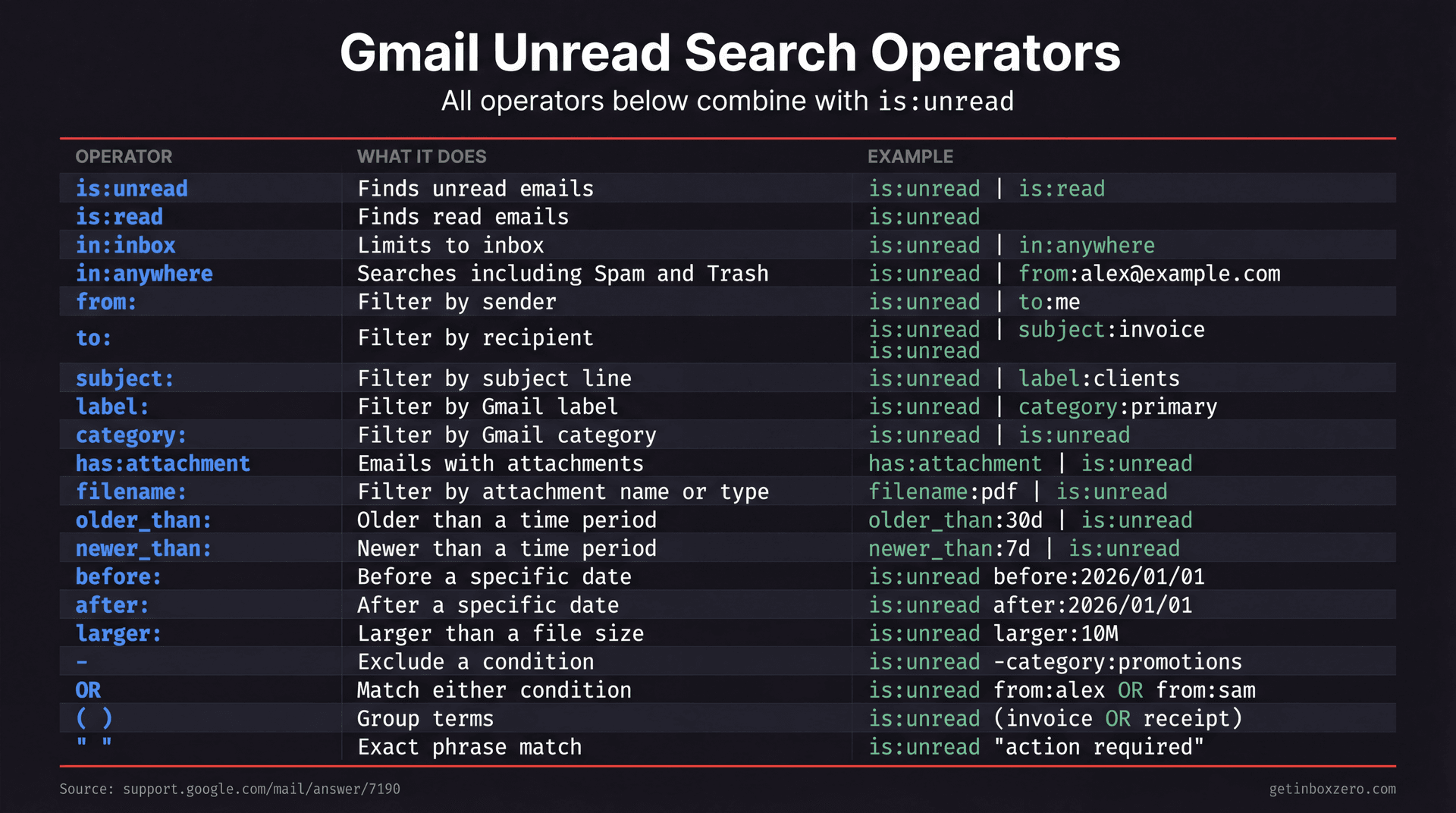
| Operator | What it does | Example |
|---|---|---|
is:unread | Finds unread emails | is:unread |
is:read | Finds read emails | is:read |
in:inbox | Limits to inbox | in:inbox is:unread |
in:anywhere | Searches including Spam and Trash | in:anywhere is:unread |
from: | Filter by sender | from:alex@example.com is:unread |
to: | Filter by recipient | to:me is:unread |
subject: | Filter by subject line | subject:invoice is:unread |
label: | Filter by Gmail label | label:clients is:unread |
category: | Filter by Gmail category | category:primary is:unread |
has:attachment | Emails with attachments | is:unread has:attachment |
filename: | Filter by attachment name or type | is:unread filename:pdf |
older_than: | Older than a time period | is:unread older_than:30d |
newer_than: | Newer than a time period | is:unread newer_than:7d |
before: | Before a specific date | is:unread before:2026/01/01 |
after: | After a specific date | is:unread after:2026/01/01 |
larger: | Larger than a file size | is:unread larger:10M |
- | Exclude a condition | is:unread -category:promotions |
OR | Match either condition | is:unread from:alex OR from:sam |
( ) | Group terms | is:unread (invoice OR receipt) |
" " | Exact phrase match | is:unread "action required" |
All of these operators are documented in Gmail's official search operator reference.
Common Mistakes When Searching for Unread Emails in Gmail
These trip up a lot of people.
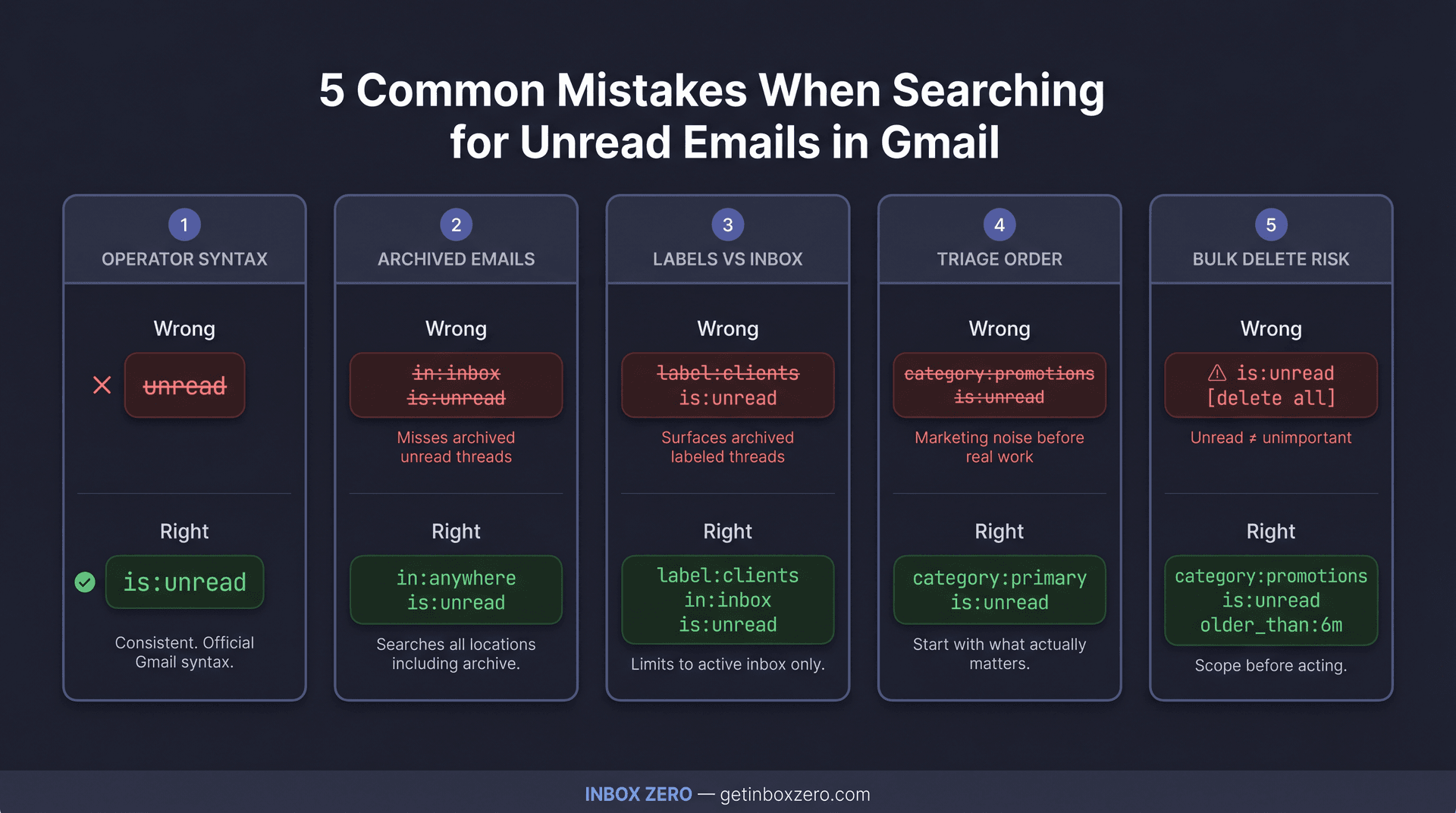
1. Using unread instead of is:unread
Gmail may still interpret plain-language searches like "unread," but it's inconsistent. The reliable way is always:
is:unread
2. Forgetting about archived unread emails
If you've archived a thread without reading it, in:inbox is:unread won't find it. Use in:anywhere is:unread when you know messages are missing but can't locate them.
3. Treating labels as inbox status
A labeled email might be archived and not in your inbox. So label:clients is:unread can surface old archived threads. Add in:inbox to limit results to active mail:
label:clients in:inbox is:unread
4. Searching Promotions before Primary
If you have work to do, start with category:primary is:unread. Going into Promotions first buries your actual priorities under marketing noise.
5. Bulk-deleting unread emails too fast
Unread doesn't mean unimportant. Before deleting, narrow by age and category:
category:promotions is:unread older_than:6m
Review a sample before running bulk actions. Old promotional emails are almost always safe to archive. Everything else deserves a quick scan first.
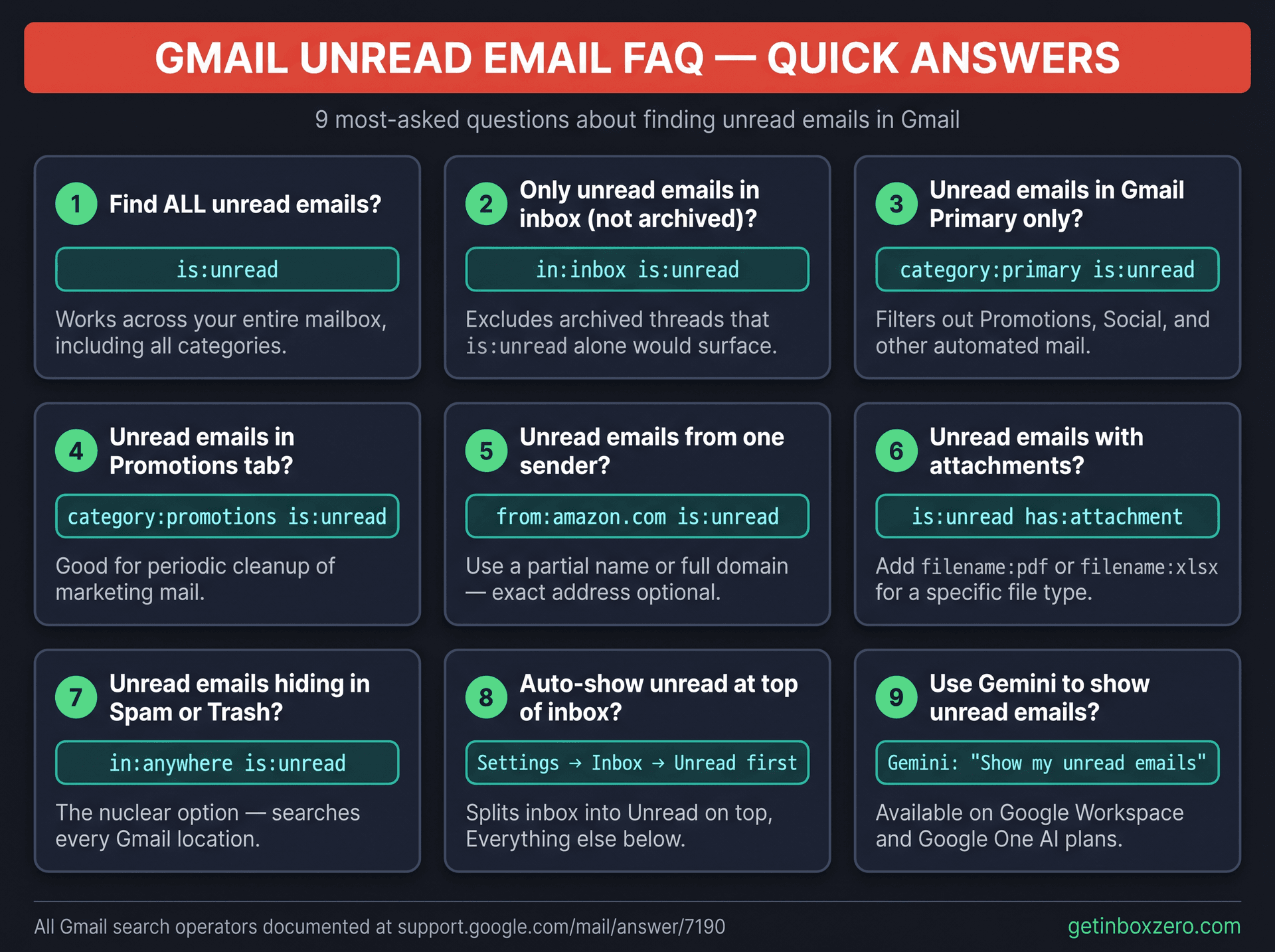
Frequently Asked Questions
How do I find all unread emails in Gmail?
Type is:unread into the Gmail search bar and press Enter. Gmail officially supports is:unread as a status-based search operator and will return every message marked unread across your mailbox.
How do I find unread emails only in my inbox (not archived ones)?
Use in:inbox is:unread. This limits the search to your active inbox and ignores archived threads, which is:unread alone would include.
How do I find unread emails in Gmail Primary?
Search category:primary is:unread. This shows only unread emails that Gmail has sorted into your Primary category, which filters out Promotions, Social, and other automated mail.
How do I find unread emails in Gmail Promotions?
Search category:promotions is:unread. Good for periodic cleanup of marketing mail you haven't gotten to.
How do I find unread emails from one sender?
Use from:sender@example.com is:unread. You can use a partial name or domain instead of a full email address. For example, from:amazon.com is:unread will match any unread email from an Amazon domain.
How do I find unread emails with attachments?
Search is:unread has:attachment. For a specific file type, add filename:pdf or filename:xlsx to the query. The full guide on finding emails with attachments only covers additional filtering options.
How do I find unread emails that are hiding in Spam or Trash?
Use in:anywhere is:unread. This searches across all Gmail locations including Spam and Trash. This is the search to use when your unread badge count doesn't match what you see in your inbox.
Can Gmail automatically show unread emails at the top of my inbox?
Yes. Go to Settings → See all settings → Inbox tab → Inbox type → Unread first. Gmail will then divide your inbox into an Unread section at the top and Everything else below, so you don't need to search each time.
Can I ask Gemini in Gmail to show my unread emails?
Yes, for accounts with access to Google Workspace or Google One AI plans. Google says Gemini in Gmail can handle prompts like "Show my unread emails" and "Show unread emails from this week" directly in the Gmail interface. For a broader look at how Gmail's AI inbox features work, that guide covers what Gemini can and can't do inside Gmail.
Gmail Unread Email Tips: Search Filters and Beyond
For quick one-off lookups, in:inbox is:unread is the search to start with. Add category:, from:, label:, or older_than: to zero in on exactly what you need.
For a persistent setup, the Unread first inbox layout or Gmail's Multiple Inboxes feature keeps unread messages visible without manual searching. If you want that setup as one-click tabs inside Gmail, the free Inbox Zero Tabs for Gmail extension is the fastest way to get there.
And if the real problem is that your inbox never gets to zero regardless of what you do, Inbox Zero addresses that at the root. Reply Zero surfaces what needs your response, AI automation handles the categorization and archiving, and the bulk unsubscriber cuts the volume that was filling your unread count in the first place.
Search operators are a good tool. A system is a better one.

What is the Inbox Zero Method & How do I Master It?
Discover the Inbox Zero method and learn simple steps to take control of your email inbox, stay organized, and boost productivity.

4 Email Productivity Hacks from Tim Ferriss, Andrew Huberman, and Sam Harris
Explore 4 powerful email productivity hacks from tech and wellness experts like Tim Ferriss and Andrew Huberman. Learn to create focus, optimize processing, manage time wisely, and delegate effectively to conquer your inbox.

Best Time to Send Emails for Response (2026)
Stop guessing when to send emails. Get data-backed timing strategies from 2026 research that improve response rates across all scenarios.

How To Organize Outlook Inbox? (2026 Guide)
Learn how to organize Outlook inbox with rules, folders, categories, and AI automation. Step-by-step guide for 2026 that actually works.