How to Resend an Email in Outlook (2026)
Step-by-step guide to resend an email in Outlook for every version: New Outlook, Classic, web, and Mac. Plus why you can't find the option.

You sent an email and need to send the exact same message again. Maybe a recipient says they never got it. Maybe you sent it to the wrong address and need to fix that without retyping everything. Maybe you routinely send the same kind of email and want to fire it off again without rebuilding it from scratch.
Outlook has a built-in command for exactly this: Resend message (or Resend This Message in classic Outlook). It's not Forward. It's not Reply. It's its own action, and the steps depend on which version of Outlook you're using. Here's the fast answer, by version.
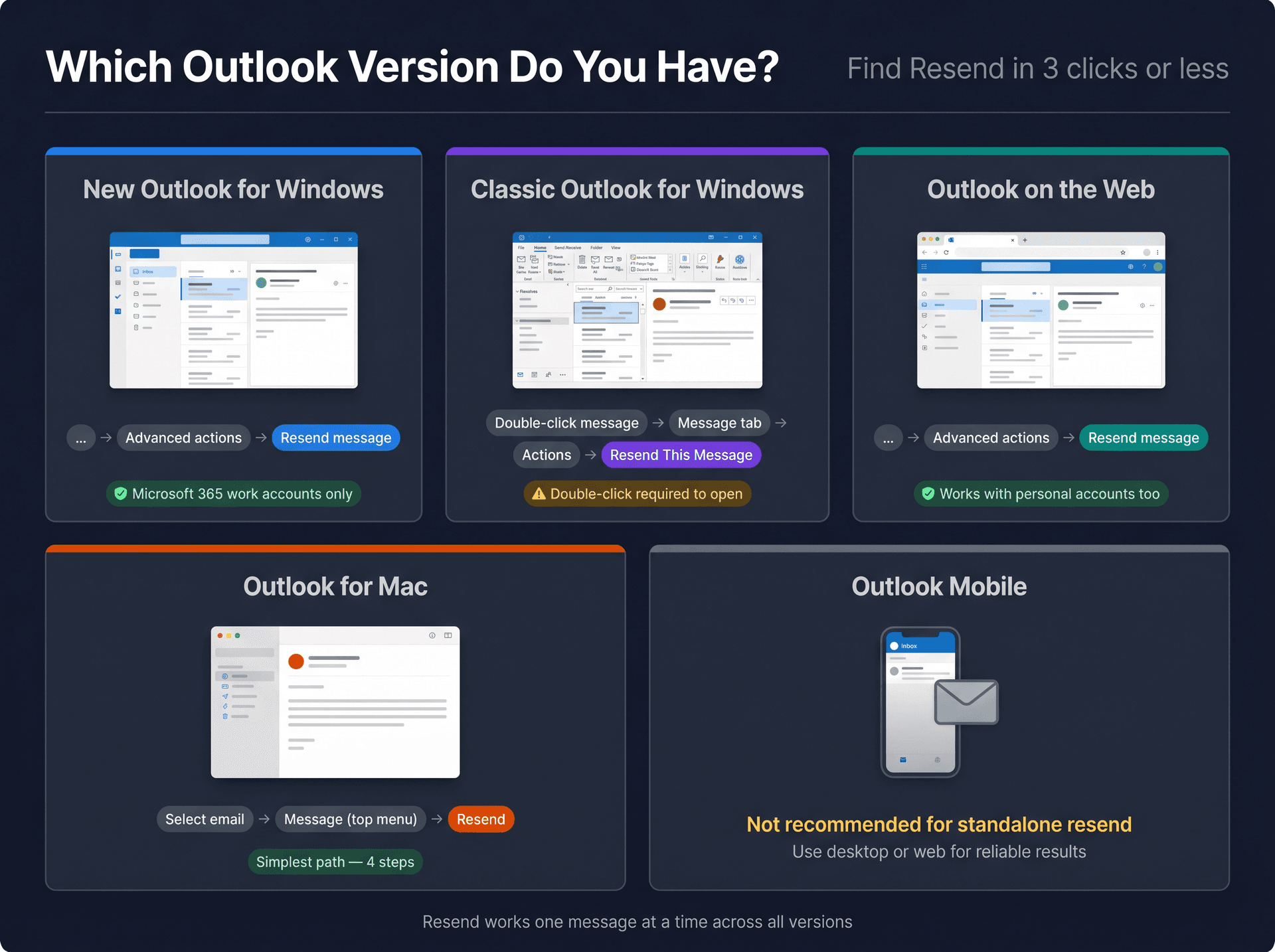
Which Outlook Version Do You Have? (Quick Lookup)
| Outlook version | Where to find Resend |
|---|---|
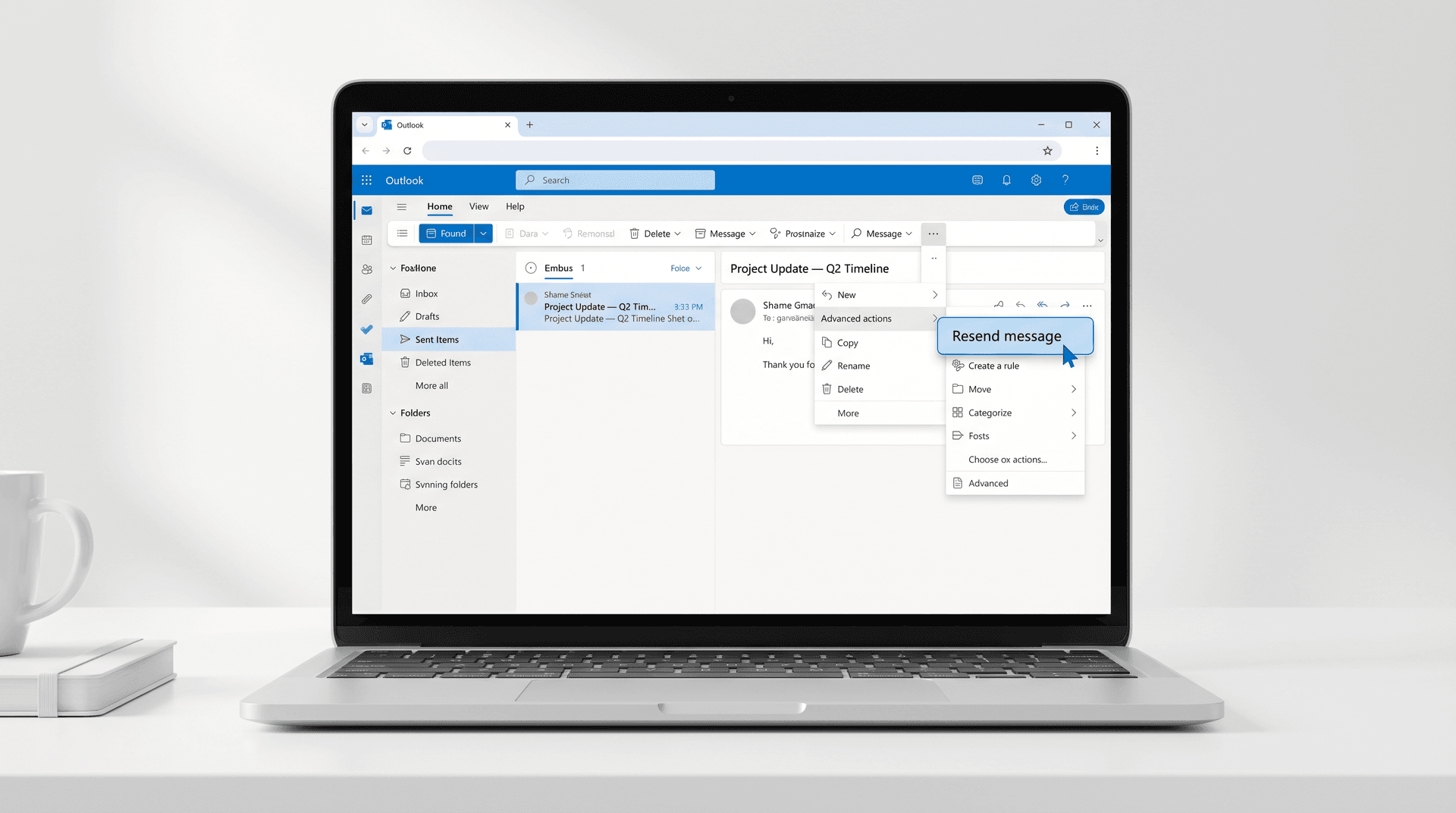
| New Outlook for Windows | Sent Items → select message → … → Advanced actions → Resend message |
| Classic Outlook for Windows | Sent Items → double-click message → Message tab → Actions → Resend This Message |
| Outlook on the web / Outlook.com | Sent Items → select message → … → Advanced actions → Resend message |
| Outlook for Mac | Sent → select message → Message (top menu) → Resend |
| Outlook mobile | For reliable standalone resend, use desktop or web instead |
One important note before you start: Outlook's Resend feature can only resend one message at a time. There's no built-in way to bulk resend. And in new Outlook for Windows, the Resend option is only available if your primary account is a Microsoft 365 work account (personal accounts won't see it there). More on that in the troubleshooting section below.
Resend vs Forward vs Recall in Outlook: Which One to Use?
Before clicking anything, it's worth making sure you're using the right feature. These three get confused constantly, and using the wrong one creates more problems than it solves.
| What you're trying to do | Use this | Why |
|---|---|---|
| Send the same email again, without forwarded-message headers | Resend | Best for "they didn't receive it" or "I need to send this to the right address" |
| Send an old email to someone who needs the prior context | Forward | Adds sender/date/recipient header info, which is useful when that context matters |
| Continue an existing thread | Reply or Reply All | Keeps the conversation intact |
| Remove or replace a mistakenly sent email | Recall or Recall and Replace | Only works in specific Microsoft 365 / Exchange environments |
| Catch a mistake before the email leaves your outbox | Undo Send or Delay Delivery | Best for a safety buffer on important messages |
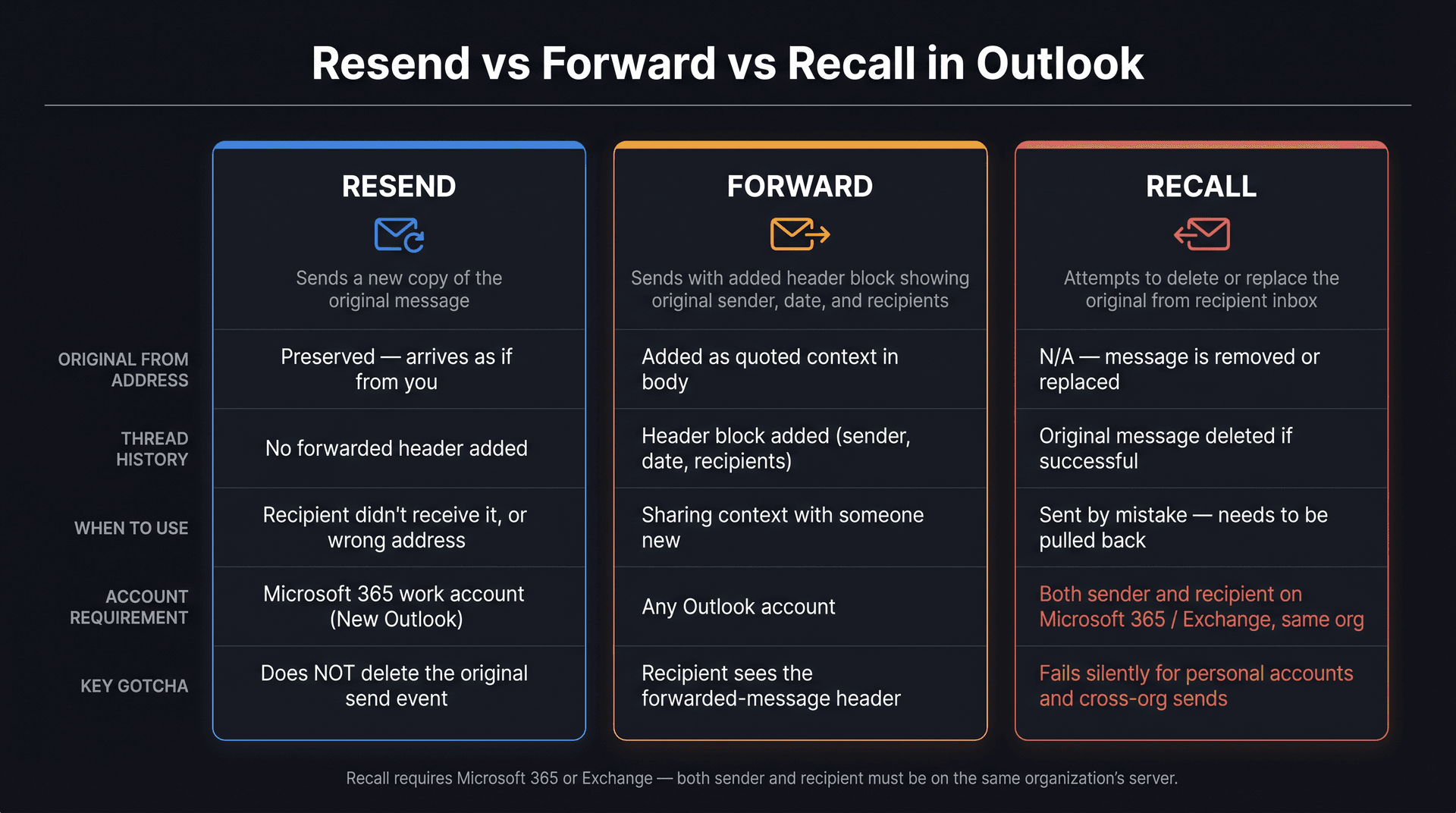
The distinction that trips people up most: Resend and Recall are not the same thing. Resend sends another copy of the email. It doesn't delete or retrieve the original. Recall, on the other hand, tries to pull back a sent message or replace it. But recall in Outlook has strict requirements: both sender and recipient need to use Microsoft 365 or Exchange accounts in the same organization. Personal Outlook.com accounts can't recall messages after they've left the server.
If you work across both email platforms, it's worth knowing how Gmail handles the recall flow as well. The behavior differs significantly from Outlook's recall and the account requirements are completely different.
Also useful: Microsoft explains that a resent email includes the previously sent message without the extra forwarded-message header information that Forward adds. That header block (original sender, date, recipients) is useful in some contexts and cluttering in others. With Resend, it stays clean.
If you've been uncertain about the differences between Reply, Reply All, and Forward and when each is the right call, that comparison is worth a look before you decide whether Resend is actually what you need.
One more technical note, since the phrase "exact same message" can be misleading: a resent email carries the same visible content (subject, body, attachments, formatting), but it's technically a new send event with its own timestamp. At the email-header level, RFC 5322 defines the Message-ID as a unique identifier for a particular message version, so a resent copy won't be treated as the original message in audit logs, CRMs, or compliance archives. Keep the original saved separately if you need it for any of those purposes.
How to Resend an Email in New Outlook for Windows
Use this if your Outlook interface looks modern and relatively minimal (without the classic ribbon).
-
Open new Outlook.
-
Go to Sent Items in the left sidebar.
-
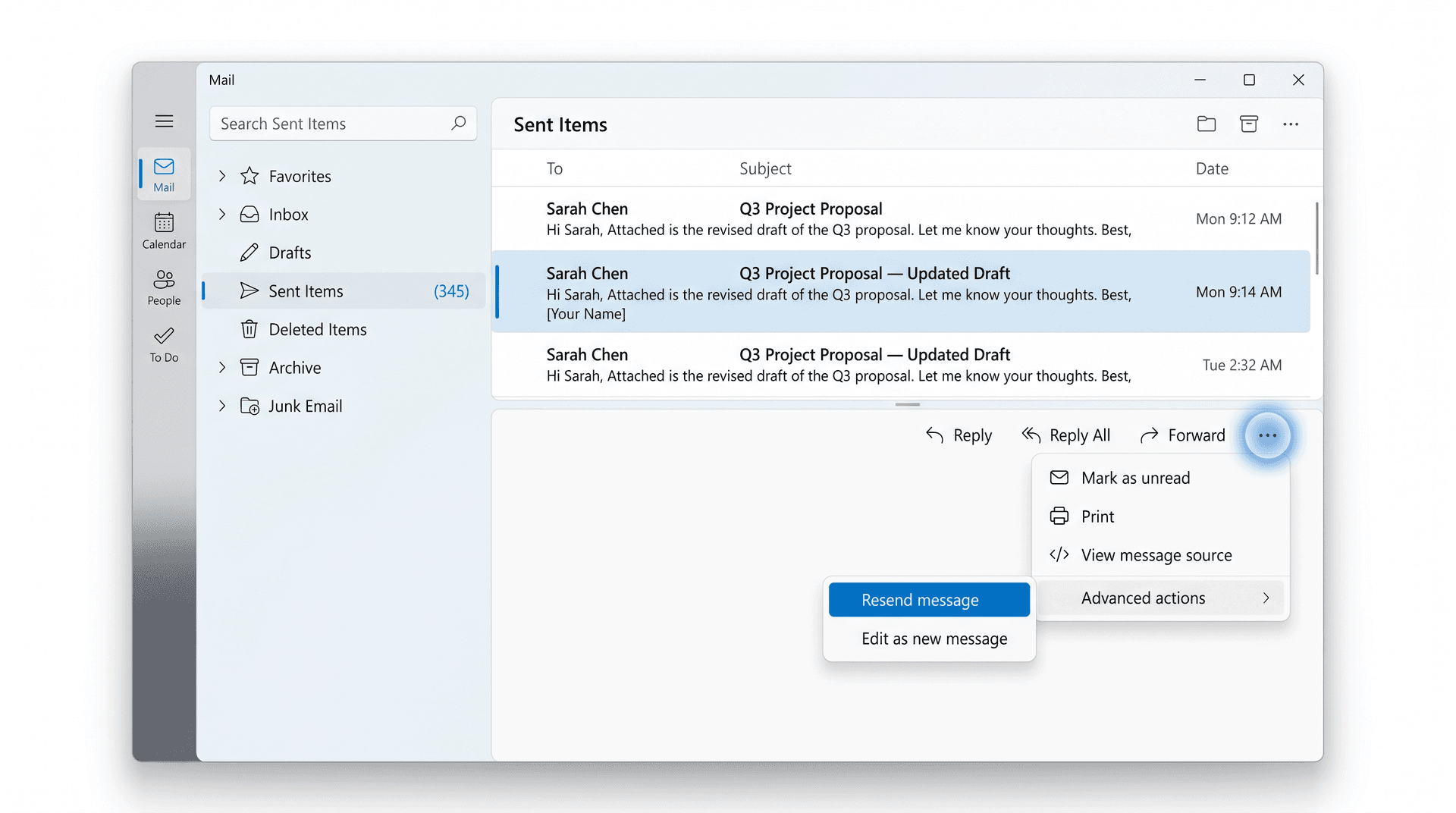
Select the email you want to resend (single click).
-
Click the … (more options) menu near the top of the message.
-
Select Advanced actions.
-
Select Resend message.
-
The message opens in a compose window. Review the recipients, subject, body, and attachments.
-
If you want the exact same message, don't change anything.
-
Click Send.
Work account required: According to Microsoft's support page, the Resend feature in new Outlook is only available when your primary account is a Microsoft 365 work or school account. If your primary account is a personal Microsoft account (Outlook.com, Hotmail, Live, MSN), you won't see the Resend option here.
You might notice that older forum posts and articles say new Outlook doesn't support resend at all. That's outdated. The feature comparison between new and classic Outlook lists Resend message as available in both versions, though the work-account requirement still applies.
On a personal account? Use Outlook on the web or classic Outlook instead.
How to Resend an Email in Classic Outlook for Windows
Classic Outlook (the version with the full ribbon toolbar) uses a slightly different path.
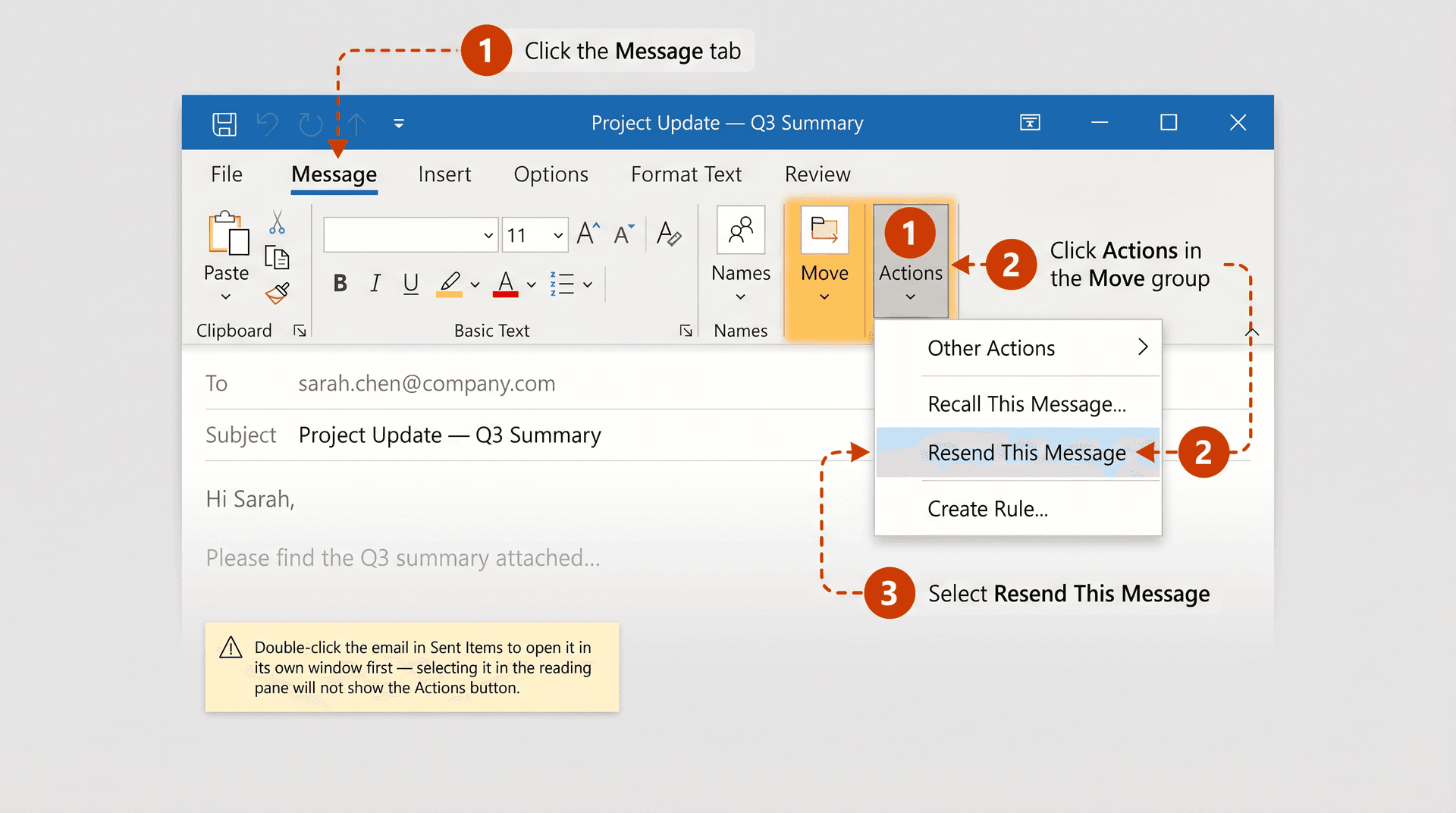
-
Open classic Outlook.
-
Go to Sent Items.
-
Double-click the email to open it in its own window.
-
On the Message tab at the top, find the Move group.
-
Click Actions.
-
Select Resend This Message.
-
Review the message in the compose window.
-
Click Send.
That step 3 double-click matters. If you only select the message in the reading pane without opening it, the Actions menu won't appear. It's the most common reason people can't find the option.
There's also an alternate path through the File menu: open the sent message, click File → Info → Resend or Recall, then choose Resend This Message. Both paths work.
If your Outlook ribbon looks different from what's described here, the resend command may be under a More commands menu or grouped differently depending on your ribbon configuration. The underlying command name is always Resend This Message.
How to Resend an Email in Outlook on the Web (or Outlook.com)
The web version follows the same general flow as new Outlook for Windows. The steps are straightforward:
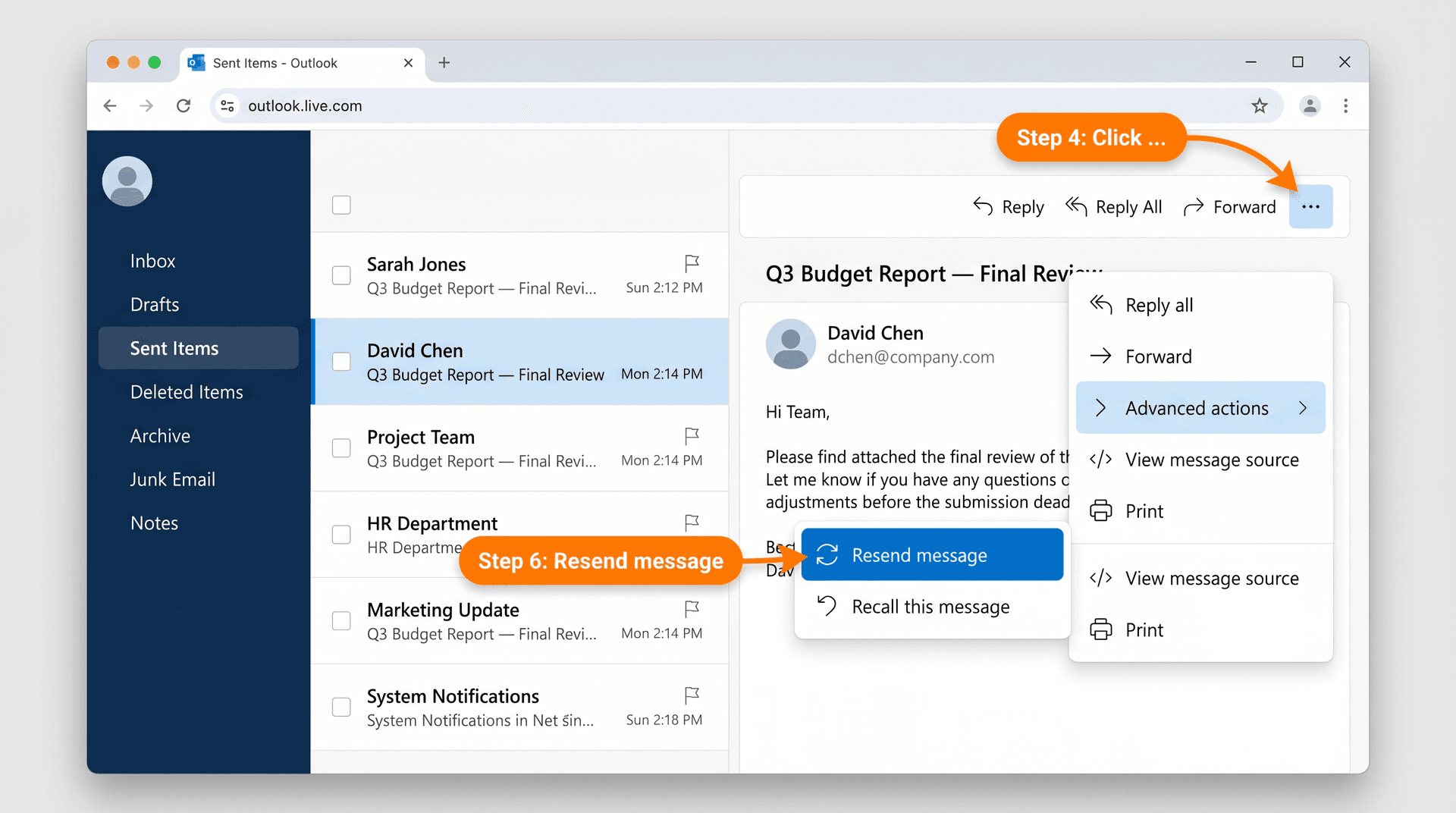
-
Go to Outlook on the web or Outlook.com in your browser.
-
Open Sent Items in the left sidebar.
-
Select the message you want to resend.
-
Click the … (more options) menu.
-
Select Advanced actions.
-
Select Resend message.
-
Review everything, then click Send.
The steps are the same whether you're on Outlook on the web (for work or school accounts) or Outlook.com (personal accounts). That said, account type does affect some Outlook features. For example, the recall feature works differently for personal Outlook.com accounts vs. work accounts. Personal accounts cannot recall messages after they've been sent.
How to Resend an Email in Outlook for Mac
Outlook for Mac keeps this simple. Five steps and you're done.
① Open Outlook for Mac.
② In the sidebar, select Sent.
③ Select the email you want to resend.
④ In the top menu bar, click Message, then select Resend.
⑤ Review the message and click Send.
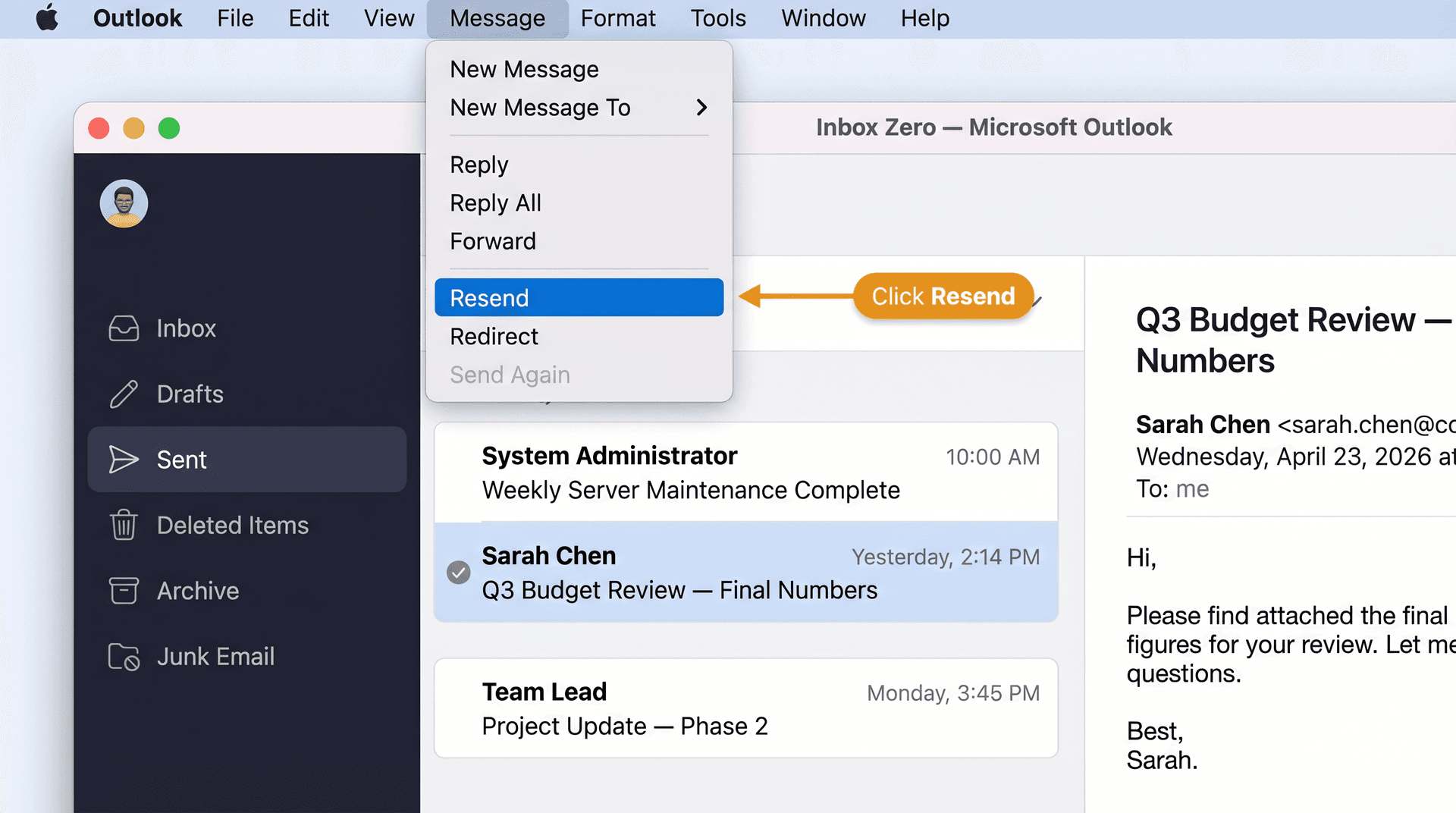
Microsoft's Outlook for Mac support page confirms this is the path for Microsoft 365 for Mac. And like all other versions, there's no way to resend multiple messages at once. You'll need to repeat the process for each one.
How to Resend an Email on Outlook Mobile
For a clean, reliable resend of the exact same message, use Outlook for desktop or Outlook on the web rather than the mobile app.
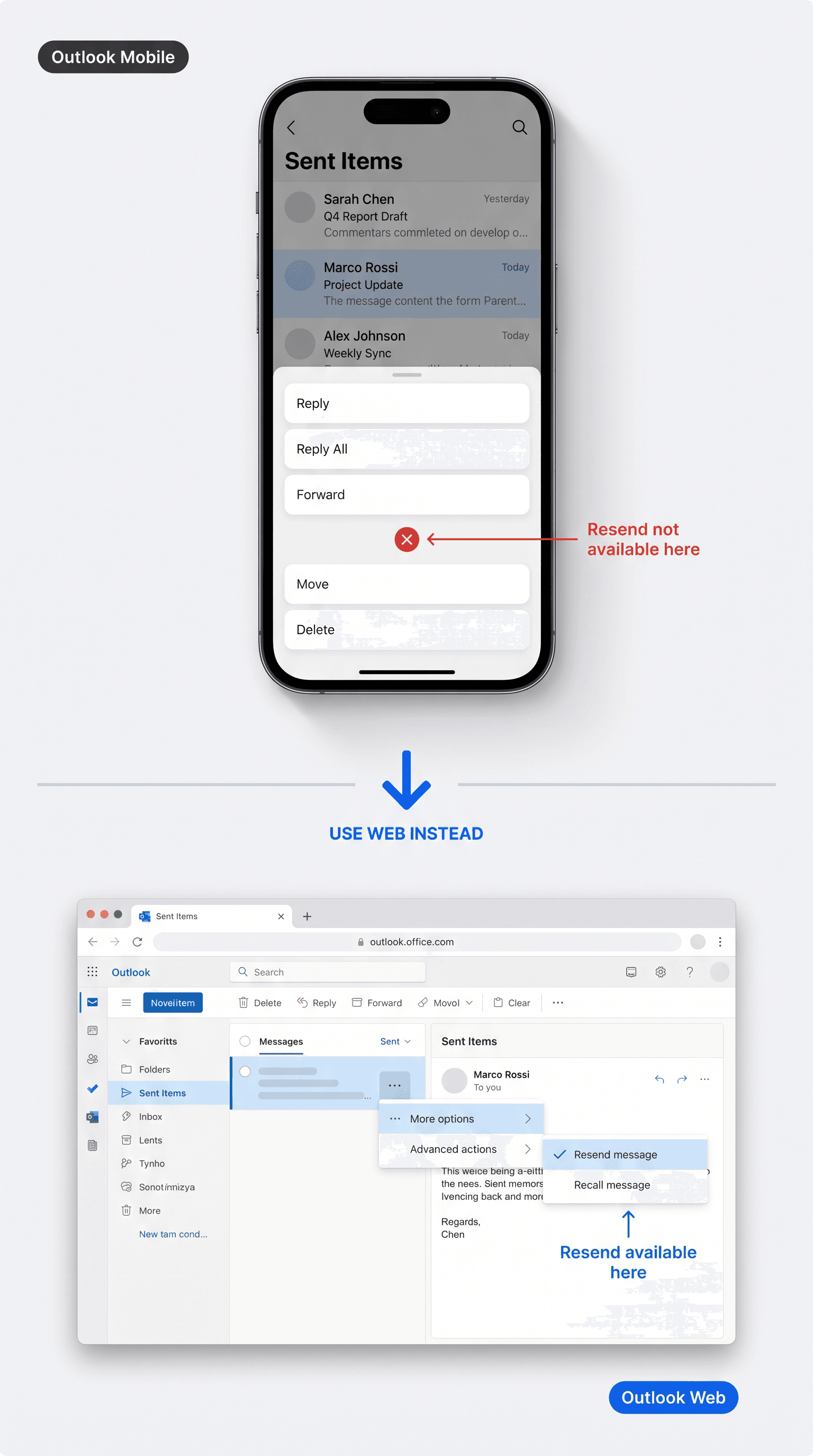
Microsoft has documented a Resend option in Outlook for Android and iOS, but specifically as a step that appears after recalling a message, not as a standalone resend flow you can initiate from Sent Items. That mobile recall and resend feature was announced for Android and iOS starting with app version 4.2504.0, and it carries the same Microsoft 365 same-organization requirement as desktop recall.
For normal day-to-day resend scenarios, the phone is just not the right tool for this. Open your laptop or the browser on your phone and use the web version. If you find yourself repeatedly bouncing between devices to handle emails, it may be worth thinking about how to manage your inbox in a way that reduces that friction.
Common Resend Scenarios in Outlook (Wrong Address, One Recipient, Attachments)
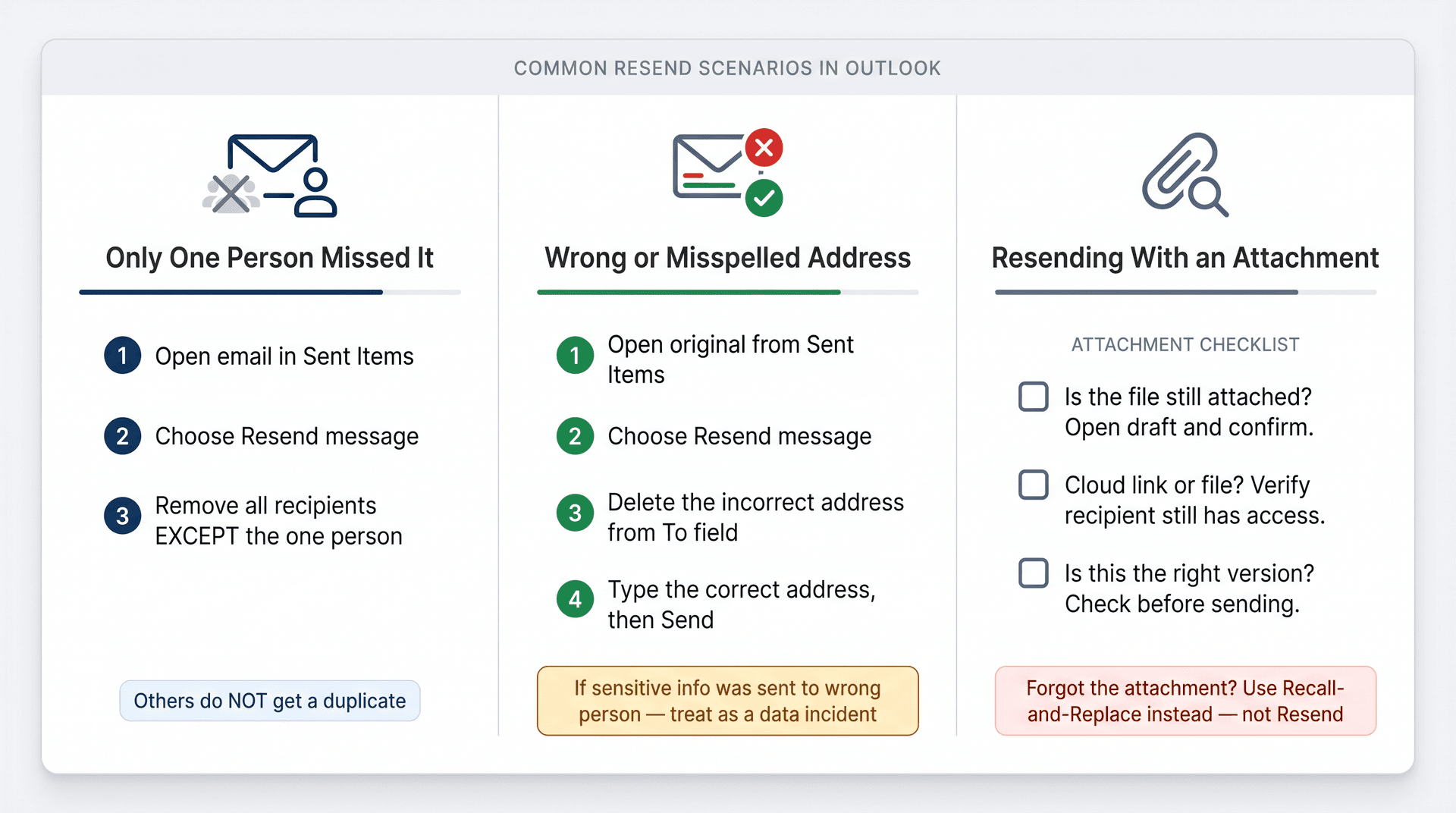
How to Resend to Only One Recipient in Outlook
Say you sent an email to four people and one of them says they never received it. You don't want to send a duplicate to everyone else. Here's how to handle it:
-
Open the email from Sent Items.
-
Choose Resend message.
-
In the compose window, remove everyone except the person who missed it.
-
Keep the subject, body, and attachments exactly as they were.
-
Click Send.
Microsoft's resend documentation explicitly supports removing recipients before sending the resent message, so this is the intended workflow.
How to Resend to the Correct Email Address in Outlook
If you sent to a misspelled or wrong address:
-
Open the original from Sent Items.
-
Choose Resend message.
-
Delete the incorrect address from the To field.
-
Add the correct address.
-
Double-check attachments (especially if they're cloud links that require permissions).
-
Click Send.
If the original landed in the wrong person's inbox and contained sensitive information, resending to the right address doesn't undo that. Treat the original send as a data-handling incident and follow your organization's process.
How to Resend an Email with the Same Attachment
Before you click Send, run through this attachment checklist:
-
Is the attachment still attached? Open the resend draft and confirm. Don't assume.
-
Is it a file or a cloud link? If the original email included a OneDrive or SharePoint link rather than an actual file attachment, make sure the recipient still has permission to access it. See our guide on attaching emails and files correctly if you're unsure about the best approach for different file types.
-
Is the file still the version you want to send? If you're resending a contract, invoice, proposal, or presentation, verify the attachment isn't outdated before it goes out.
If the original problem was "I forgot the attachment entirely," resend isn't the right move. That situation calls for a recall-and-replace (if you're in a supported Microsoft 365 environment) or simply sending a new follow-up email with the attachment attached and a brief note explaining the correction. Microsoft actually lists "forgot to include an attachment" as one of the scenarios where recall-and-replace might be worth trying.
How to Resend an Email Without Seeming Awkward
Sometimes a silent duplicate feels odd, especially if you're resending to the same person. If you think the recipient might be confused by getting the same email twice, a short note at the top is usually better than saying nothing:
Resending this in case it got buried in your inbox.
Or:
Re-sending the original note below. Let me know if you have any questions.
Before resending, it can help to know whether your original email was read in the first place. That context changes how you frame the follow-up. If the email was opened but not answered, your message at the top might be more pointed. If it was never opened, the neutral "in case it got buried" framing works well.
For recipients who you know are slow to respond, a well-crafted follow-up message is often more effective than a silent resend of the original.
Keep in mind: once you add a note like that, it's technically no longer the exact same message. If you need the body and attachments to be identical but still want context, consider sending a separate follow-up rather than modifying the resend.
"Resend Message" Not Showing in Outlook? Here's Why
If you can't find the Resend option, one of these is almost certainly the reason.
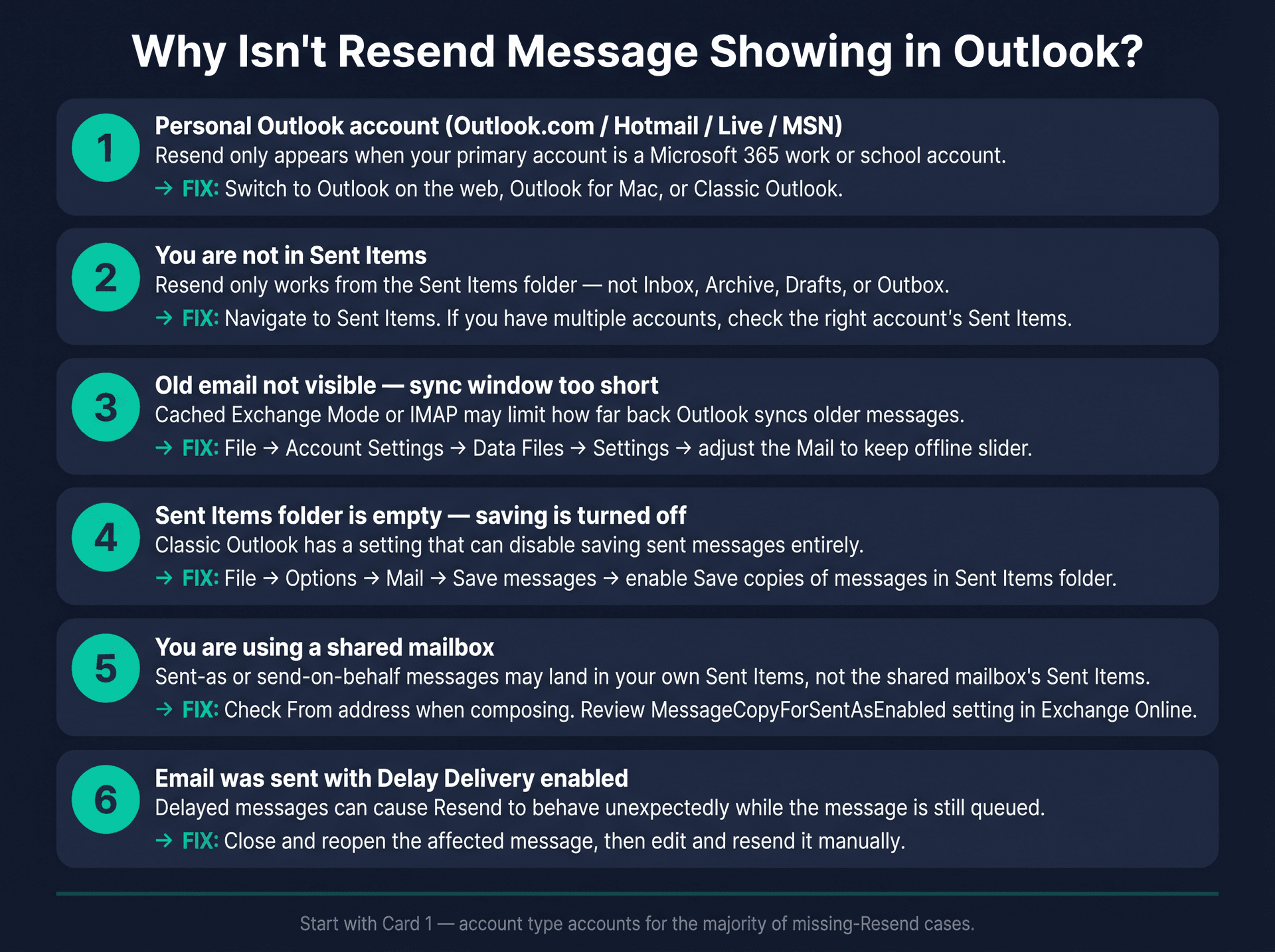
Quick diagnosis: The three most common causes are wrong account type (personal vs. work), looking in the wrong folder (not Sent Items), and sync limits cutting off older messages. Start with account type. It accounts for the majority of cases.
Resend Option Missing: You're on a Personal Outlook Account
This is the most common cause. As Microsoft confirms, the Resend option in new Outlook is only available when your primary account is a Microsoft 365 work or school account. If your primary account is a personal Outlook.com, Hotmail, Live, or MSN account, Resend won't appear.
→ Fix: Switch to Outlook on the web, Outlook.com (browser), Outlook for Mac, or classic Outlook.
Resend Not Available: Check You're in Sent Items
Resend only works from Sent Items. It won't appear if you're in your Inbox, Archive, Drafts, or Outbox. If you have multiple email accounts, each one has its own Sent Items folder. Make sure you're in the right account's Sent Items. Microsoft notes that if a message doesn't appear in Sent Items at all, it may be stuck in Outbox, may not have been sent, or may fall outside your current offline sync range.
A cluttered or poorly organized Outlook setup makes these kinds of problems more common. If you're regularly losing track of which folder things are in, organizing your Outlook inbox with a consistent folder structure cuts down on this friction significantly.
Old Emails Not Showing? Extend Your Outlook Sync Window
If you use Cached Exchange Mode or an IMAP account, Outlook may only sync a limited window of older mail. According to Microsoft, you can adjust the Mail to keep offline slider in account settings to extend how far back Outlook syncs.
→ Fix: Go to File → Account Settings → Data Files → select your account → Settings → adjust the Mail to keep offline slider.
How to Fix Outlook Not Saving Sent Messages
In classic Outlook, there's a setting that controls whether sent messages are saved. If it's turned off, your Sent Items folder stays empty. Check it by going to File → Options → Mail → Save messages and confirming that Save copies of messages in Sent Items folder is enabled.
This is one of those Outlook configuration issues that's easy to overlook. If you're encountering other unexpected behavior, like Outlook rules that aren't running when they should, it's worth doing a broader review of your Outlook settings.
Resend Missing on Shared Mailbox: What to Check
Shared mailboxes add a layer of complexity. When you send as or on behalf of another user from a shared mailbox, sent messages may go into your Sent Items rather than the shared mailbox's Sent Items, depending on how the mailbox is configured. For Exchange Online, Microsoft documents PowerShell settings like MessageCopyForSentAsEnabled and MessageCopyForSendOnBehalfEnabled that control where copies land. Also check your From address when composing. Microsoft's shared mailbox guidance says you may need to manually show the From field and select the shared mailbox address.
For teams managing a shared mailbox at scale, the considerations go beyond just where sent messages land. Our guide on shared mailbox management best practices covers access control, response tracking, and the settings that prevent these kinds of configuration surprises.
Resend Not Working for Delayed-Delivery Messages
If you used Outlook's delay delivery feature and the message is stuck, the Resend option may not behave as expected. Microsoft's workaround for this situation is to close and reopen the affected message, then edit and resend it manually.
Keep Having to Resend? Your Inbox Workflow Needs a Fix
Resending an email once in a while is normal. But if you're resending constantly because follow-ups get ignored, recipients claim they never got things, or you can't track who's waiting on your reply, that's not an Outlook feature problem.
That's an inbox workflow problem.
This is exactly the kind of situation Inbox Zero was built for. It works alongside your existing Outlook or Gmail account, so there's nothing to migrate or relearn. You keep using Outlook. Inbox Zero adds a layer of AI-powered organization on top of it.
For follow-up tracking specifically, our Reply Zero feature does something most Outlook users don't have: it automatically labels every thread that needs your response as "To Reply," and every thread where you're waiting on someone else as "Awaiting Reply." Instead of scanning your whole inbox every morning trying to remember who owes you a reply, you get two clear piles, with a nudge when something's overdue. Reply Zero is the part of Inbox Zero that directly addresses the "I had to resend because no one responded" pattern. You can see exactly how the Reply Zero feature works in the documentation.
The Reply Zero feature page makes this concrete: you can see the "To Reply" and "Awaiting Reply" labels in the product UI, along with AI-drafted reply suggestions ready to send:
Inbox Zero works alongside your existing Outlook or Gmail setup. No migration required. Here's the homepage:

Beyond follow-up tracking, Inbox Zero's AI automation lets you configure rules in plain English. Things like "draft a reply to any vendor invoice and label it receipts" or "archive any newsletter I haven't clicked in 30 days." The AI drafts replies in your voice, flags what matters, and routes the rest away from your attention. Our AI assistant works with Microsoft Outlook's API, so it connects to the same inbox you already use.
If you want a clearer picture of where your email time actually goes before you overhaul your system, our email analytics dashboard shows response times, volume trends, and which senders take up the most bandwidth. That data usually makes the case for automation better than any description could.
If you're managing hundreds of emails per day, the math on manual resending adds up quickly. Most professionals who reach that volume end up spending 30 to 60 minutes per day just on inbox triage, not doing actual work, just deciding what to look at. A good inbox management system reclaims most of that.
For a structured approach to reducing email overload, the patterns that work at team and organizational scale are worth understanding even for individual users.
If that sounds like your situation, you can start using Inbox Zero for free and connect your Outlook account in a few minutes.
Frequently Asked Questions
How do I resend an email in Outlook without forwarding it?
Use the Resend message command, not Forward. In new Outlook and Outlook on the web, go to Sent Items, select the message, click … → Advanced actions → Resend message. In classic Outlook, double-click the sent message and go to Message tab → Actions → Resend This Message. According to Microsoft, a resent email doesn't include the forwarded-message header block that Forward adds. For a full breakdown of how Resend, Forward, and Reply differ from each other, the comparison covers each action's actual mechanics.
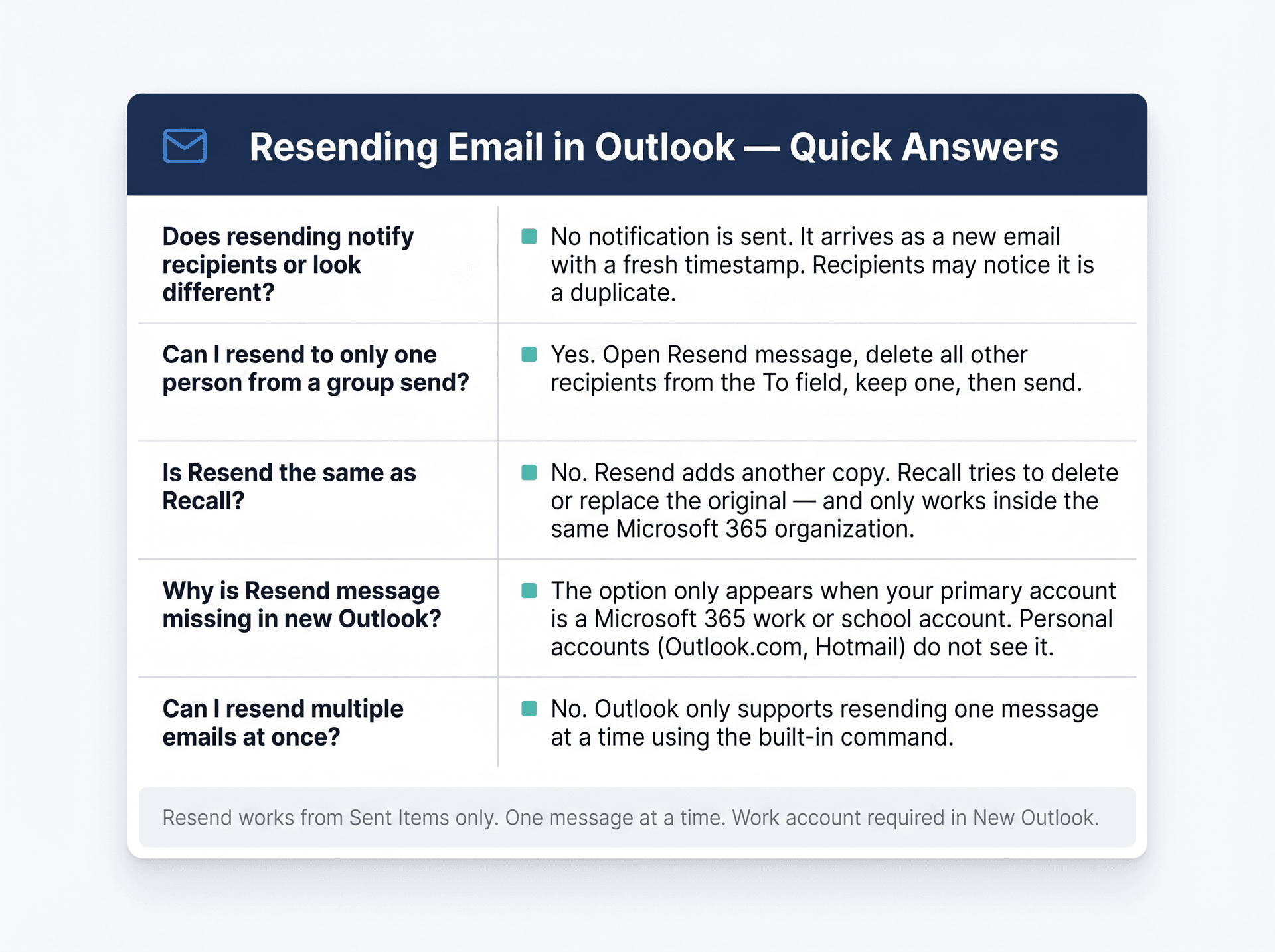
Does Outlook resend the exact same email?
It resends the same visible content: the subject, body, formatting, and attachments can all be identical. But technically, it's a new send event with a new timestamp. At the email-header level, RFC 5322 defines the Message-ID as a unique identifier for a specific message version, so a resent copy won't be treated as the original in audit logs or compliance systems.
Will recipients know I resent the email?
They may notice it's a duplicate. It arrives as a separate email with a new timestamp. Outlook doesn't add a forwarded-message header when you use Resend, but there's no mechanism to hide the fact that they're receiving another copy. Most recipients will simply see it as a new email. If you want to know whether your email was actually read before deciding to resend, there are a few approaches that don't require asking the recipient directly.
Can I resend an email to only one recipient in Outlook?
Yes. Use Resend message, then remove all recipients from the To, Cc, and Bcc fields except the one person who needs it. Microsoft's resend flow explicitly allows you to remove recipients before sending, so this is the intended way to handle it.
Why don't I see "Resend message" in new Outlook?
The most common reason is account type. Microsoft states that Resend in new Outlook is only available when your primary account is a Microsoft 365 work or school account. Personal accounts (Outlook.com, Hotmail, Live) won't see the option. Use Outlook on the web or classic Outlook as an alternative. If you're running into other unexpected behavior in Outlook's interface, our guide on fixing Outlook's Focused Inbox when it stops working correctly covers the pattern of missing or misbehaving Outlook options.
Is Resend the same as Recall in Outlook?
No, and the difference matters:
-
Resend sends another copy of the email. The original stays in the recipient's inbox.
-
Recall tries to retrieve or replace a sent message. Recall in Outlook only works when both sender and recipient use Microsoft 365 or Exchange accounts in the same organization.
If you also use Gmail alongside Outlook, the Gmail recall and undo-send flow works quite differently and is worth knowing.
Can I resend multiple emails at once in Outlook?
No. Microsoft says you can only resend one message at a time using the built-in Resend command. If you frequently need to send the same content to many people, a template or mail merge is a better approach. For high-volume situations, email management strategies for heavy inboxes cover how to handle repetitive email workflows more efficiently.
How do I resend an email in Outlook mobile?
For a standalone resend of the same email, use Outlook for desktop or Outlook on the web. The mobile app's documented Resend option is specifically tied to the post-recall flow. Microsoft announced recall and resend support for Outlook for Android and iOS starting with app version 4.2504.0, but it requires Microsoft 365 and only appears after recalling a message, not as an independent resend option.
What's the difference between resending and recalling an email in Outlook?
Resending adds another copy to the recipient's inbox. Recalling tries to remove or replace the original. Recall has strict requirements: both sender and recipient need Microsoft 365 or Exchange accounts in the same organization, and it doesn't work for personal Outlook.com, Hotmail, or MSN accounts.
How do I resend a meeting invite in Outlook?
Don't use the standard email Resend for calendar invites. Instead, open the meeting from your Calendar, add or update attendees if needed, and use Send Update. Microsoft explains that Outlook can send updates to just the added or removed attendees, or to all attendees depending on the change.
What's the safest way to avoid needing to resend?
Turn on Undo Send or use Schedule Send for important messages. As of January 2026, new Outlook increased the undo-send delay up to 30 seconds, giving you a longer window to catch mistakes before they're gone. For even more control, Outlook's delay delivery feature lets you hold messages for up to 120 minutes in classic Outlook before they go out.
At a systemic level, the real answer is better tracking of which emails need a follow-up before you resort to resending. When you have clear visibility into which threads are waiting on a response, you catch the ones that fell through the cracks before they require a resend, and you avoid the awkward "just following up again" cycle.
What is the Inbox Zero Method & How do I Master It?
Discover the Inbox Zero method and learn simple steps to take control of your email inbox, stay organized, and boost productivity.

4 Email Productivity Hacks from Tim Ferriss, Andrew Huberman, and Sam Harris
Explore 4 powerful email productivity hacks from tech and wellness experts like Tim Ferriss and Andrew Huberman. Learn to create focus, optimize processing, manage time wisely, and delegate effectively to conquer your inbox.
Best Time to Send Emails for Response (2026)
Stop guessing when to send emails. Get data-backed timing strategies from 2026 research that improve response rates across all scenarios.
How To Organize Outlook Inbox? (2026 Guide)
Learn how to organize Outlook inbox with rules, folders, categories, and AI automation. Step-by-step guide for 2026 that actually works.