What Does Forwarding an Email Do? (2026)
Forwarding an email looks simple, but auto-forwarding rules are one of the most-detected attacker techniques. Know what you're sharing before you click send.

Forwarding an email sends a copy of a message you received to one or more new recipients. Your email app creates a fresh outgoing message from you, prefixes the subject with "Fwd:" or "FW:", includes the original message below whatever note you write, and sends it as a brand new email. The original stays in your inbox untouched.
That's the quick version. But forwarding has a few details that catch people off guard, especially around privacy. Does the original sender know? What exactly does the recipient see? Can they reply to the original sender? What happens to attachments?
We deal with email mechanics every day at Inbox Zero, and these questions come up constantly. So here's a complete, plain-language guide to how forwarding actually works, what it exposes, and when you might want a smarter approach.
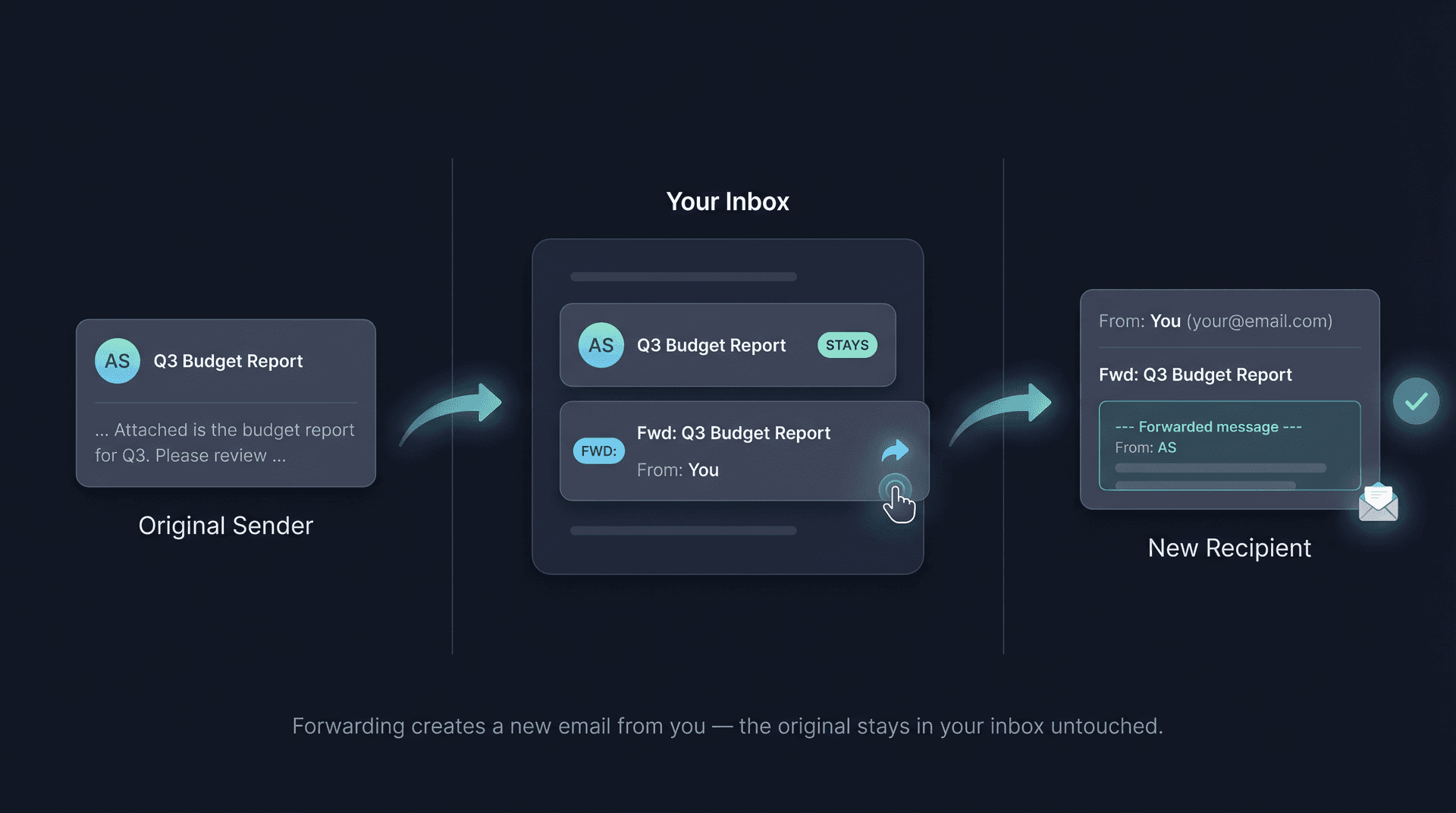
What Happens When You Forward an Email?
When you click Forward, your email app quietly does six things in sequence.
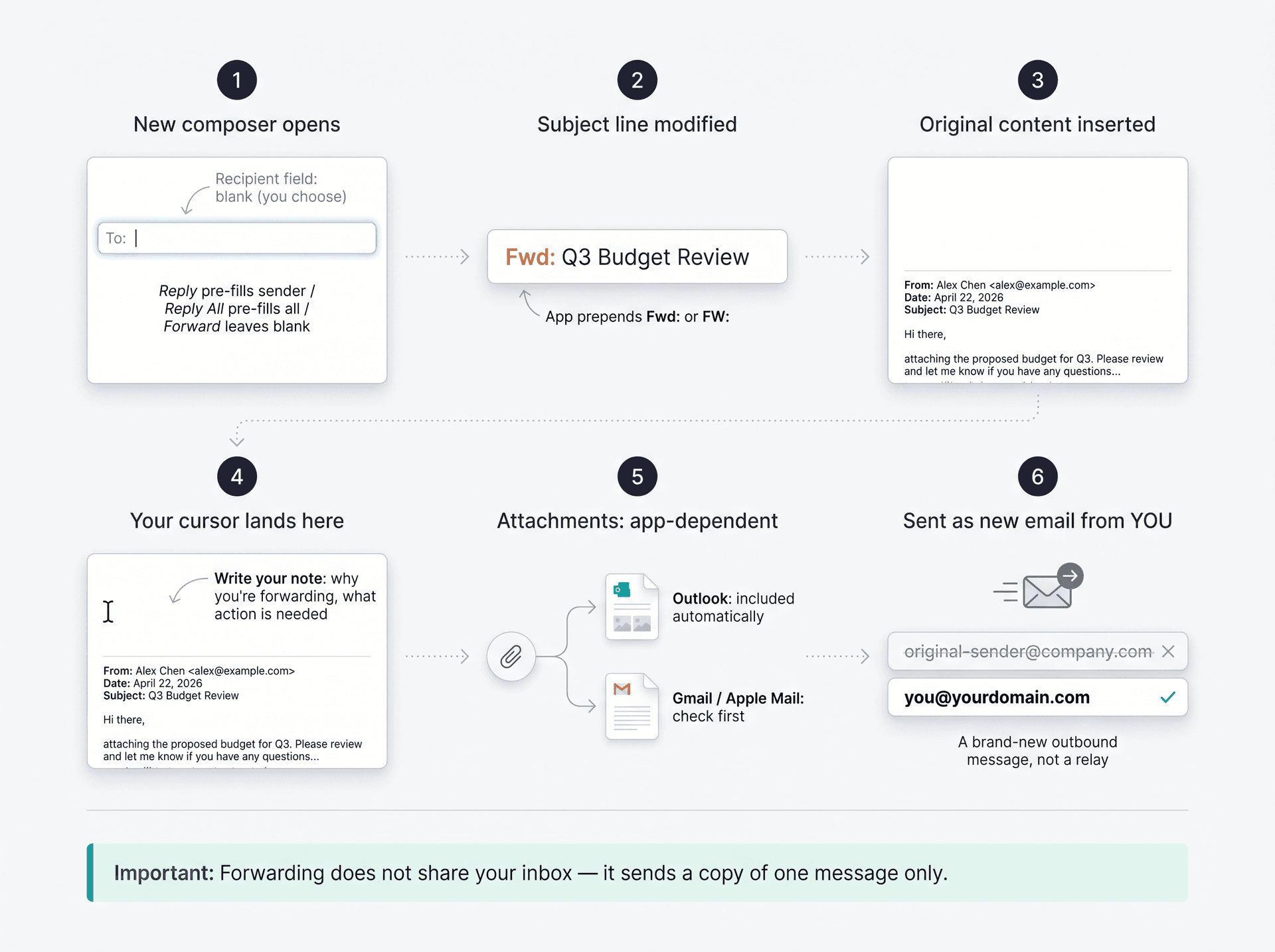
First, it opens a new message composer. Unlike Reply (which pre-fills the original sender's address) or Reply All (which adds everyone on To and Cc), forwarding leaves the recipient field blank so you can choose who gets the message. Microsoft's Outlook documentation distinguishes the three actions clearly: Reply goes to the sender, Reply All goes to the sender plus visible recipients, Forward lets you pick a new group entirely.
Second, the subject line gets modified. Most apps prepend "Fwd:" or "FW:" so the recipient knows they're receiving something passed along rather than a fresh message addressed to them.
Third, the original email content is inserted into the body. This usually includes visible metadata like the original sender's name and address, the date the email was sent, the subject, and sometimes the To/Cc fields.
Fourth, your cursor lands above that content so you can write your own note. This is where you explain why you're forwarding and what action you need.
Fifth, attachments may be included. Whether they transfer automatically depends on the app you're using (more on this shortly).
Sixth, your mail service sends it as a new outbound email from your address. Technically, email content and delivery information are defined separately under RFC 5322, the internet message format standard, but the practical point is simple: forwarded messages travel as new emails originating from you, not from the original sender.
Worth keeping in mind from the start: forwarding does not give the recipient any access to your inbox. It sends a copy of one message (and potentially its thread). Nothing more.
What Does the Recipient See When You Forward an Email?
The person receiving your forwarded email will typically see:
| What they can see | Why this matters |
|---|---|
| Your name and email address | The forwarded message comes from you, not the original sender |
| Anything you wrote above the forward | Your note is part of the new email |
| The original email's content | The full text of what you received |
| Original visible headers | Usually includes From, Date, Subject, sometimes To/Cc |
| Attachments | Depending on the app and your choices (see below) |
| Prior thread history | If the original email had earlier replies, they may be included |
| Signatures and disclaimers | Phone numbers, addresses, legal text travel with the forward |
| Tracking images | If the original had tracking pixels, they may survive the forward |
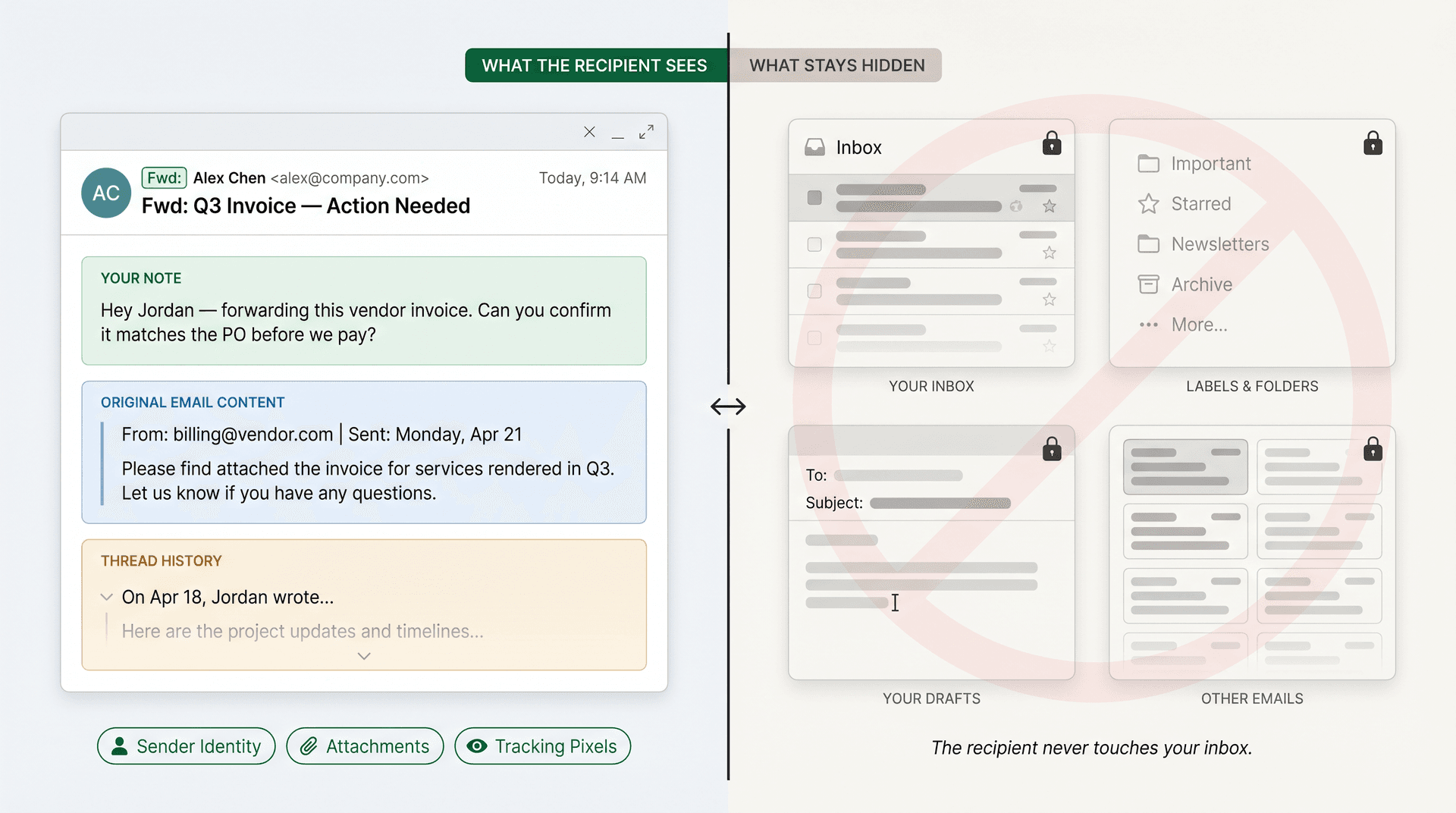
What they cannot see: your inbox, your labels or folders, your drafts, unrelated emails, or anything you didn't include in what you forwarded.
The biggest practical risk here isn't inbox access. It's that forwarding can expose more than you intended. Long email threads often contain internal comments, pricing discussions, personal phone numbers, private calendar links, or other participants' email addresses buried in older replies. An email that looks clean at the top might have three months of sensitive back-and-forth below the fold. Always expand and review the full thread before you hit send.
Does Forwarding an Email Notify the Original Sender?
This is the question most people really want answered.
Standard email forwarding does not send an automatic notification to the original sender. If you forward an email from Alex to Priya, Alex normally doesn't receive any alert.
That's the standard behavior, consistent with how email protocols work. But "normally doesn't" is doing some real work in that sentence. There are situations where the original sender can find out.
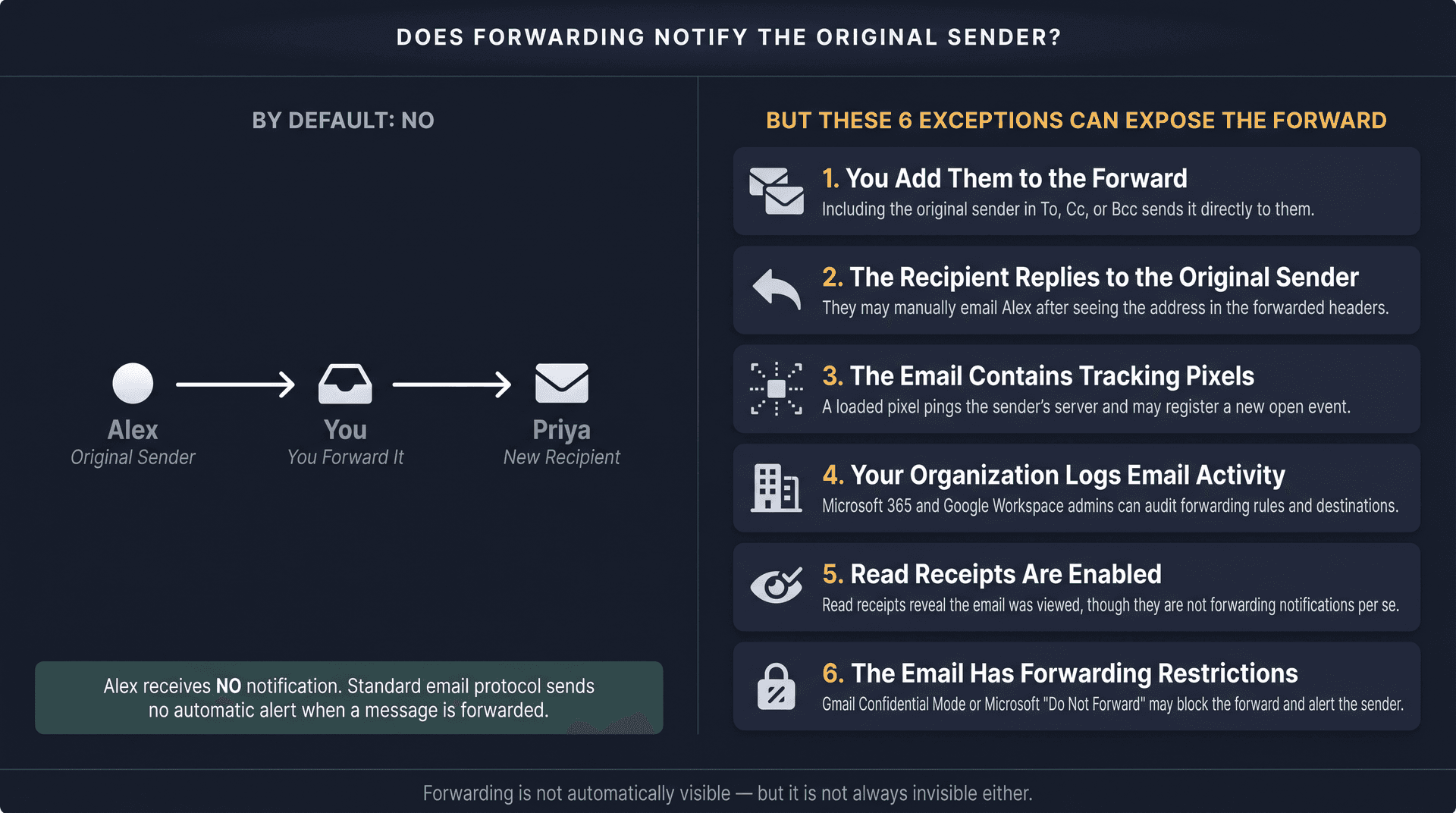
1. You add them to the forward. If you include the original sender in the To, Cc, or Bcc fields when forwarding, they'll obviously receive it. This happens more often than you'd think when people use autocomplete carelessly.
2. The forwarded recipient replies and includes them. The new recipient might manually reply to the original sender after seeing their address in the forwarded headers. They could also email the original sender directly. Either way, a chain can start that you didn't intend.
3. The original email contained tracking pixels. Tracking pixels are tiny, invisible images embedded in some emails (especially marketing messages). When your email client loads the image, it pings a server, which can log that the email was opened. If you forward a tracked email and the recipient opens it with image loading enabled, the original sender's tracking system may register another open event. Gmail partially mitigates this by caching images server-side, but it doesn't eliminate the risk entirely. Our guide to blocking email tracking pixels covers the full picture.
4. Your organization logs email activity. Company email systems, particularly Microsoft 365 and Google Workspace, keep records of message flow. Administrators can audit forwarding rules, external forwarding destinations, and in regulated industries, mail logs may be reviewed systematically. If you forward something sensitive from a work account, assume there's a log. Our Google Workspace email security guide walks through what admins actually see.
5. The email has read receipts enabled. Read receipts are a separate mechanism from forwarding notifications, but they can reveal that a message was viewed. Gmail's read receipt feature is only available for eligible work or school accounts, not personal Gmail. Google notes that receipts aren't a perfect measure of whether someone actually read the message. If you're curious about alternative ways to track email opens, our post on checking if an email was read without read receipts explains how that works.
6. The message has forwarding restrictions. Gmail's confidential mode disables recipients' ability to forward, copy, print, or download a message. Microsoft Purview sensitivity labels can apply a "Do Not Forward" restriction in supported Outlook environments. If you try to forward a protected message, the attempt may be blocked, and the sender may be notified depending on the system's configuration. Google itself warns that confidential mode can't prevent screenshots or copying by malicious software, so it's not airtight. See our breakdown of Gmail confidential mode vs regular email for a full comparison.
Forwarding is not invisible, but it's also not automatically visible. The exceptions above are worth knowing, especially if you're forwarding sensitive content from a work account.
Do Forwarded Emails Include Attachments?
It depends on which app you're using.
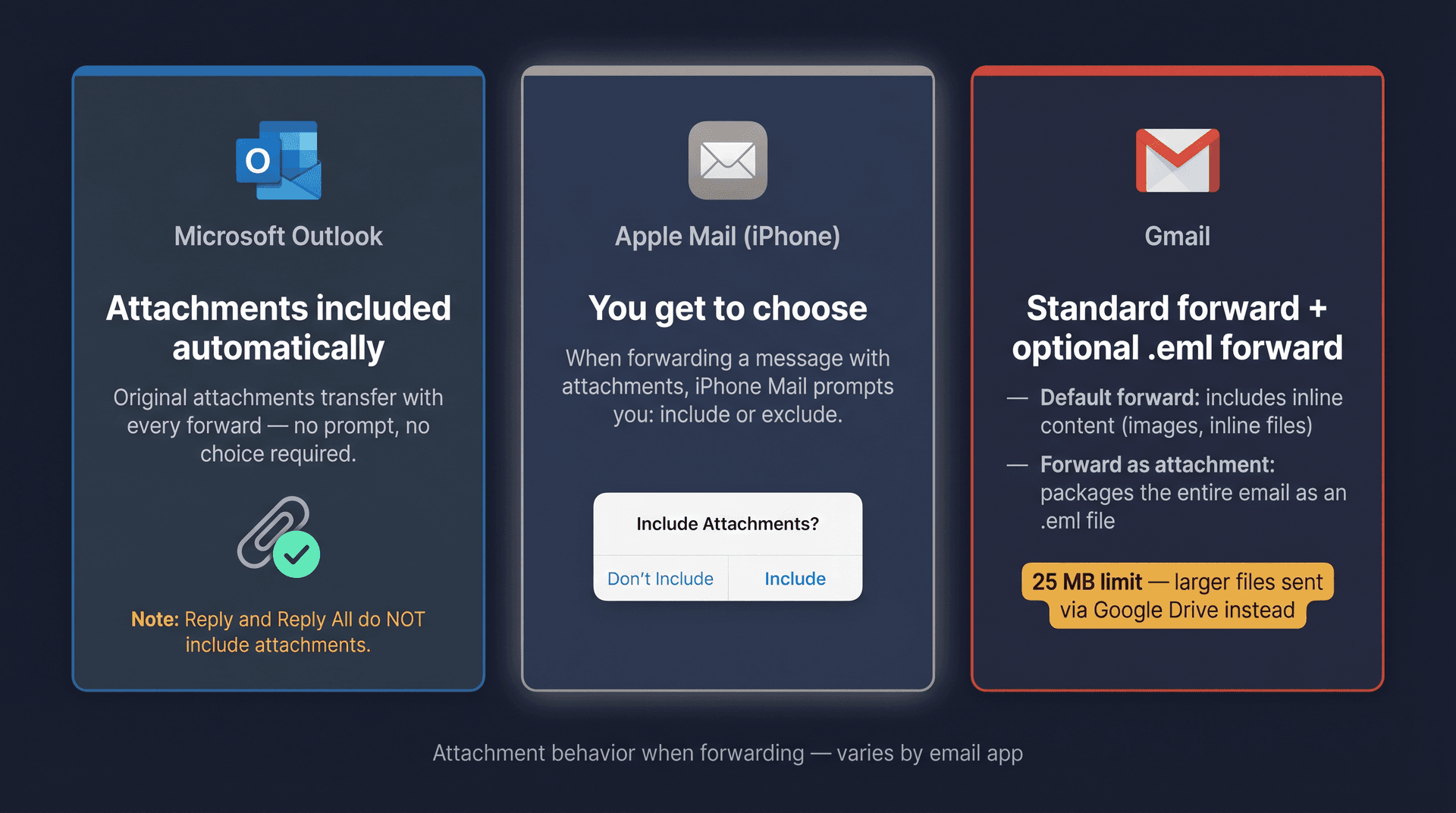
In Outlook, attachments are included automatically when you forward. This is different from Reply and Reply All, which do not carry original attachments. Microsoft's documentation makes this distinction explicitly.
In Apple Mail on iPhone, Apple gives you a choice. When you forward a message that has attachments, the app will ask whether you want to include them or not.
In Gmail, the default forward typically includes inline content but Gmail also has a specific "Forward as attachment" option, which sends the original email as an .eml file (a file format that preserves the complete email including headers). Google's documentation notes that you can attach multiple emails this way, and if the total size exceeds 25 MB, Gmail attaches them via Google Drive instead. Our Gmail attachment size limits guide covers the workarounds when you're hitting those caps.
Before forwarding anything sensitive, glance at the attachment area of the forwarded message. Attachments are easy to overlook, and they can carry a lot of information you didn't consciously choose to include. For more on finding and managing attachments, see our guide on how to find emails with attachments.
Forward vs Reply vs Reply All: What's the Difference?
These three actions are related but do different jobs.
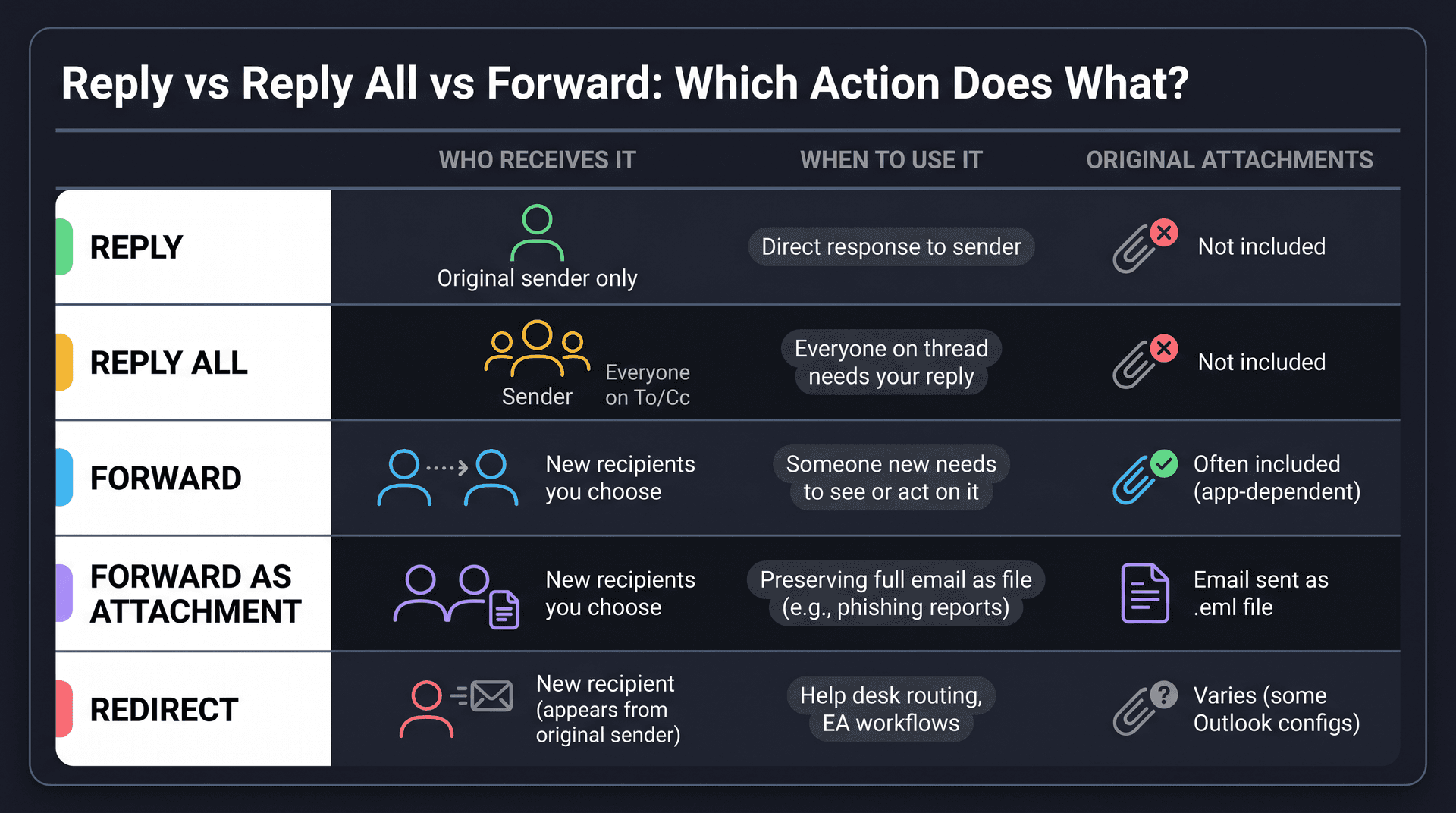
| Action | Who receives it | When to use it | Original attachments |
|---|---|---|---|
| Reply | The original sender only | Responding directly to the sender | Not included |
| Reply All | Sender plus everyone on To/Cc | When everyone on the thread needs your response | Not included |
| Forward | New recipients you choose | When someone else needs to see or act on the email | Often included (app-dependent) |
| Forward as attachment | New recipients you choose | When preserving the original email as a file matters (e.g., phishing reports) | Sends the email itself as an .eml file |
| Redirect | A new recipient, appearing as from the original sender | Executive assistant workflows, rule-based routing | Available in some Outlook configurations |
Our full guide on Reply vs Reply All vs Forward walks through the decision logic in more detail if you want a side-by-side comparison.
That last row is worth a brief explanation. Microsoft distinguishes forwarding from redirecting in its rule documentation: when you forward a message, the forwarded version appears to come from you and replies go back to you. When you redirect a message, it appears to come from the original sender and replies go to the original sender. Redirecting is common in help desk and executive assistant workflows where message attribution matters.
Manual vs Automatic Email Forwarding: Risks and Differences
There are two distinct kinds of email forwarding, and the risks are very different.
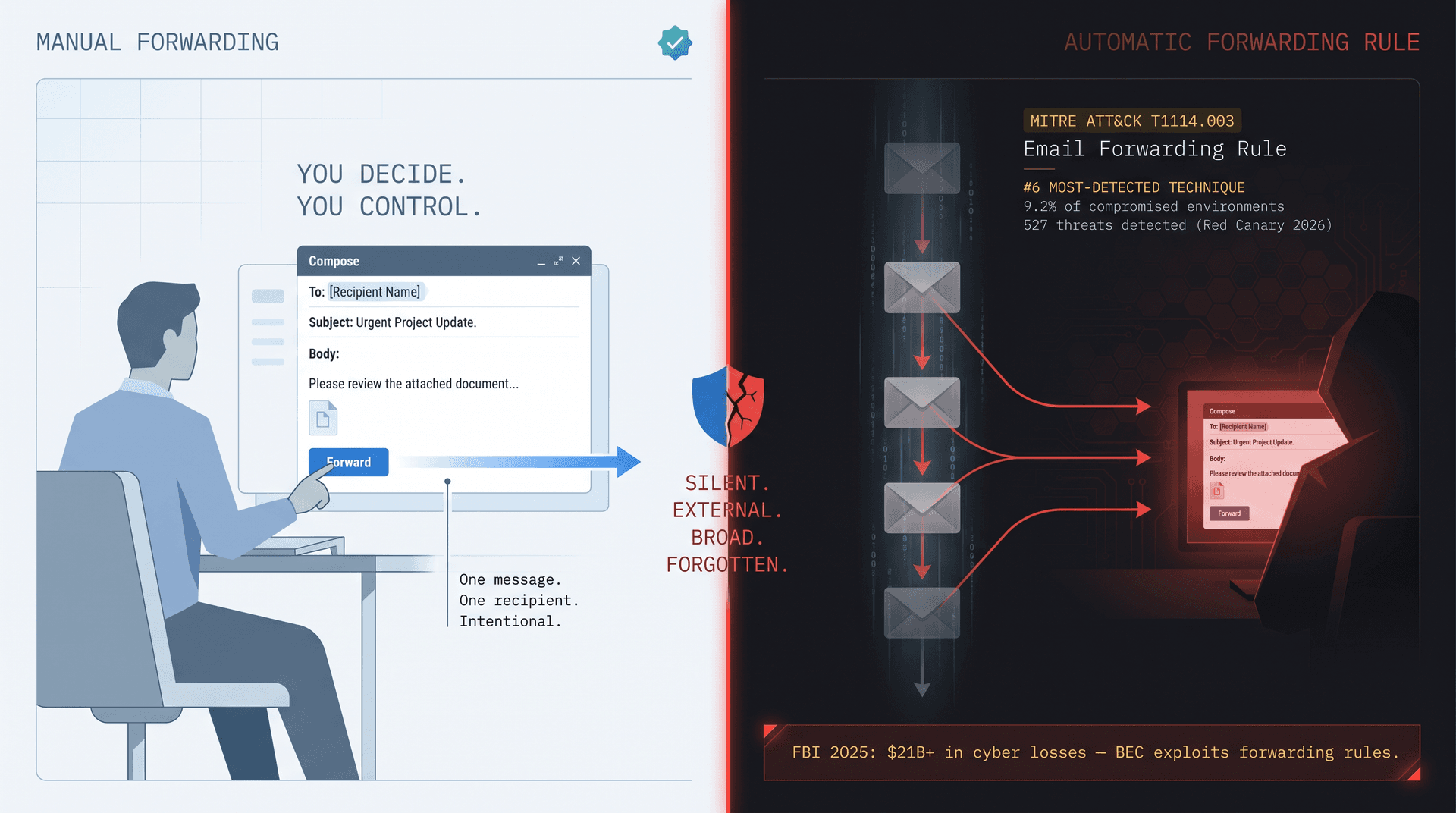
Manual forwarding is what most people think of: you open a message, click Forward, add recipients, write a note, and send it yourself. You're in control every time.
Automatic forwarding is when your email system forwards messages for you based on a setting or a rule. It can be incredibly useful, but it can also move sensitive information silently without anyone noticing.
How Automatic Forwarding Works in Gmail
Gmail lets you forward all new messages to another address, or forward selectively using filters. Google's documentation notes that Gmail sends a verification email to the destination address before forwarding starts, which prevents anyone from secretly configuring forwarding to an address they don't control. Gmail also shows a forwarding notice in the inbox for the first week after enabling it.
Pay attention to that notice. Google explicitly warns that if you see a forwarding notice you didn't set up yourself, you should change your password immediately and turn off forwarding. It's a signal that someone may have accessed your account.
How Automatic Forwarding Works in Outlook
Outlook's settings allow users to enable or disable forwarding and optionally keep a copy in the original mailbox. Rules can also forward, forward as attachment, or redirect messages automatically. In Microsoft 365, administrators can configure forwarding at the mailbox level through the admin center, and forwarding stops automatically if an account's license is removed.
Why Automatic Email Forwarding Is a Security Risk
Automatic forwarding rules are one of the most common tools attackers use after compromising an email account.
Security researchers track this as Email Forwarding Rule, MITRE ATT&CK technique T1114.003. Attackers set up a forwarding rule in a compromised account to silently copy every incoming email to an address they control, then monitor the victim's inbox over time, often for weeks, even after the initial access method is closed.
Red Canary's 2026 Threat Detection Report ranked email forwarding rules as their sixth most-detected technique, appearing in 9.2% of customer environments with 527 threats detected. Microsoft Defender's guidance describes the same pattern: compromised accounts used to read inboxes, forward emails externally, and send phishing messages while the legitimate owner is unaware.
And the financial context matters. The FBI's 2025 Internet Crime Report recorded nearly $21 billion in losses from cyber-enabled crime. Business Email Compromise, which often exploits forwarding rules, is consistently one of the most costly attack types. Our email phishing prevention guide covers how to protect your organization from these attacks.
Forwarding itself is not the problem. Silent, external, broad, or forgotten automatic forwarding is.
When Should You Forward an Email?
Forwarding makes sense when the new recipient genuinely needs the original message. It doesn't make sense as a substitute for a clear summary or a proper workflow.
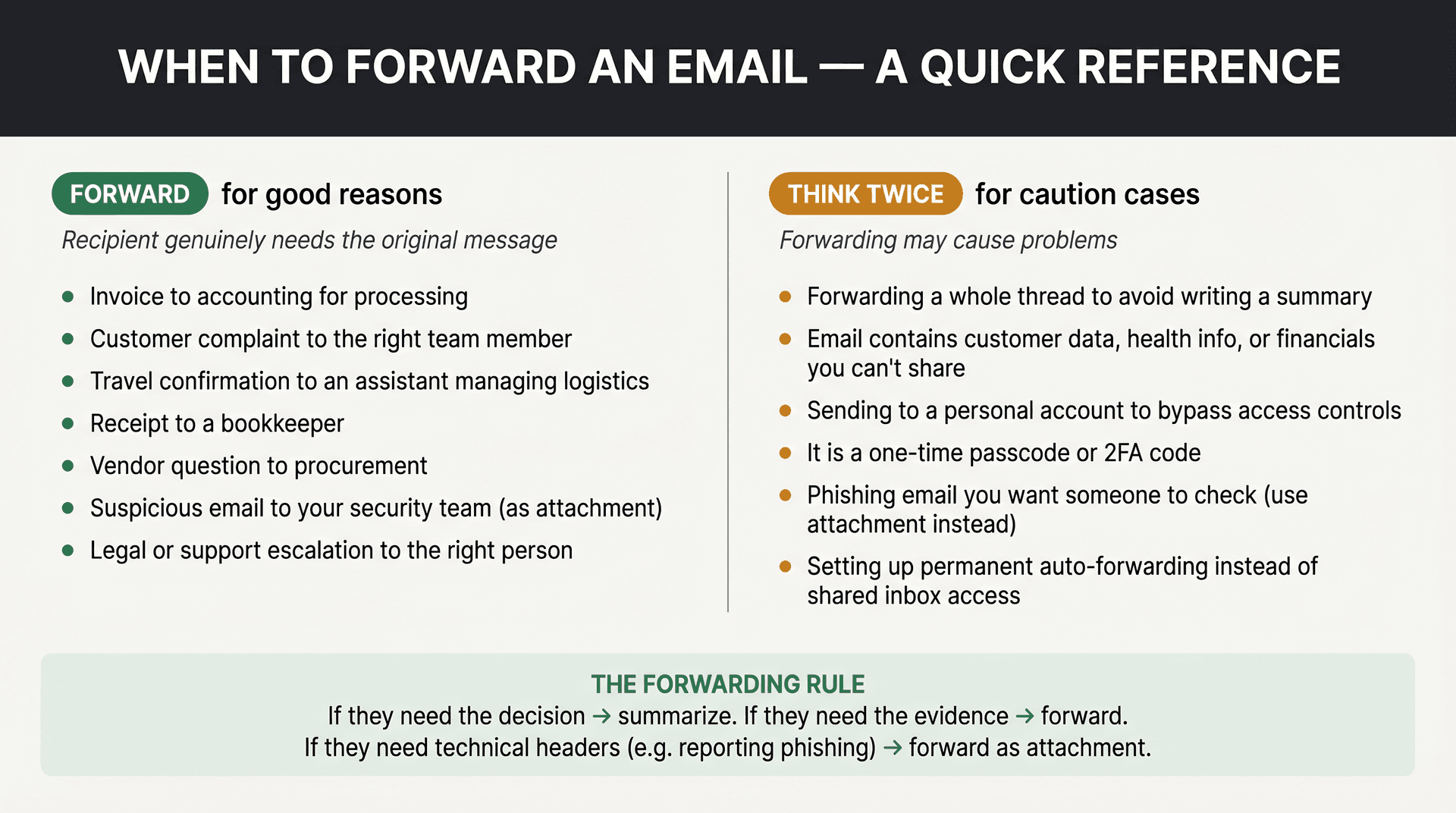
Good reasons to forward:
-
An invoice to accounting for processing
-
A customer complaint to the right team member
-
A travel confirmation to an assistant who needs to manage logistics (if you need to set this up automatically, see our email forwarding for vacation guide)
-
A receipt to a bookkeeper
-
A vendor question to whoever handles procurement
-
A suspicious email to your security team (preferably as an attachment)
-
A legal or support escalation to the right person
Think twice before forwarding if:
-
You're forwarding a whole thread just to avoid writing a two-sentence summary
-
The email contains customer data, personal health information, or financial details you haven't been authorized to share
-
You're sending it to a personal account to work around access controls
-
It's a one-time passcode (forwarding a 2FA code can defeat the entire purpose of two-factor authentication)
-
The email is a potential phishing attempt you want to "check" by showing someone
-
You'd be setting up permanent auto-forwarding as a substitute for giving someone proper shared inbox access
If the recipient only needs the decision, summarize. If they need the evidence, forward. If they need the original technical headers (like when reporting phishing), forward as attachment.
Good email management strategies start with knowing when forwarding is the right tool and when it's a crutch.
How to Forward an Email Safely
Running through this quickly before forwarding anything sensitive takes about 30 seconds and saves a lot of headaches.
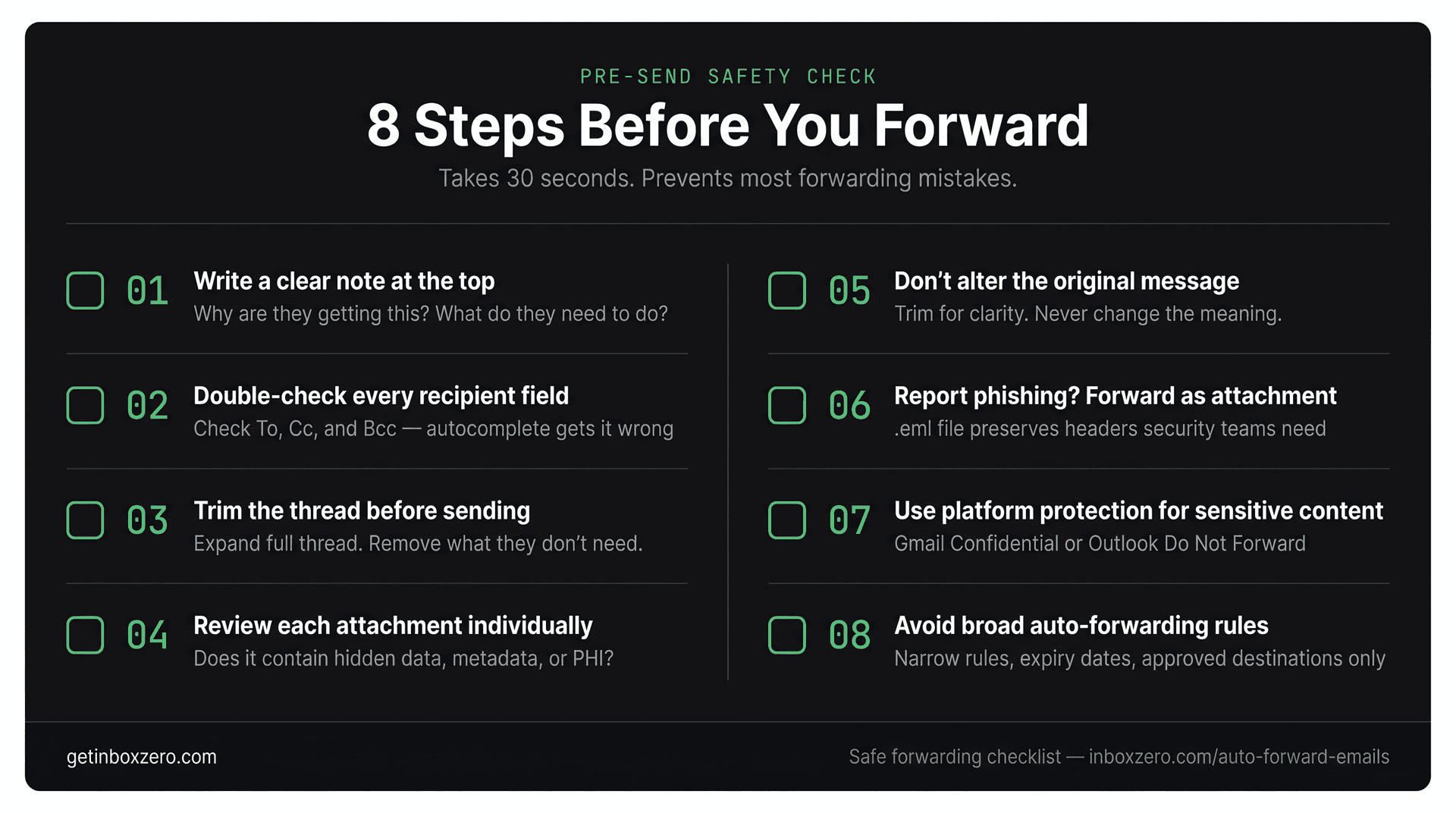
1. Write a clear note at the top
Don't send a blank forward. Tell the recipient why they're receiving this, what you need from them, and whether it's urgent. Something like:
"Forwarding this vendor invoice. Can you confirm it matches the purchase order before we process payment? No rush, but please let me know by Friday."
A useful forward answers three things: why are you receiving this, what action is needed, and whether to reply to you or directly to the original sender.
2. Double-check the recipient field
Autocomplete in email is helpful until it fills in the wrong "Sarah." Before hitting send, verify:
-
Every address in To, Cc, and Bcc
-
Whether you're sending to a personal vs work address
-
Whether any group aliases or shared inbox addresses are included
-
Whether there are external domains you weren't expecting
3. Trim the thread before sending
Expand the full conversation. Remove any parts the recipient doesn't need: internal comments, pricing negotiations, unrelated discussion, personal contact information, or anyone's private calendar links. If the thread is long, consider summarizing the key points in your note and deleting the older content entirely.
4. Review each attachment individually
For each attachment, ask yourself:
-
Does this person actually need this?
-
Is it the right version?
-
Does it contain hidden comments, tracked changes, or metadata?
-
Does it include employee, customer, financial, or legal information?
If they don't need it, remove it.
5. Don't alter the original message in a misleading way
You can trim irrelevant content for clarity and privacy. You should not edit someone's words in a way that changes their meaning. If you're paraphrasing or summarizing, make that explicit.
6. For phishing emails, use forward as attachment
If you're reporting a suspicious email to your IT or security team, ask whether they want it forwarded as an attachment rather than an inline forward. Gmail's forward-as-attachment feature preserves more of the original technical detail, which helps security teams investigate. Our email phishing prevention strategies guide covers the full reporting workflow.
7. For sensitive content, use platform-level protection
Gmail's confidential mode restricts the recipient's ability to forward, print, copy, or download the message. Microsoft's "Do Not Forward" protection (available in supported Outlook environments) does the same. Neither is completely airtight against screenshots, but both add friction that reduces casual oversharing. See our Gmail confidential mode guide for a full breakdown of when to use it.
8. Be very careful with broad auto-forwarding
Forwarding everything from your work inbox to a personal account is almost always a bad idea from a security and compliance standpoint. If you do set up automatic forwarding:
-
Narrow it to specific senders, subjects, or categories
-
Set an expiration on the rule and review it regularly
-
Keep a copy in the original mailbox
-
Make sure the destination address is approved by your organization
If you need structured auto-forwarding that logs every action, Inbox Zero's auto-forward feature is built specifically for this: rule-based, auditable, and without the security risks of broad forwarding rules.
Common Email Forwarding Mistakes to Avoid
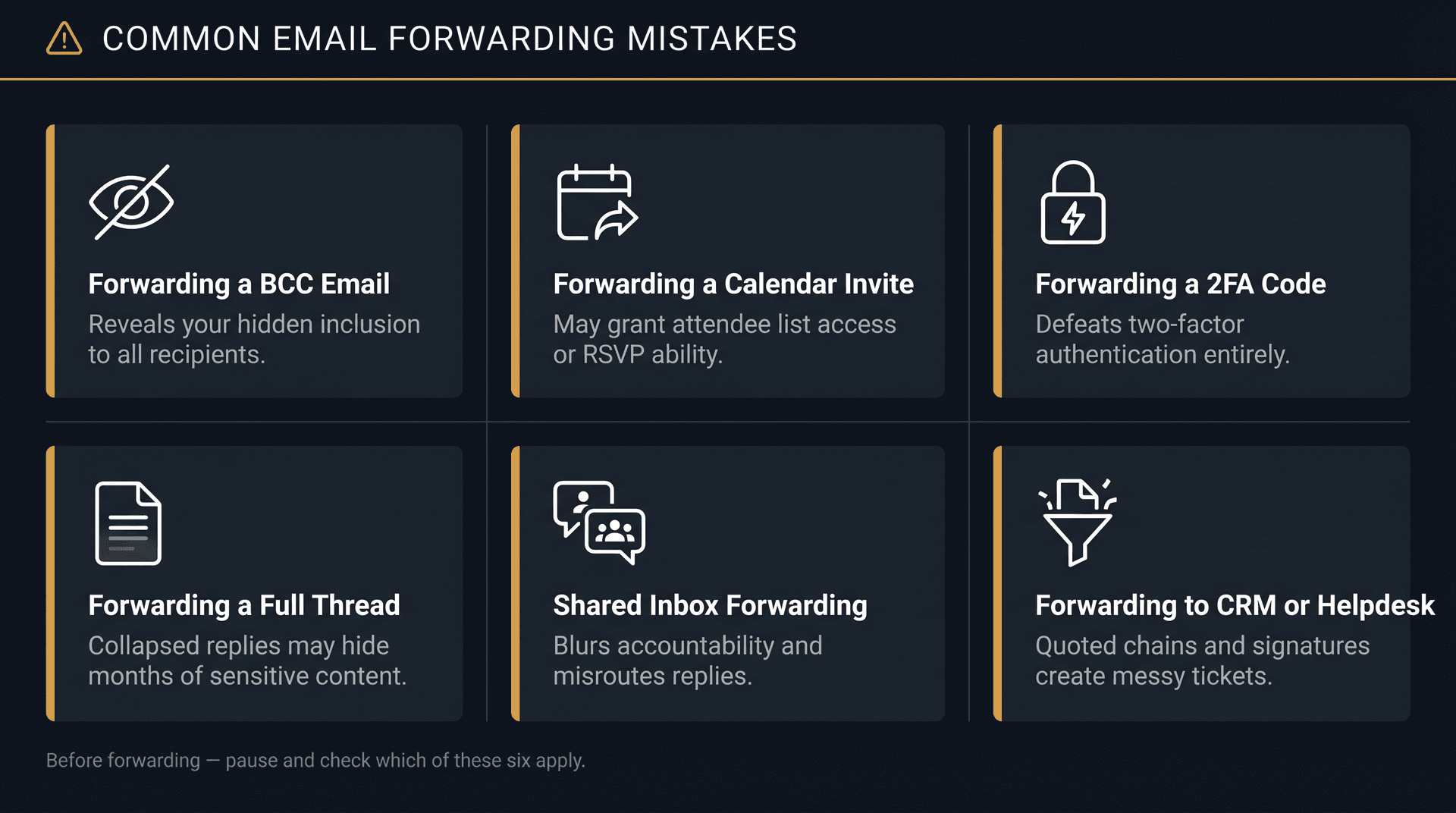
What happens when you forward a Bcc email?
If you were Bcc'd on an email, the other recipients don't know you received it. Forwarding that email can expose your involvement and reveal that someone used Bcc to privately include you. If you were Bcc'd, think carefully before passing the message along. Our complete guide to Gmail BCC explains the privacy implications of Bcc in detail.
What happens when you forward a calendar invite?
Calendar invites don't always behave like regular emails. Depending on the calendar system, a forwarded invite might allow the recipient to accept, view the attendee list, or see meeting details. For sensitive meetings, it's better to add someone through the calendar system directly rather than casually forwarding the invite.
Should you forward a one-time passcode or 2FA code?
Two-factor authentication codes are designed to be used once, by one person. Forwarding a 2FA code to help someone log in defeats the whole point of two-factor authentication and could expose the account if the code is intercepted. If a team legitimately needs shared access to accounts, use a proper password management or access control system instead.
What to do before forwarding an entire email thread
Email apps often collapse older replies, making it easy to forward a message without realizing there are three months of conversation below. Always expand the full thread and read it top to bottom before forwarding. This is one of the most common ways sensitive content gets accidentally shared.
How to forward emails from a shared inbox
If you're forwarding from an inbox shared by a team, decide whether the message should appear to come from you personally or from the shared address. This affects accountability, how replies are routed, and how the customer or partner on the other end perceives the communication. Our guide to shared mailbox management best practices covers how to set the right standards here.
How to forward emails to a ticketing or CRM system
Support tools, CRMs, and helpdesks can ingest forwarded emails, but results vary. A message forwarded with a long quoted chain, multiple attachments, and a corporate signature block can create a messy ticket. Check what the system actually does with forwarded content before making it part of your workflow. Better email management strategies usually involve routing rules rather than ad-hoc forwarding.
How Inbox Zero Handles What Forwarding Can't
Forwarding is a blunt tool. You're doing it manually, one message at a time, with no classification system behind it. When you find yourself forwarding the same type of email over and over, that's a signal worth paying attention to.
The Inbox Zero homepage shows its AI email assistant working directly inside Gmail and Outlook — no separate inbox, no parallel mailbox to manage.
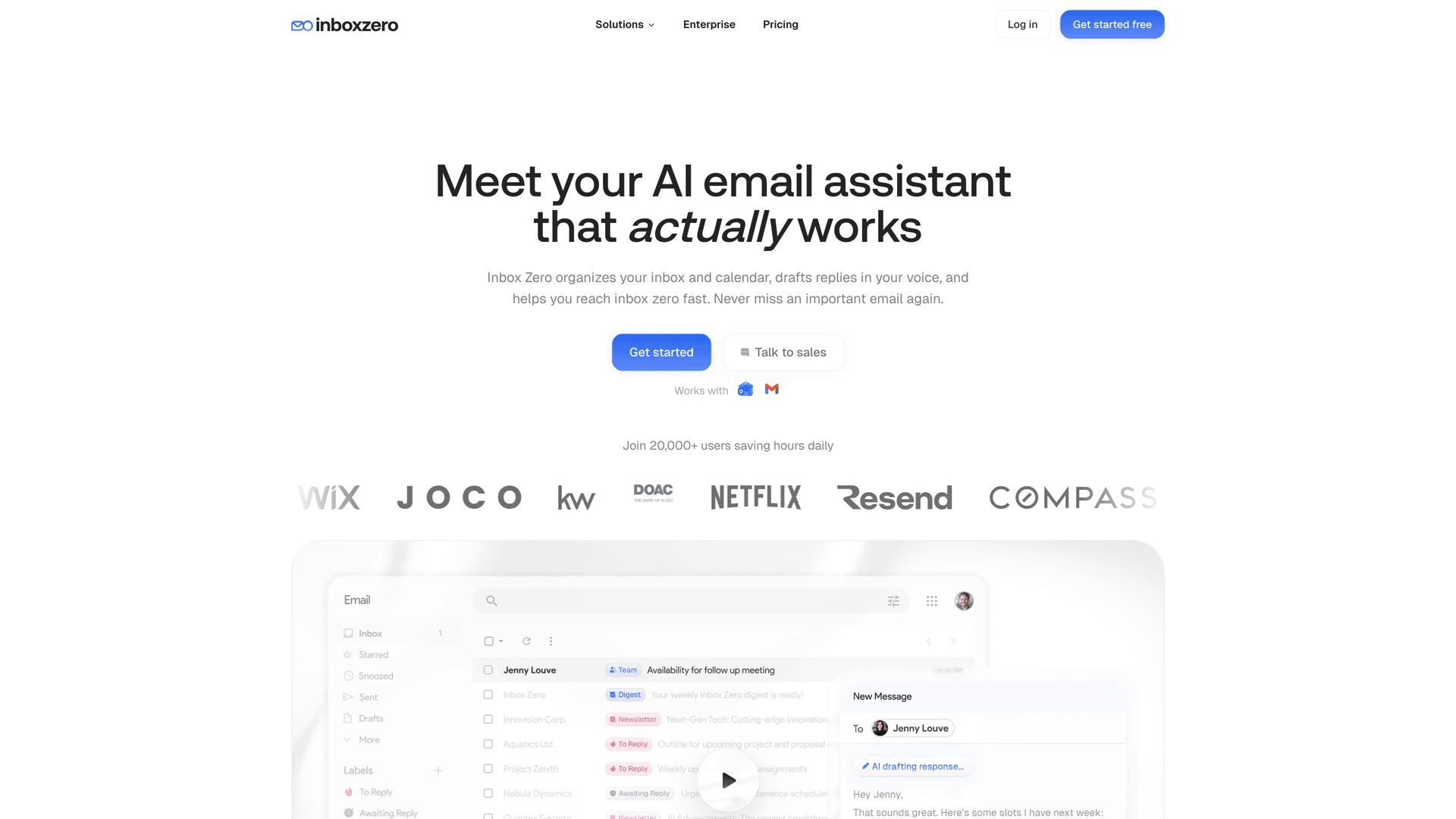
Inbox Zero is built for this. It's an AI email assistant that works directly inside Gmail and Microsoft Outlook (no separate inbox to manage), and it can automate the routing decisions that you're currently making manually.
How smart email routing works in practice
Inbox Zero has a dedicated auto-forwarding feature designed for exactly these recurring cases:
-
Receipts to accounting
-
Invoices to finance
-
Two-factor authentication codes to a shared operations channel
-
Support requests to a helpdesk
-
Newsletters to an archive mailbox
-
Customer escalations to a shared team address
You describe the rule in plain English. Inbox Zero's AI automation figures out which emails match and routes them automatically, based on sender, subject, content, or AI-powered classification.
The auto-forward feature page spells out exactly how this differs from a blanket Gmail or Outlook forwarding rule — you set conditions, Inbox Zero handles the matching.
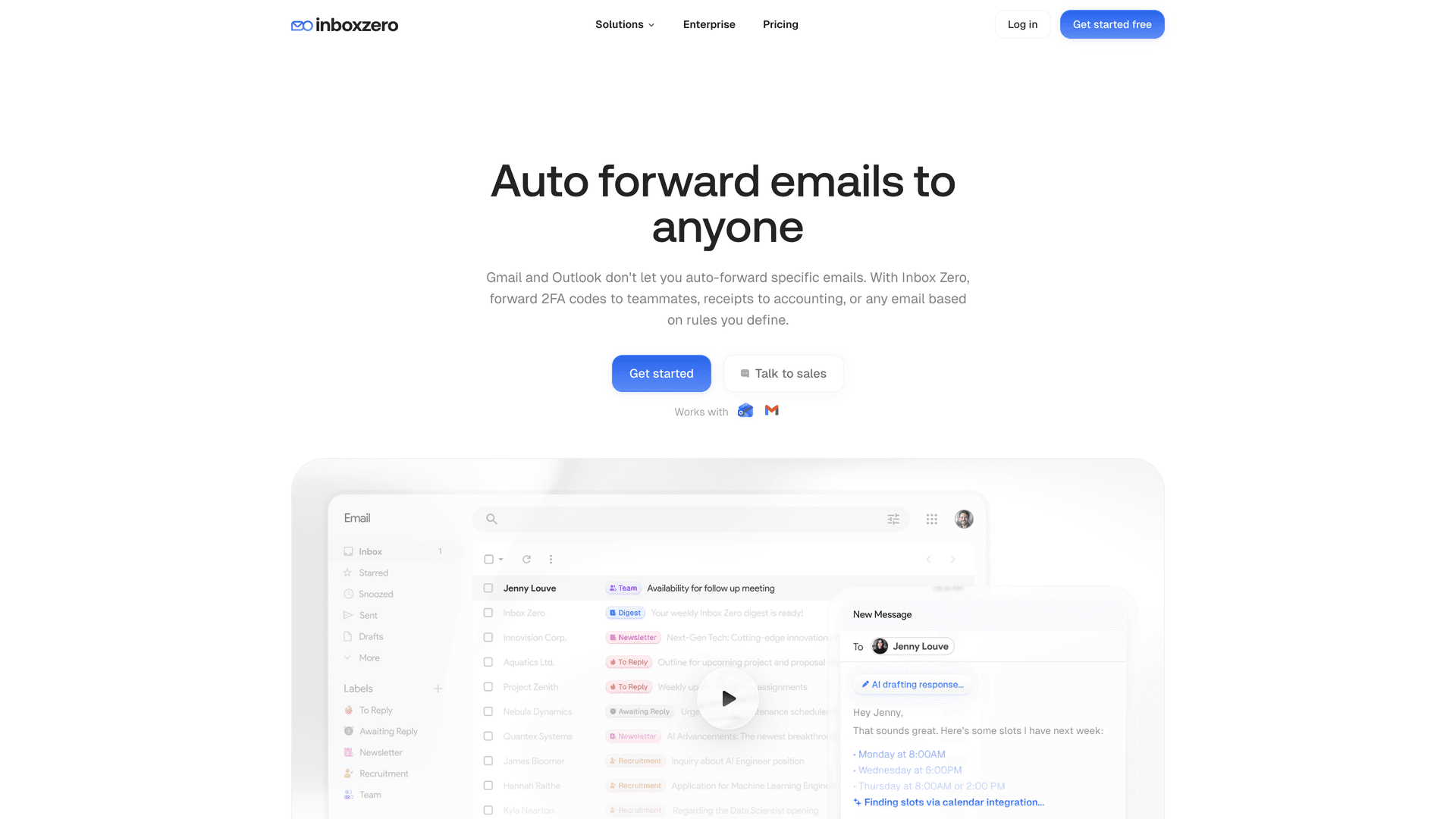
A safer alternative to forwarding everything automatically
Rather than broad forwarding, Inbox Zero follows a five-step process that keeps humans in control:
① Classify the email (what type of message is this?)
② Label it (so you can find and audit it later)
③ Draft or route only when appropriate (not for everything)
④ Keep humans in control for sensitive categories (approval before sending)
⑤ Review what happened (audit trail of actions taken)
This is categorically safer than setting up a blanket auto-forward rule and forgetting about it.
Other Inbox Zero features for email management
Beyond routing, Inbox Zero's Reply Zero feature labels every thread that needs a response and every thread where you're waiting on someone, so nothing falls through the cracks. The Bulk Email Unsubscriber lets you see which newsletters you actually read and clean up the ones you don't. And the Cold Email Blocker handles unsolicited outreach automatically.
If you use Gmail, the Inbox Zero Tabs extension adds a customizable tab system directly in Gmail's interface (To Reply, Newsletters, Receipts, Team, and more). It runs entirely in your browser with local storage, no data collection.
The project is open source with around 10.5k GitHub stars and 1.3k forks. Pricing starts at $18/user/month billed annually, and there's a 7-day free trial.
If you're spending more time than you'd like manually forwarding emails that follow predictable patterns, it's worth trying.
Frequently Asked Questions About Email Forwarding
Does forwarding an email delete the original?
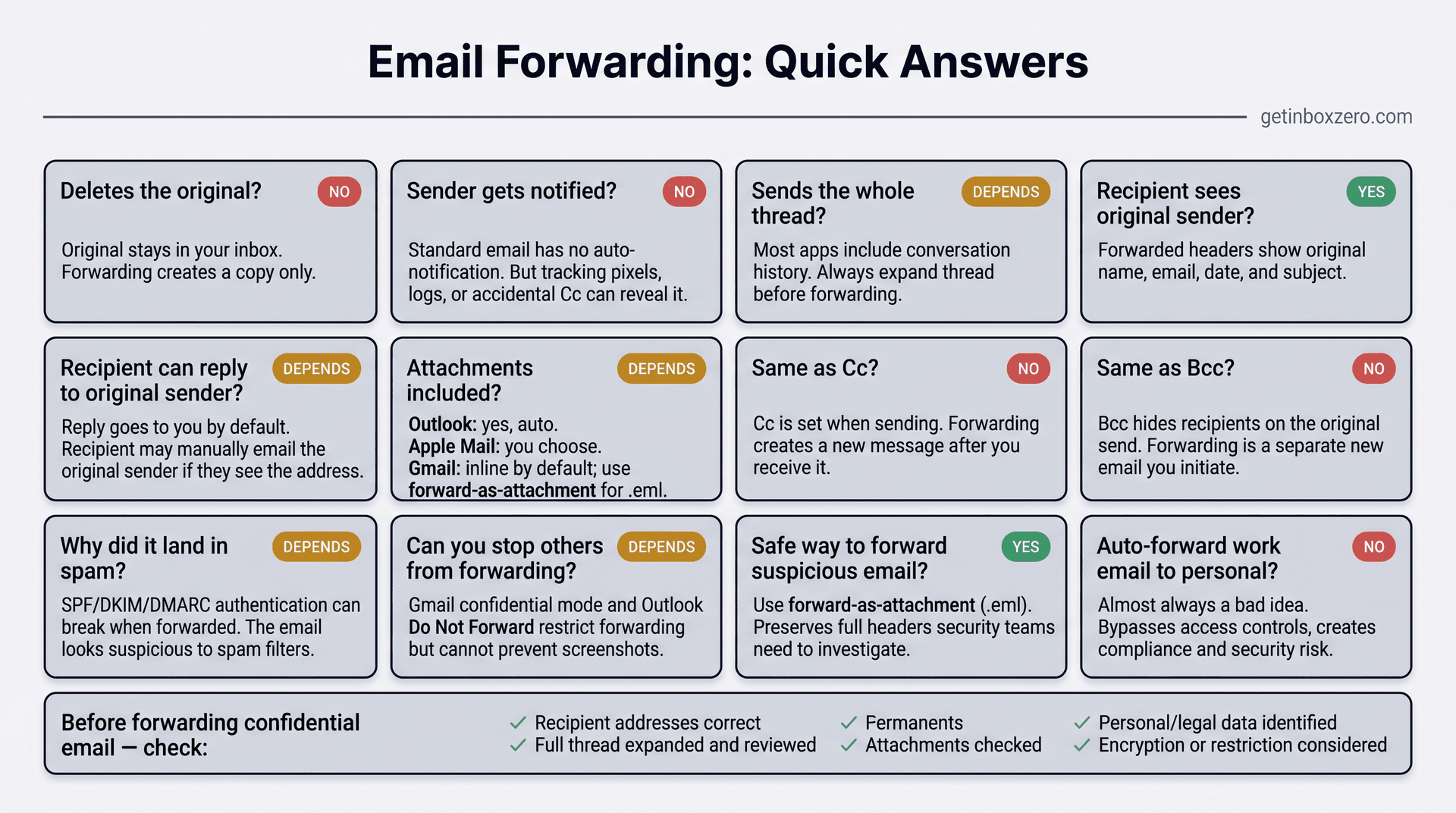
No. Forwarding creates a copy. The original stays in your inbox exactly as it was unless you delete, archive, move, or filter it separately.
Does the original sender know I forwarded their email?
Not through any automatic notification from standard email. But they might find out if you included them in the forward, if the recipient replies and involves them, if the original email had tracking pixels that logged another open, or if your organization's email system keeps forwarding logs. See the full breakdown in the section above.
Does forwarding send the entire thread or just one message?
It can send the whole thread. Many email apps include visible conversation history in the forwarded content. Always expand the full thread before forwarding to see what's included.
Can the person I forward to see the original sender?
Usually yes. Forwarded emails typically include a forwarded-message block showing the original sender's name, email address, the date, and the subject. The recipient can see this and could email the original sender directly if they chose to.
Can the forwarded recipient reply to the original sender?
In a standard forward, clicking Reply goes back to whoever forwarded the message (you). But the recipient may be able to manually email the original sender if they can see the original sender's address in the forwarded headers. In Outlook redirect workflows, replies can go directly to the original sender.
Are attachments included when I forward?
It depends on the app. Outlook includes original attachments automatically. Apple Mail on iPhone gives you the choice. Gmail's forward-as-attachment option sends emails as .eml files, with larger files going through Google Drive.
Is forwarding the same as Cc?
No. Cc is added when the original email is sent, as part of that outgoing message. Forwarding happens after you receive an email and creates a new message to new recipients.
Is forwarding the same as Bcc?
No. Bcc hides recipients on the original outgoing email so other people can't see them. Forwarding creates a new, separate email after you receive the original. Our guide to Gmail BCC explains when to use each.
Why did my forwarded email land in spam?
Forwarding can cause authentication problems. Email systems use three standards to verify messages are coming from authorized servers: SPF (Sender Policy Framework), which lists the servers authorized to send on behalf of a domain; DKIM (DomainKeys Identified Mail), which adds a cryptographic signature to the message; and DMARC, which tells receiving servers what to do when authentication checks fails. When an email is forwarded, it arrives from a different server than the original sender used, which can trigger SPF failures. Google's forwarding best practices documentation notes that DKIM is particularly important here, and that modifying headers or message content can break the DKIM signature. The result is a legitimate forwarded email that looks suspicious to spam filters. Our post on why emails go to spam instead of inbox covers the authentication mechanics in depth.
Can I stop someone from forwarding my email?
You can make it harder. Gmail's confidential mode removes the ability to forward, print, copy, or download, and Google explicitly acknowledges it can't prevent screenshots. Microsoft's Do Not Forward option in supported Outlook environments works similarly. Neither solution is completely bulletproof, but both meaningfully reduce casual oversharing. See our Gmail confidential mode guide for a breakdown of exactly what it restricts.
What's the safest way to forward a suspicious email?
Use your organization's built-in report-phishing button if one exists. If your security team asks you to forward it, use Gmail's or Outlook's forward-as-attachment option. Forwarding as an attachment (.eml file) preserves more of the original technical headers, which security researchers need to investigate properly.
Should I auto-forward all my work emails to a personal inbox?
Almost certainly not. It creates security, privacy, and compliance problems. Work email often contains confidential information, and forwarding it to a personal account bypasses access controls your organization depends on. If you need convenient access to work emails outside the office, talk to IT about the appropriate solution for your organization. For structured auto-forwarding of specific email types, Inbox Zero's auto-forward feature is a far safer alternative.
What should I check before forwarding a confidential email?
Check the recipient addresses carefully, expand and read the full thread history, review every attachment, look for personal data or legal/financial information in the thread, and consider whether encryption or a forwarding restriction would be more appropriate than a standard forward.
Forwarding is one of those email features that looks simple from the outside and turns out to be more nuanced the longer you use it. The mechanics aren't complicated, but knowing what travels with a forwarded email (thread history, attachments, tracking pixels, visible sender addresses), understanding when the original sender might find out, and recognizing when automatic forwarding crosses into security risk territory makes you a meaningfully safer and more intentional email user.
For the emails you forward once, do it with care. For the ones you forward on a schedule, consider building a rule instead. That's what Inbox Zero is designed for.
What is the Inbox Zero Method & How do I Master It?
Discover the Inbox Zero method and learn simple steps to take control of your email inbox, stay organized, and boost productivity.

4 Email Productivity Hacks from Tim Ferriss, Andrew Huberman, and Sam Harris
Explore 4 powerful email productivity hacks from tech and wellness experts like Tim Ferriss and Andrew Huberman. Learn to create focus, optimize processing, manage time wisely, and delegate effectively to conquer your inbox.
Best Time to Send Emails for Response (2026)
Stop guessing when to send emails. Get data-backed timing strategies from 2026 research that improve response rates across all scenarios.
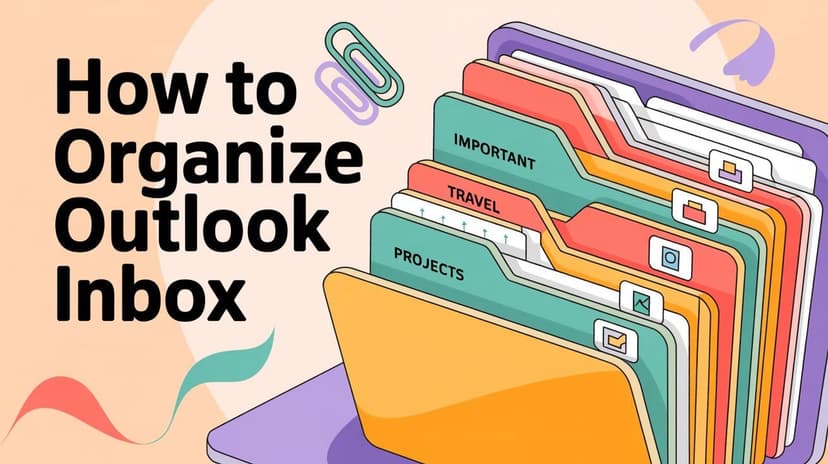
How To Organize Outlook Inbox? (2026 Guide)
Learn how to organize Outlook inbox with rules, folders, categories, and AI automation. Step-by-step guide for 2026 that actually works.